> ## Documentation Index
> Fetch the complete documentation index at: https://docs.daily.co/llms.txt
> Use this file to discover all available pages before exploring further.
# Daily Android Mobile SDK Kotlin Quickstart
> Learn how to get started using the Daily Android Mobile SDK with Kotlin to create a video mobile application
In this quickstart, we will introduce you to [Daily's Client SDK for Android](/docs/android) by walking through the creation of a simple video call application. By the end of this walkthrough, you'll have a starting point for writing Daily-powered video apps for Android with Kotlin.
This walkthrough will implement the following features:
* Creating and joining a public Daily room
* Asking for required application permissions
* Displaying videos from local and remote room participants
* Managing local microphone and camera input
* Leaving the call
You can find the full codebase of this Android app [on GitHub](http://github.com/daily-demos/quickstart-android).
## Prerequisites
Before you get started, make sure you have a functioning Android development environment including [Android Studio](https://developer.android.com/studio). You will also need a [free Daily account](https://www.daily.co/signup).
If you plan to test your app on a hardware device, make sure you have [debugging enabled on the device](https://developer.android.com/studio/debug/dev-options).
If you plan to test your app on an emulator, make sure you [have a virtual device created](https://developer.android.com/studio/run/managing-avds). Note that by default, the emulator will use an emulated camera.
## Create a Daily room
Begin by navigating to Daily's developer dashboard and [creating a new Daily room](https://dashboard.daily.co/rooms/create).
Give your room a name and click the "Create room" button. All other options can be left at their defaults.
Make note of your Daily room URL. We'll be using it in the code shortly.
## Create a new Android project
Next, open Android Studio. From the Welcome screen, create a new project using the "Empty Views Activity" template.
Give your project a name and make sure the project language is set to Kotlin. Next, click the "Finish" button to have Android Studio set up your new project.
Note that if this is your first Kotlin project setup, it can take a few minutes for Android Studio to download relevant dependencies and initialize the project for the first time.
## Add a dependency on Daily's Client SDK for Android
With your new project created, you can add the Daily's Android SDK as a dependency. Android Studio uses [Gradle](https://gradle.org/) as its default build tool and dependency manager. Open the project's Gradle build script in the app directory:
Once open, add `'co.daily:client:0.8.0'` to the dependencies object:
```kotlin theme={null}
dependencies {
implementation 'co.daily:client:0.8.0'
//...
}
```
The latest release of Daily's Client SDK for Android is 0.8.0 at
the time of this publication. When developing your production application, we
recommend referencing the{' '}
latest stable version
.
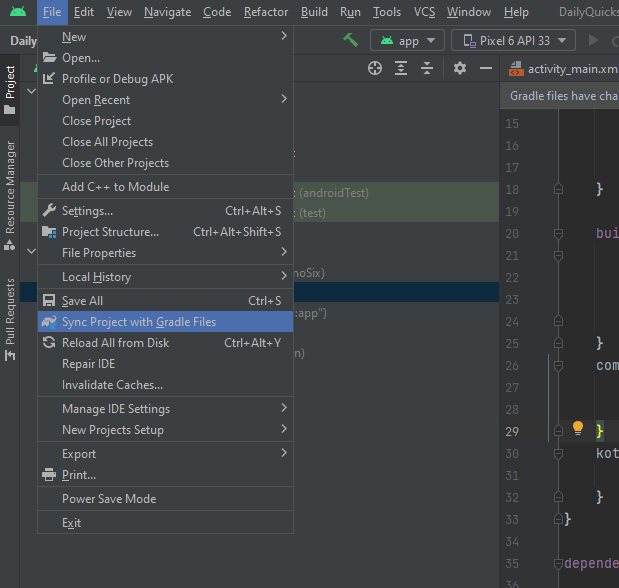
Save the Gradle file and then sync the changes by using the `Sync Project with Gradle Files` command in the Android Studio File menu.
## Import namespaces and classes
After adding a dependency on Daily's Android SDK, we can import relevant classes. Open `app/java/com.example.[YOUR_APP_NAME]/MainActivity.kt` and add the following `import` statements:
```kotlin theme={null}
// ...Existing imports above...
```
## Setting up the Main Activity
The next step is modifying the `MainActivity` class to set up the basic structure of our application.
Start by adding the `TAG` member variable and two functions:
* `initializeCallClient()`
* `checkPermissions()`
Then, add a call to `checkPermissions()` from the `onCreate()` function.
```kotlin theme={null}
class MainActivity : AppCompatActivity() {
private val TAG: String = "MainActivity"
override fun onCreate(savedInstanceState: Bundle?) {
super.onCreate(savedInstanceState)
setContentView(R.layout.activity_main)
checkPermissions()
}
private fun initializeCallClient() {
// Initialize the Daily Call Client object once permissions have been granted
}
private fun checkPermissions() {
// Check permissions have been granted and if not, ask for permissions
}
}
```
Build the application to verify that there are not errors or warnings.
## Configure application permissions
The application will need a number of user permissions in order to access the internet, use the device camera, and record and play audio. To request these permissions, we have to declare what we need as part of our app manifest.
Open `manifests/AndroidManifest.xml`. Then, add the following `uses-permission` and `uses-feature` elements inside the `` tag:
```xml theme={null}
```
Modifying the app manifest tells Android which permissions the app *intends* to use. However, we still need to request these permissions from the user. To do so, we'll add some additional code to `MainActivity.kt`, which uses Android's built-in tools for creating [runtime permission requests](https://developer.android.com/training/permissions/requesting).
First, create a member variable named `requestPermissionLauncher` and use it to register an activity using the `RequestMultiplePermissions` [contract](https://developer.android.com/reference/androidx/activity/result/contract/ActivityResultContracts):
```kotlin theme={null}
private val TAG: String = "MainActivity"
private val requestPermissionLauncher =
registerForActivityResult(ActivityResultContracts.RequestMultiplePermissions()) { result ->
if (result.values.any { !it }) {
checkPermissions()
} else {
// Permission is granted, we can initialize the call
initializeCallClient()
}
}
```
The activity `RequestMultiplePermissions` takes an array of permissions the application would like to request.
In the activity callback, we check to see if additional permissions are needed. If so, we run `checkPermissions()`. If not, the application can call `initializeCallClient()` to begin setting up the video call.
Next, implement the `checkPermissions()` method you defined within the `MainActivity` class as follows:
```kotlin theme={null}
private fun checkPermissions() {
// Check whether permissions have been granted.
// If not, ask for permissions
val appContext: Context = applicationContext
val permissionList: Array = appContext.packageManager.getPackageInfo(
appContext.packageName,
PackageManager.GET_PERMISSIONS
).requestedPermissions
val notGrantedPermissions:MutableList = ArrayList()
for(permission in permissionList) {
if (ContextCompat.checkSelfPermission(appContext, permission)
!= PackageManager.PERMISSION_GRANTED) {
notGrantedPermissions.add(permission)
}
}
if (notGrantedPermissions.isNotEmpty()) {
requestPermissionLauncher.launch(notGrantedPermissions.toTypedArray())
} else {
// Permission is granted, we can initialize the call
initializeCallClient()
}
}
```
The `checkPermissions()` method above gets the list of permissions the application needs from the app manifest and checks whether they have already been granted.
If all of permissions have been granted, the application begins initializing the Daily `CallClient` object by calling the `initializeCallClient()` method.
If the application requires additional permissions from the user, it launches the built-in request flow.
For this quickstart we're not handling conditions where the user declines
permissions, but in a real application you would want to do that.
## Define the user interface
After implementing permission handling, we can define the user interface for our application. The user interface will include the following:
* Displaying participants' video
* Presenting call controls for toggling the camera/microphone and leaving the meeting
To implement the above, we'll create two main UI elements:
* A main UI that contains call controls and a participant list
* A wrapper around the Daily [`VideoView`](https://reference-android.daily.co/daily-android/co.daily.view/-video-view/index.html) that holds each participant's video
Open the `/res/layout/activity_main.xml` layout file and switch to Code view:
Replace the default UI XML with the following:
```xml theme={null}
```
The XML above creates two `ToggleButton`s for controlling the camera and microphone, a single `Button` to leave the call, and a `LinearLayout` to contain participant videos.
Next, we need a wrapper for `VideoView`. In `/res/layout`, create a new Android Resource file named `participant_view.xml`. Replace the default UI XML with the following:
```xml theme={null}
```
Before you build and run the application, verify that you've created a device
emulator or that your physical device is set up for debugging.
Build and run the application by clicking the "Play" button in the debug toolbar at the top of the Android Studio IDE window:
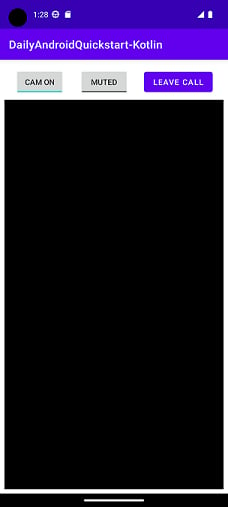
The application should prompt you for permissions and, once granted, display the basic interface you created.
You won't see any video just yet because we haven't set up the call client or joined a Daily room. We'll do that next.
## Create the call client
Now that the basics of the application are in place, we can implement functionality to join a call and display participant videos.
The [`CallClient`](https://reference-android.daily.co/daily-android/co.daily/-call-client/index.html) is the main interface into your Daily video call. It should be instantiated and retained for at least the duration of the video call session.
Open `MainActivity.kt` and locate the `initializeCallClient()` method. Within it, create an instance of `CallClient` followed by a map of `VideoView` objects:
```kotlin theme={null}
private fun initializeCallClient() {
// Create call client
val call = CallClient(applicationContext)
// Create map of video views
val videoViews = mutableMapOf()
}
```
Next, set up relevant event listeners within `initializeCallClient()`. Start by retrieving the participant layout view within this method:
```kotlin theme={null}
private fun initializeCallClient() {
//...Call client and video view map creation logic above...
val layout = findViewById(R.id.videoLinearLayout)
}
```
Then, add the relevant `CallClient` event listeners. These events are raised in response to actions like meeting participants joining, leaving, or being updated:
```kotlin theme={null}
private fun initializeCallClient() {
//...Call client and video view map creation logic above...
val layout = findViewById(R.id.videoLinearLayout)
// Listen for events
call.addListener(object : CallClientListener {
// Handle a remote participant joining
override fun onParticipantJoined(participant: Participant) {
val participantView = layoutInflater.inflate(R.layout.participant_view, layout, false)
val videoView = participantView.findViewById(R.id.participant_video)
videoView.track = participant.media?.camera?.track
videoViews[participant.id] = videoView
layout.addView(participantView)
}
// Handle a participant updating (e.g. their tracks changing)
override fun onParticipantUpdated(participant: Participant) {
val videoView = videoViews[participant.id]
videoView?.track = participant.media?.camera?.track
}
})
}
```
For each participant who joins, we create an instance of the `VideoView` UI element. The `VideoView` instance has its track set to the joining participant's available video track.
If a participant is updated (for example, by turning off their camera), we update that participant's `VideoView` accordingly.
## Join a call
Now that our application has a `CallClient` instance and can react to meeting participant events, we're ready to join a room. To do this, call the `join()` function and pass in the URL of the Daily room you created at the start of this tutorial.
```kotlin theme={null}
private fun initializeCallClient() {
//...Logic we added in prior steps above...
// Join the call
call.join(url = "[YOUR_DAILY_ROOM_URL]") {
it.error?.apply {
Log.e(TAG, "Got error while joining call: $msg")
}
it.success?.apply {
Log.i(TAG, "Successfully joined call.")
}
}
}
```
Replace `"[YOUR_DAILY_ROOM_URL]"` with th URL of your room. You can find the room URL in your [Daily developer dashboard](https://dashboard.daily.co/rooms).
Go ahead and run the application again. Once you have successully joined the meeting, if you are running on actual hardware, you should see your Android device's camera video being shown as a participant in the application. If you are using the Android emulator, you should see an emulated camera.
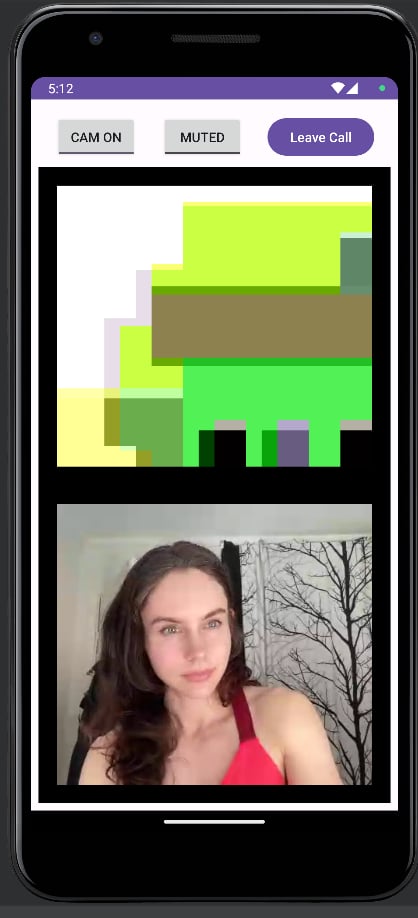
To test the app with a remote participant, open the room URL in your browser on any device. Once you've joined via the browser, the new participant's video should appear in the app view on your Android device or emulator.
## Toggling microphone and camera states
Now that we have participant video being displayed in the app, we can implement call controls.
We'll begin by checking the initial state of the local participant's microphone and camera and reflect it in the call control UI.
To do so, initialize the toggle button member variables within the `MainActivity` class definition:
```kotlin theme={null}
private val TAG: String = "MainActivity"
private lateinit var toggleCamera: ToggleButton
private lateinit var toggleMicrophone: ToggleButton
```
Next, modify `onCreate()` to find the toggle buttons within the application layout:
```kotlin theme={null}
override fun onCreate(savedInstanceState: Bundle?) {
super.onCreate(savedInstanceState)
setContentView(R.layout.activity_main)
toggleCamera = findViewById(R.id.toggleCamera)
toggleMicrophone = findViewById(R.id.toggleMicrophone)
checkPermissions()
}
```
In the `join()` callback we defined earlier, check the `inputs()` function to get current camera and microphone states:
```kotlin theme={null}
// Join the call
call.join(url = "[YOUR_DAILY_ROOM_URL]") {
it.error?.apply {
Log.e(TAG, "Got error while joining call: $msg")
}
it.success?.apply {
Log.i(TAG, "Successfully joined call.")
toggleCamera.isChecked = call.inputs().camera.isEnabled
toggleMicrophone.isChecked = call.inputs().microphone.isEnabled
}
}
```
Next, we'll react to changes in the local device state by overriding the `onInputsUpdated()` event handler within the call client listener:
```kotlin theme={null}
call.addListener(object : CallClientListener {
// ...Previously-defined handlers above...
// Handle local input settings being updated (e.g., the camera being disabled or enabled)
override fun onInputsUpdated(inputSettings: InputSettings) {
toggleCamera.isChecked = inputSettings.camera.isEnabled
toggleMicrophone.isChecked = inputSettings.microphone.isEnabled
}
}
```
Finally, let's allow the end user to toggle their input device state. We'll do so using the [`setInputEnabled()`](https://reference-android.daily.co/daily-android/co.daily/-call-client/set-input-enabled.html) call client instance method. This method will be defined within `initializeCallClient()` and invoked when the microphone and camera button states change:
```kotlin theme={null}
private fun initializeCallClient() {
//...Previously-defined logic above...
toggleMicrophone.setOnCheckedChangeListener { _, isChecked ->
Log.d("BUTTONS", "User tapped the Mute button")
call.setInputEnabled(OutboundMediaType.Microphone, isChecked)
}
toggleCamera.setOnCheckedChangeListener { _, isChecked ->
Log.d("BUTTONS", "User tapped the Cam button")
call.setInputEnabled(OutboundMediaType.Camera, isChecked)
}
}
```
## Leaving a call
Now that we're done with the video handling and device toggling functionality, we'll implement a final critical feature: leaving the call.
The application user should be able to disconnect from the Daily room by tapping the Leave button. This action invokes the call client's [`leave()`](https://reference-android.daily.co/daily-android/co.daily/-call-client/leave.html) method. Add the following code within `initializeCallClient()`:
```kotlin theme={null}
private fun initializeCallClient() {
//...Previously-defined logic above...
findViewById
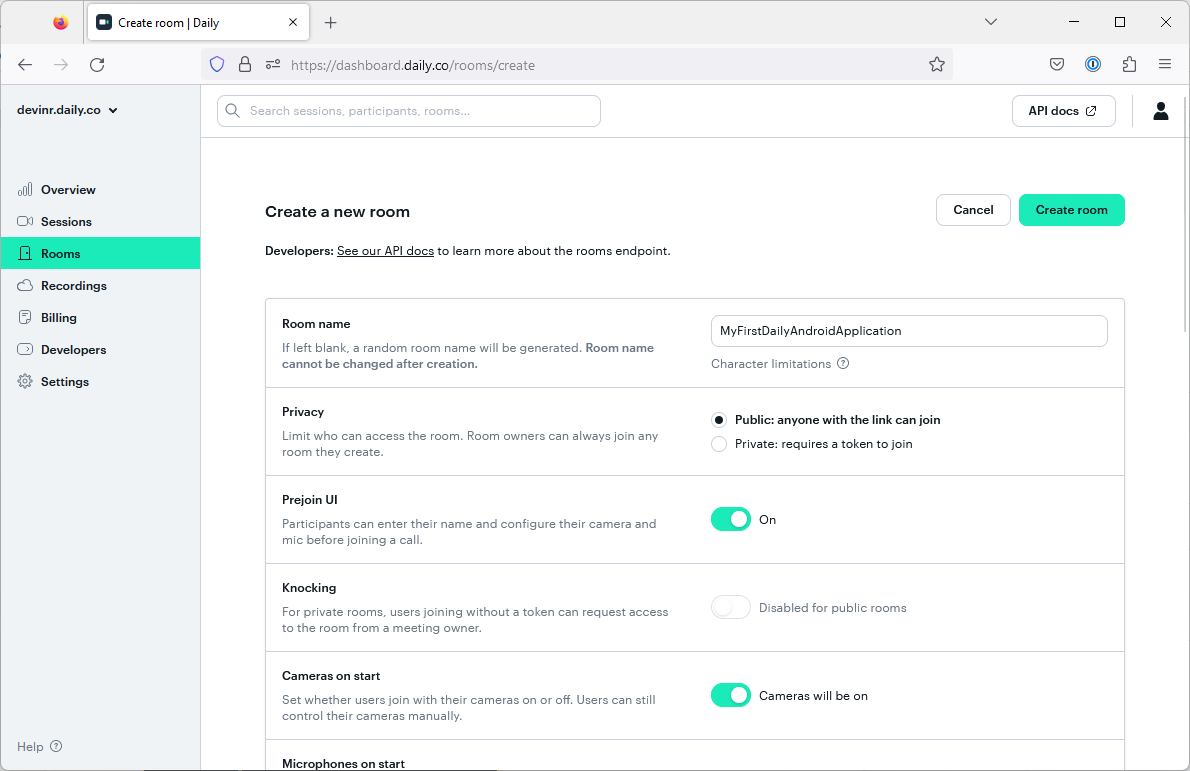 Give your room a name and click the "Create room" button. All other options can be left at their defaults.
Make note of your Daily room URL. We'll be using it in the code shortly.
## Create a new Android project
Next, open Android Studio. From the Welcome screen, create a new project using the "Empty Views Activity" template.
Give your room a name and click the "Create room" button. All other options can be left at their defaults.
Make note of your Daily room URL. We'll be using it in the code shortly.
## Create a new Android project
Next, open Android Studio. From the Welcome screen, create a new project using the "Empty Views Activity" template.
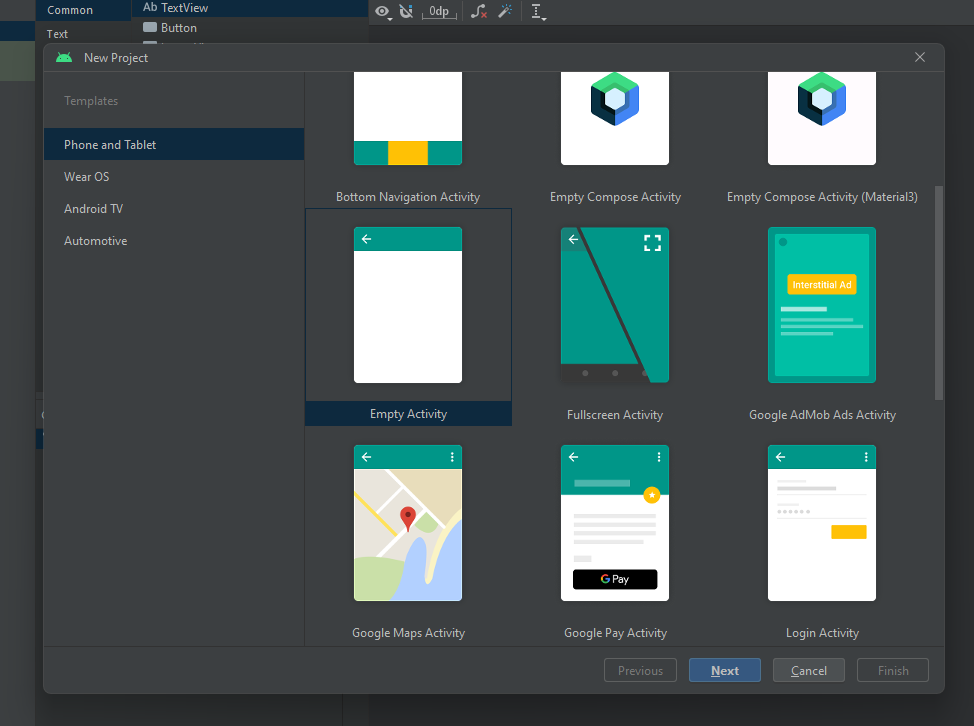 Give your project a name and make sure the project language is set to Kotlin. Next, click the "Finish" button to have Android Studio set up your new project.
Note that if this is your first Kotlin project setup, it can take a few minutes for Android Studio to download relevant dependencies and initialize the project for the first time.
## Add a dependency on Daily's Client SDK for Android
With your new project created, you can add the Daily's Android SDK as a dependency. Android Studio uses [Gradle](https://gradle.org/) as its default build tool and dependency manager. Open the project's Gradle build script in the app directory:
Give your project a name and make sure the project language is set to Kotlin. Next, click the "Finish" button to have Android Studio set up your new project.
Note that if this is your first Kotlin project setup, it can take a few minutes for Android Studio to download relevant dependencies and initialize the project for the first time.
## Add a dependency on Daily's Client SDK for Android
With your new project created, you can add the Daily's Android SDK as a dependency. Android Studio uses [Gradle](https://gradle.org/) as its default build tool and dependency manager. Open the project's Gradle build script in the app directory:
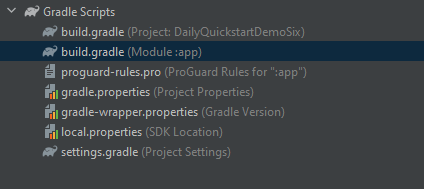 Once open, add `'co.daily:client:0.8.0'` to the dependencies object:
```kotlin theme={null}
dependencies {
implementation 'co.daily:client:0.8.0'
//...
}
```
Once open, add `'co.daily:client:0.8.0'` to the dependencies object:
```kotlin theme={null}
dependencies {
implementation 'co.daily:client:0.8.0'
//...
}
```
 ## Import namespaces and classes
After adding a dependency on Daily's Android SDK, we can import relevant classes. Open `app/java/com.example.[YOUR_APP_NAME]/MainActivity.kt` and add the following `import` statements:
```kotlin theme={null}
// ...Existing imports above...
```
## Setting up the Main Activity
The next step is modifying the `MainActivity` class to set up the basic structure of our application.
Start by adding the `TAG` member variable and two functions:
* `initializeCallClient()`
* `checkPermissions()`
Then, add a call to `checkPermissions()` from the `onCreate()` function.
```kotlin theme={null}
class MainActivity : AppCompatActivity() {
private val TAG: String = "MainActivity"
override fun onCreate(savedInstanceState: Bundle?) {
super.onCreate(savedInstanceState)
setContentView(R.layout.activity_main)
checkPermissions()
}
private fun initializeCallClient() {
// Initialize the Daily Call Client object once permissions have been granted
}
private fun checkPermissions() {
// Check permissions have been granted and if not, ask for permissions
}
}
```
Build the application to verify that there are not errors or warnings.
## Configure application permissions
The application will need a number of user permissions in order to access the internet, use the device camera, and record and play audio. To request these permissions, we have to declare what we need as part of our app manifest.
Open `manifests/AndroidManifest.xml`. Then, add the following `uses-permission` and `uses-feature` elements inside the `
## Import namespaces and classes
After adding a dependency on Daily's Android SDK, we can import relevant classes. Open `app/java/com.example.[YOUR_APP_NAME]/MainActivity.kt` and add the following `import` statements:
```kotlin theme={null}
// ...Existing imports above...
```
## Setting up the Main Activity
The next step is modifying the `MainActivity` class to set up the basic structure of our application.
Start by adding the `TAG` member variable and two functions:
* `initializeCallClient()`
* `checkPermissions()`
Then, add a call to `checkPermissions()` from the `onCreate()` function.
```kotlin theme={null}
class MainActivity : AppCompatActivity() {
private val TAG: String = "MainActivity"
override fun onCreate(savedInstanceState: Bundle?) {
super.onCreate(savedInstanceState)
setContentView(R.layout.activity_main)
checkPermissions()
}
private fun initializeCallClient() {
// Initialize the Daily Call Client object once permissions have been granted
}
private fun checkPermissions() {
// Check permissions have been granted and if not, ask for permissions
}
}
```
Build the application to verify that there are not errors or warnings.
## Configure application permissions
The application will need a number of user permissions in order to access the internet, use the device camera, and record and play audio. To request these permissions, we have to declare what we need as part of our app manifest.
Open `manifests/AndroidManifest.xml`. Then, add the following `uses-permission` and `uses-feature` elements inside the `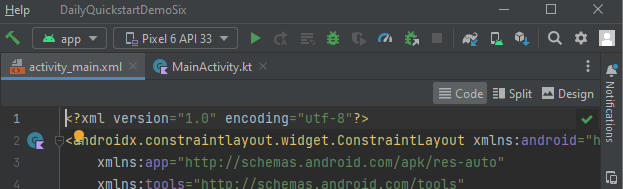 Replace the default UI XML with the following:
```xml theme={null}
Replace the default UI XML with the following:
```xml theme={null}
 The application should prompt you for permissions and, once granted, display the basic interface you created.
 You won't see any video just yet because we haven't set up the call client or joined a Daily room. We'll do that next.
## Create the call client
Now that the basics of the application are in place, we can implement functionality to join a call and display participant videos.
The [`CallClient`](https://reference-android.daily.co/daily-android/co.daily/-call-client/index.html) is the main interface into your Daily video call. It should be instantiated and retained for at least the duration of the video call session.
Open `MainActivity.kt` and locate the `initializeCallClient()` method. Within it, create an instance of `CallClient` followed by a map of `VideoView` objects:
```kotlin theme={null}
private fun initializeCallClient() {
// Create call client
val call = CallClient(applicationContext)
// Create map of video views
val videoViews = mutableMapOf
You won't see any video just yet because we haven't set up the call client or joined a Daily room. We'll do that next.
## Create the call client
Now that the basics of the application are in place, we can implement functionality to join a call and display participant videos.
The [`CallClient`](https://reference-android.daily.co/daily-android/co.daily/-call-client/index.html) is the main interface into your Daily video call. It should be instantiated and retained for at least the duration of the video call session.
Open `MainActivity.kt` and locate the `initializeCallClient()` method. Within it, create an instance of `CallClient` followed by a map of `VideoView` objects:
```kotlin theme={null}
private fun initializeCallClient() {
// Create call client
val call = CallClient(applicationContext)
// Create map of video views
val videoViews = mutableMapOf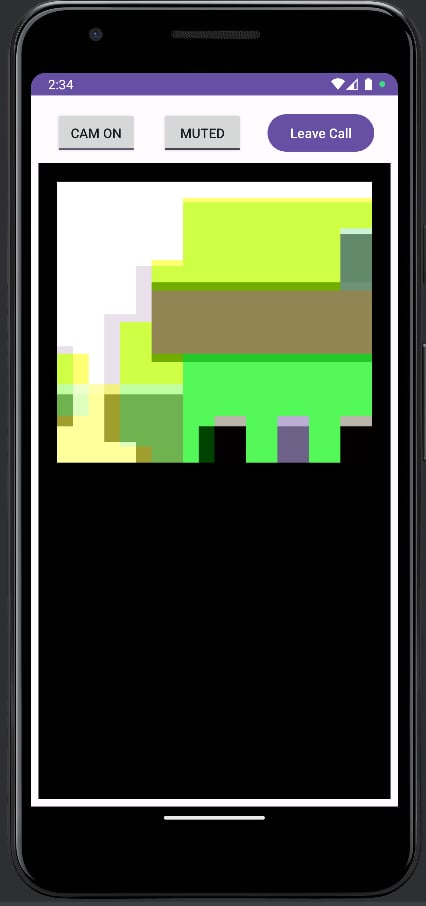 To test the app with a remote participant, open the room URL in your browser on any device. Once you've joined via the browser, the new participant's video should appear in the app view on your Android device or emulator.
 ## Toggling microphone and camera states
Now that we have participant video being displayed in the app, we can implement call controls.
We'll begin by checking the initial state of the local participant's microphone and camera and reflect it in the call control UI.
To do so, initialize the toggle button member variables within the `MainActivity` class definition:
```kotlin theme={null}
private val TAG: String = "MainActivity"
private lateinit var toggleCamera: ToggleButton
private lateinit var toggleMicrophone: ToggleButton
```
Next, modify `onCreate()` to find the toggle buttons within the application layout:
```kotlin theme={null}
override fun onCreate(savedInstanceState: Bundle?) {
super.onCreate(savedInstanceState)
setContentView(R.layout.activity_main)
toggleCamera = findViewById(R.id.toggleCamera)
toggleMicrophone = findViewById(R.id.toggleMicrophone)
checkPermissions()
}
```
In the `join()` callback we defined earlier, check the `inputs()` function to get current camera and microphone states:
```kotlin theme={null}
// Join the call
call.join(url = "[YOUR_DAILY_ROOM_URL]") {
it.error?.apply {
Log.e(TAG, "Got error while joining call: $msg")
}
it.success?.apply {
Log.i(TAG, "Successfully joined call.")
toggleCamera.isChecked = call.inputs().camera.isEnabled
toggleMicrophone.isChecked = call.inputs().microphone.isEnabled
}
}
```
Next, we'll react to changes in the local device state by overriding the `onInputsUpdated()` event handler within the call client listener:
```kotlin theme={null}
call.addListener(object : CallClientListener {
// ...Previously-defined handlers above...
// Handle local input settings being updated (e.g., the camera being disabled or enabled)
override fun onInputsUpdated(inputSettings: InputSettings) {
toggleCamera.isChecked = inputSettings.camera.isEnabled
toggleMicrophone.isChecked = inputSettings.microphone.isEnabled
}
}
```
Finally, let's allow the end user to toggle their input device state. We'll do so using the [`setInputEnabled()`](https://reference-android.daily.co/daily-android/co.daily/-call-client/set-input-enabled.html) call client instance method. This method will be defined within `initializeCallClient()` and invoked when the microphone and camera button states change:
```kotlin theme={null}
private fun initializeCallClient() {
//...Previously-defined logic above...
toggleMicrophone.setOnCheckedChangeListener { _, isChecked ->
Log.d("BUTTONS", "User tapped the Mute button")
call.setInputEnabled(OutboundMediaType.Microphone, isChecked)
}
toggleCamera.setOnCheckedChangeListener { _, isChecked ->
Log.d("BUTTONS", "User tapped the Cam button")
call.setInputEnabled(OutboundMediaType.Camera, isChecked)
}
}
```
## Leaving a call
Now that we're done with the video handling and device toggling functionality, we'll implement a final critical feature: leaving the call.
The application user should be able to disconnect from the Daily room by tapping the Leave button. This action invokes the call client's [`leave()`](https://reference-android.daily.co/daily-android/co.daily/-call-client/leave.html) method. Add the following code within `initializeCallClient()`:
```kotlin theme={null}
private fun initializeCallClient() {
//...Previously-defined logic above...
findViewById
## Toggling microphone and camera states
Now that we have participant video being displayed in the app, we can implement call controls.
We'll begin by checking the initial state of the local participant's microphone and camera and reflect it in the call control UI.
To do so, initialize the toggle button member variables within the `MainActivity` class definition:
```kotlin theme={null}
private val TAG: String = "MainActivity"
private lateinit var toggleCamera: ToggleButton
private lateinit var toggleMicrophone: ToggleButton
```
Next, modify `onCreate()` to find the toggle buttons within the application layout:
```kotlin theme={null}
override fun onCreate(savedInstanceState: Bundle?) {
super.onCreate(savedInstanceState)
setContentView(R.layout.activity_main)
toggleCamera = findViewById(R.id.toggleCamera)
toggleMicrophone = findViewById(R.id.toggleMicrophone)
checkPermissions()
}
```
In the `join()` callback we defined earlier, check the `inputs()` function to get current camera and microphone states:
```kotlin theme={null}
// Join the call
call.join(url = "[YOUR_DAILY_ROOM_URL]") {
it.error?.apply {
Log.e(TAG, "Got error while joining call: $msg")
}
it.success?.apply {
Log.i(TAG, "Successfully joined call.")
toggleCamera.isChecked = call.inputs().camera.isEnabled
toggleMicrophone.isChecked = call.inputs().microphone.isEnabled
}
}
```
Next, we'll react to changes in the local device state by overriding the `onInputsUpdated()` event handler within the call client listener:
```kotlin theme={null}
call.addListener(object : CallClientListener {
// ...Previously-defined handlers above...
// Handle local input settings being updated (e.g., the camera being disabled or enabled)
override fun onInputsUpdated(inputSettings: InputSettings) {
toggleCamera.isChecked = inputSettings.camera.isEnabled
toggleMicrophone.isChecked = inputSettings.microphone.isEnabled
}
}
```
Finally, let's allow the end user to toggle their input device state. We'll do so using the [`setInputEnabled()`](https://reference-android.daily.co/daily-android/co.daily/-call-client/set-input-enabled.html) call client instance method. This method will be defined within `initializeCallClient()` and invoked when the microphone and camera button states change:
```kotlin theme={null}
private fun initializeCallClient() {
//...Previously-defined logic above...
toggleMicrophone.setOnCheckedChangeListener { _, isChecked ->
Log.d("BUTTONS", "User tapped the Mute button")
call.setInputEnabled(OutboundMediaType.Microphone, isChecked)
}
toggleCamera.setOnCheckedChangeListener { _, isChecked ->
Log.d("BUTTONS", "User tapped the Cam button")
call.setInputEnabled(OutboundMediaType.Camera, isChecked)
}
}
```
## Leaving a call
Now that we're done with the video handling and device toggling functionality, we'll implement a final critical feature: leaving the call.
The application user should be able to disconnect from the Daily room by tapping the Leave button. This action invokes the call client's [`leave()`](https://reference-android.daily.co/daily-android/co.daily/-call-client/leave.html) method. Add the following code within `initializeCallClient()`:
```kotlin theme={null}
private fun initializeCallClient() {
//...Previously-defined logic above...
findViewById