> ## Documentation Index
> Fetch the complete documentation index at: https://docs.daily.co/llms.txt
> Use this file to discover all available pages before exploring further.
# Custom layouts with VCS
> Use Daily's Video Component System to build custom live streaming and cloud recording layouts with text overlays, image overlays, and more.
Paid plans only
Daily's Video Component System (VCS) lets you build custom layouts for live streaming and cloud recording. VCS goes beyond the built-in presets (`default`, `single-participant`, `active-participant`, `portrait`) to give you full control over composition, overlays, and presentation.
VCS is only available for `cloud` recordings and live streaming. It is not available for `local` or `raw-tracks` recording.
 ## What VCS can do
VCS is a video-oriented layout engine based on JavaScript functions. It generates layouts called **compositions**, which let you turn Daily calls into engaging streamed and recorded content.
Using VCS's baseline composition, you can:
* Apply custom video grid layouts and dominant-speaker views
* Add animated overlay graphics
* Display text overlays (titles, lower-thirds)
* Show image overlays (logos, watermarks)
* Embed live web content with the WebFrame component
* Customize layout based on participant count or call state
Some ways developers use VCS:
1. Building a live streaming "studio" for streamers and creators
2. Hosting interactive multiparty virtual events broadcast live to a wider audience via YouTube or Facebook Live
3. Creating high-quality recorded content from live events (e.g. an online fitness studio archiving recorded classes)
## The baseline composition
Daily provides a "baseline" composition as part of [`daily-js`](/reference/daily-js/types/daily-streaming-layout-config#vcs-baseline-composition) and [`react-native-daily-js`](/reference/react-native/types/daily-streaming-layout-config#vcs-baseline-composition). It's available to any Daily call using the live streaming or recording APIs.
Most developers will find the baseline composition flexible enough to meet their needs — it supports a variety of grid formats, layout parameters, overlay text, overlay graphics, and more. The `composition_id` for the baseline is `'daily:baseline'`, which is also the default if you omit it.
If you need customization beyond what the baseline offers, the [VCS SDK](/docs/vcs) is open source and lets you build fully custom compositions from scratch.
## Using the `custom` preset
To use VCS, set `layout.preset` to `'custom'` in your [`startLiveStreaming()`](/reference/daily-js/instance-methods/start-live-streaming) or [`startRecording()`](/reference/daily-js/instance-methods/start-recording) call:
```javascript theme={null}
await call.startLiveStreaming({
layout: {
preset: 'custom',
composition_id: 'daily:baseline', // optional, this is the default
composition_params: {
// VCS parameters — see below
},
// session_assets must be declared at start if used in any update
session_assets: {
'images/logo': 'https://example.com/logo.png',
},
},
});
```
**Key options:**
* `composition_id` — the composition to use. `'daily:baseline'` is the default and currently the only option.
* `composition_params` — parameters that configure how the composition behaves. Pass them in `startLiveStreaming()` or `startRecording()` to set the initial layout, and in `updateLiveStreaming()` or `updateRecording()` to change the layout mid-stream.
* `session_assets` — a map of string keys to public asset URLs (e.g. `'images/logo': 'https://...'`). Think of this as a directory of files loaded from those URLs and named by their keys. Image asset keys must start with `"images/"`.
`session_assets` must be passed in the `startLiveStreaming()` or `startRecording()` call, even if they won't be used until a later `updateLiveStreaming()` or `updateRecording()` call.
You can update the layout at any time using `updateLiveStreaming()` or `updateRecording()`:
```javascript theme={null}
await call.updateLiveStreaming({
layout: {
preset: 'custom', // required even in updates
composition_params: {
showTextOverlay: true,
'text.content': 'Live now',
},
},
});
```
## VCS Simulator
The best way to explore VCS is with the **[VCS Simulator](https://daily.co/tools/vcs-simulator)** — an interactive tool that lets you configure baseline composition parameters and see results in real time, without writing code.
## What VCS can do
VCS is a video-oriented layout engine based on JavaScript functions. It generates layouts called **compositions**, which let you turn Daily calls into engaging streamed and recorded content.
Using VCS's baseline composition, you can:
* Apply custom video grid layouts and dominant-speaker views
* Add animated overlay graphics
* Display text overlays (titles, lower-thirds)
* Show image overlays (logos, watermarks)
* Embed live web content with the WebFrame component
* Customize layout based on participant count or call state
Some ways developers use VCS:
1. Building a live streaming "studio" for streamers and creators
2. Hosting interactive multiparty virtual events broadcast live to a wider audience via YouTube or Facebook Live
3. Creating high-quality recorded content from live events (e.g. an online fitness studio archiving recorded classes)
## The baseline composition
Daily provides a "baseline" composition as part of [`daily-js`](/reference/daily-js/types/daily-streaming-layout-config#vcs-baseline-composition) and [`react-native-daily-js`](/reference/react-native/types/daily-streaming-layout-config#vcs-baseline-composition). It's available to any Daily call using the live streaming or recording APIs.
Most developers will find the baseline composition flexible enough to meet their needs — it supports a variety of grid formats, layout parameters, overlay text, overlay graphics, and more. The `composition_id` for the baseline is `'daily:baseline'`, which is also the default if you omit it.
If you need customization beyond what the baseline offers, the [VCS SDK](/docs/vcs) is open source and lets you build fully custom compositions from scratch.
## Using the `custom` preset
To use VCS, set `layout.preset` to `'custom'` in your [`startLiveStreaming()`](/reference/daily-js/instance-methods/start-live-streaming) or [`startRecording()`](/reference/daily-js/instance-methods/start-recording) call:
```javascript theme={null}
await call.startLiveStreaming({
layout: {
preset: 'custom',
composition_id: 'daily:baseline', // optional, this is the default
composition_params: {
// VCS parameters — see below
},
// session_assets must be declared at start if used in any update
session_assets: {
'images/logo': 'https://example.com/logo.png',
},
},
});
```
**Key options:**
* `composition_id` — the composition to use. `'daily:baseline'` is the default and currently the only option.
* `composition_params` — parameters that configure how the composition behaves. Pass them in `startLiveStreaming()` or `startRecording()` to set the initial layout, and in `updateLiveStreaming()` or `updateRecording()` to change the layout mid-stream.
* `session_assets` — a map of string keys to public asset URLs (e.g. `'images/logo': 'https://...'`). Think of this as a directory of files loaded from those URLs and named by their keys. Image asset keys must start with `"images/"`.
`session_assets` must be passed in the `startLiveStreaming()` or `startRecording()` call, even if they won't be used until a later `updateLiveStreaming()` or `updateRecording()` call.
You can update the layout at any time using `updateLiveStreaming()` or `updateRecording()`:
```javascript theme={null}
await call.updateLiveStreaming({
layout: {
preset: 'custom', // required even in updates
composition_params: {
showTextOverlay: true,
'text.content': 'Live now',
},
},
});
```
## VCS Simulator
The best way to explore VCS is with the **[VCS Simulator](https://daily.co/tools/vcs-simulator)** — an interactive tool that lets you configure baseline composition parameters and see results in real time, without writing code.
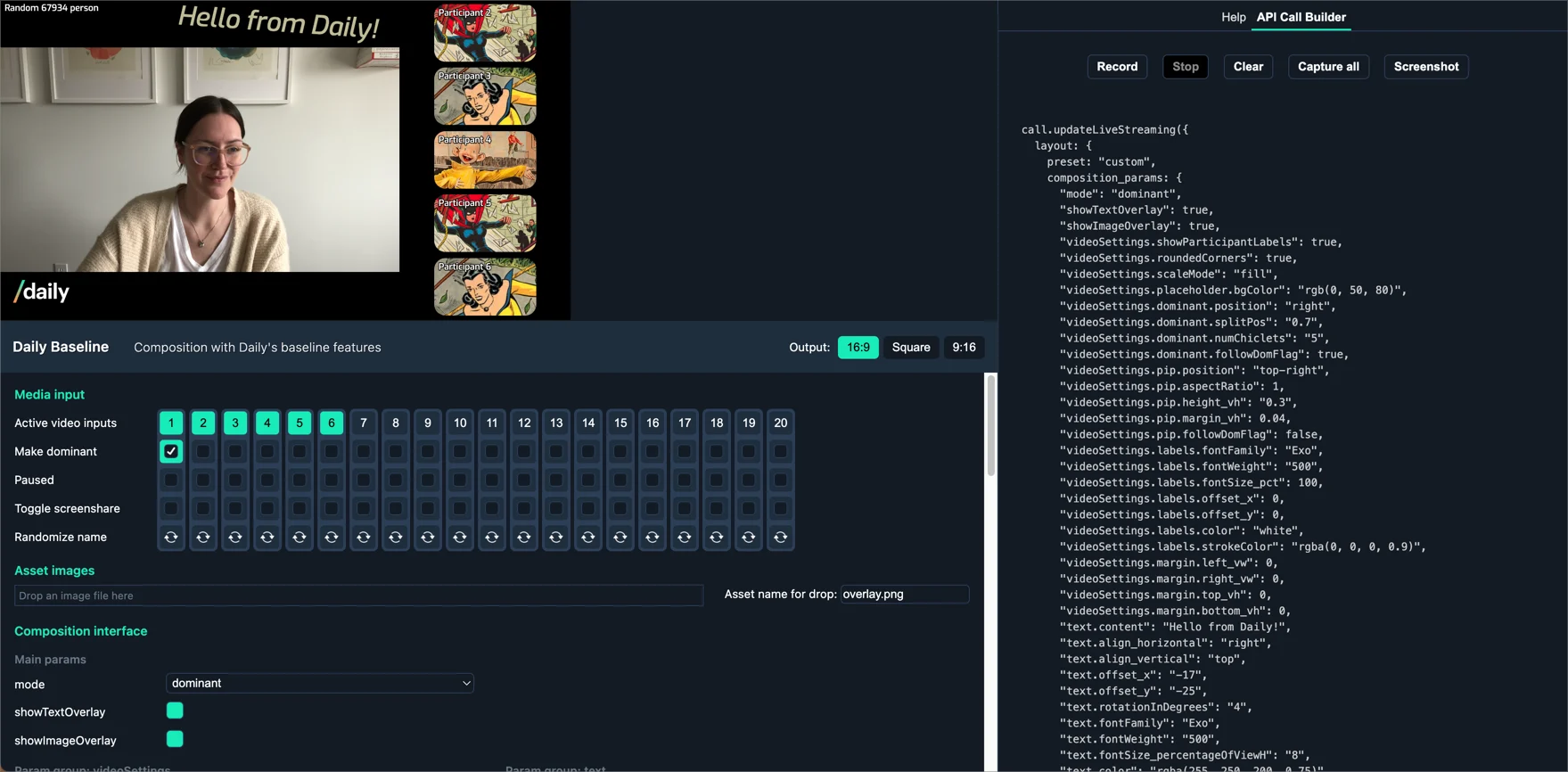 Things to try:
* Set `mode` to `'grid'` and click the numbered video input buttons to preview grid layout changes.
* Set `mode` to `'dominant'` and click "Make dominant" to see the active speaker layout.
* Enable `showTextOverlay` and update the text content, alignment, and positioning.
* Drag a PNG into the asset images box and enable `showImageOverlay`.
### API Call Builder
The **API Call Builder** tab in the Simulator generates ready-to-use `composition_params` based on your interactions:
* **Record / Stop** — capture parameter changes as you interact with the Simulator.
* **Capture all** — output all current parameter values, including defaults.
* **Screenshot** — get a preview image of your current composition.
* **Clear** — reset your recorded options.
Things to try:
* Set `mode` to `'grid'` and click the numbered video input buttons to preview grid layout changes.
* Set `mode` to `'dominant'` and click "Make dominant" to see the active speaker layout.
* Enable `showTextOverlay` and update the text content, alignment, and positioning.
* Drag a PNG into the asset images box and enable `showImageOverlay`.
### API Call Builder
The **API Call Builder** tab in the Simulator generates ready-to-use `composition_params` based on your interactions:
* **Record / Stop** — capture parameter changes as you interact with the Simulator.
* **Capture all** — output all current parameter values, including defaults.
* **Screenshot** — get a preview image of your current composition.
* **Clear** — reset your recorded options.
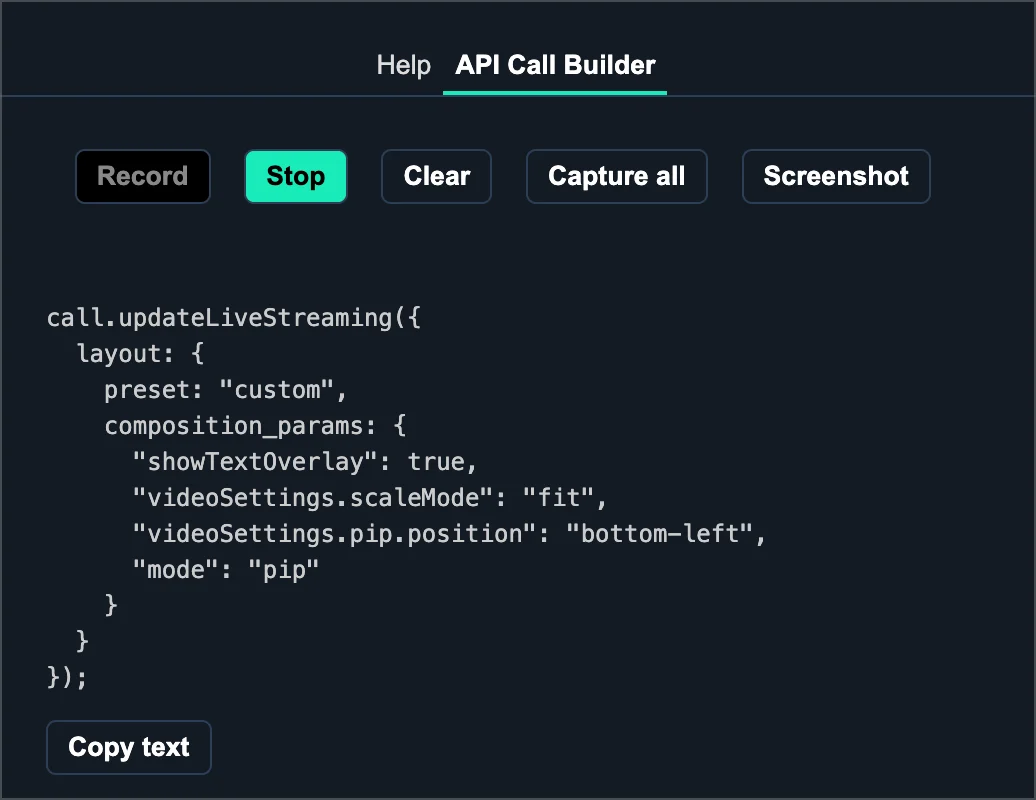 The generated parameters work in `startLiveStreaming()`, `updateLiveStreaming()`, `startRecording()`, and `updateRecording()`.
## Example configurations
### Text overlay
```javascript theme={null}
await call.updateLiveStreaming({
layout: {
preset: 'custom',
composition_params: {
showTextOverlay: true,
'text.content': 'Hello streaming',
'text.align_vertical': 'bottom',
'text.align_horizontal': 'center',
'text.offset_y': 20,
'text.color': 'white',
'text.strokeColor': 'rgba(0, 0, 0, 0.8)',
},
},
});
```
Assuming you are using the default values for other parameters, this will look like:
The generated parameters work in `startLiveStreaming()`, `updateLiveStreaming()`, `startRecording()`, and `updateRecording()`.
## Example configurations
### Text overlay
```javascript theme={null}
await call.updateLiveStreaming({
layout: {
preset: 'custom',
composition_params: {
showTextOverlay: true,
'text.content': 'Hello streaming',
'text.align_vertical': 'bottom',
'text.align_horizontal': 'center',
'text.offset_y': 20,
'text.color': 'white',
'text.strokeColor': 'rgba(0, 0, 0, 0.8)',
},
},
});
```
Assuming you are using the default values for other parameters, this will look like:
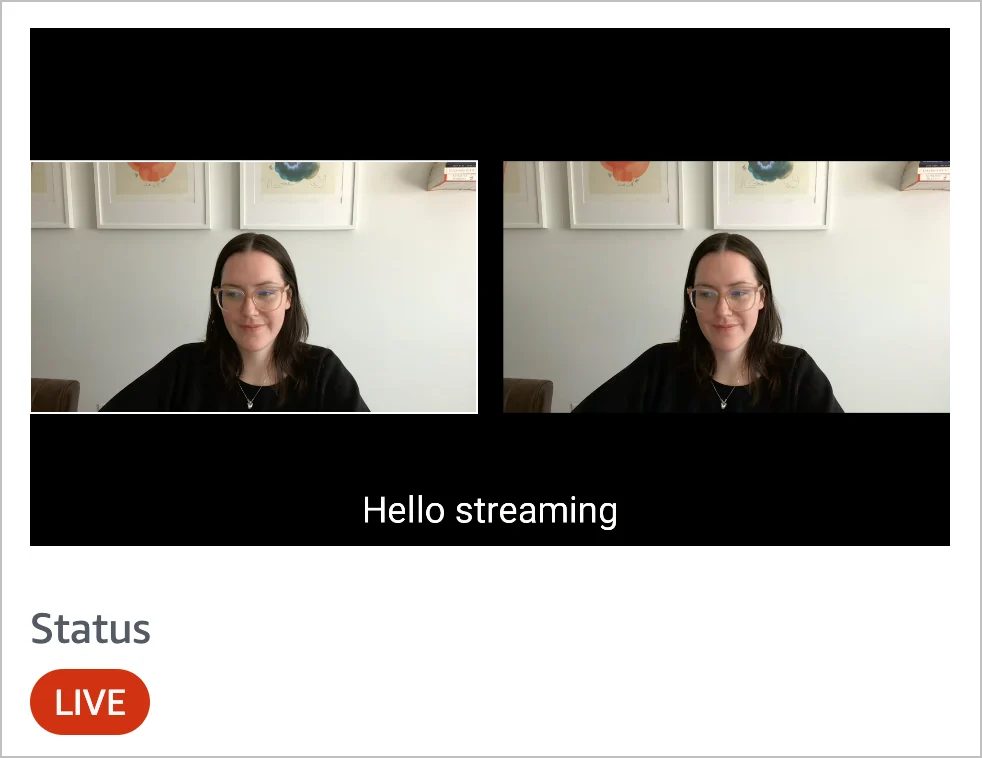 ### Dominant speaker layout
```javascript theme={null}
await call.updateLiveStreaming({
layout: {
preset: 'custom',
composition_params: {
mode: 'dominant',
'videoSettings.dominant.position': 'left',
},
},
});
```
Assuming you are using the default values for other parameters, this will look like:
### Dominant speaker layout
```javascript theme={null}
await call.updateLiveStreaming({
layout: {
preset: 'custom',
composition_params: {
mode: 'dominant',
'videoSettings.dominant.position': 'left',
},
},
});
```
Assuming you are using the default values for other parameters, this will look like:
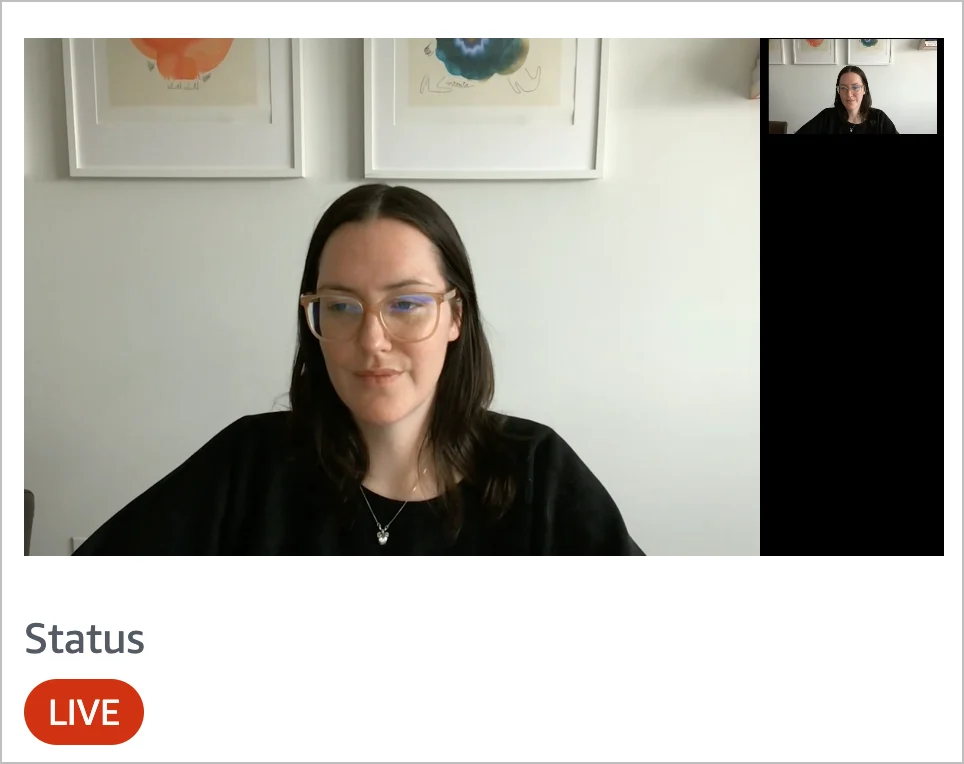 In dominant mode, the active speaker's video renders large on the specified side, with other participants in smaller tiles on the other side. This layout can be further customized with additional `videoSettings.dominant.*` parameters.
The "dominant" video corresponds to the current [active speaker](/reference/daily-js/events/participant-events#participant-counts-updated).
## Testing with the Daily Prebuilt demo app
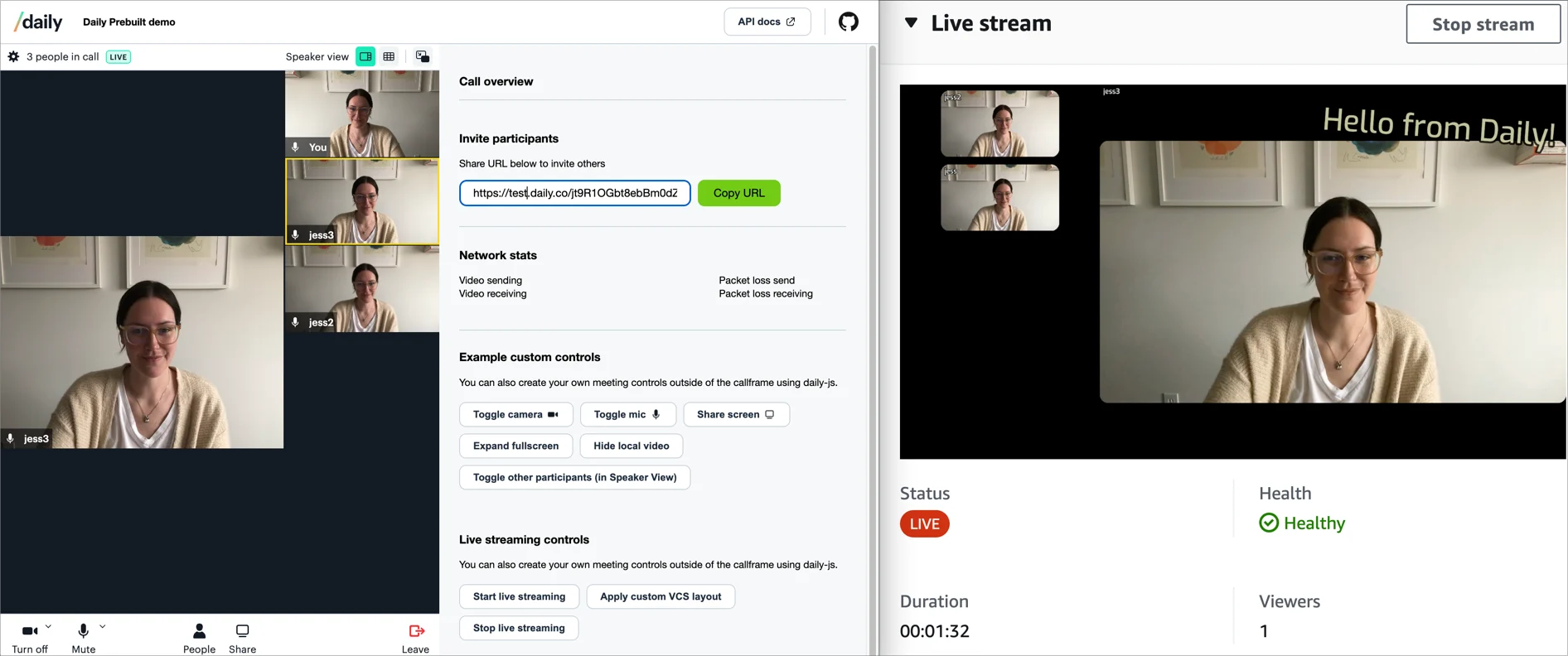
The [`vcs-live-streaming` branch of the Daily Prebuilt demo app](https://github.com/daily-demos/prebuilt-ui/tree/vcs-live-streaming) includes UI for starting a live stream, applying VCS properties via `updateLiveStreaming()`, and stopping the stream. You can use any transcoder — YouTube Live, Mux, or AWS IVS all work.
In dominant mode, the active speaker's video renders large on the specified side, with other participants in smaller tiles on the other side. This layout can be further customized with additional `videoSettings.dominant.*` parameters.
The "dominant" video corresponds to the current [active speaker](/reference/daily-js/events/participant-events#participant-counts-updated).
## Testing with the Daily Prebuilt demo app
The [`vcs-live-streaming` branch of the Daily Prebuilt demo app](https://github.com/daily-demos/prebuilt-ui/tree/vcs-live-streaming) includes UI for starting a live stream, applying VCS properties via `updateLiveStreaming()`, and stopping the stream. You can use any transcoder — YouTube Live, Mux, or AWS IVS all work.
 ## VCS SDK
The baseline composition is open source. If you need customization beyond what `composition_params` provides, the [VCS SDK](/docs/vcs) lets you build fully custom compositions from scratch.
## VCS SDK
The baseline composition is open source. If you need customization beyond what `composition_params` provides, the [VCS SDK](/docs/vcs) lets you build fully custom compositions from scratch.