> ## Documentation Index
> Fetch the complete documentation index at: https://docs.daily.co/llms.txt
> Use this file to discover all available pages before exploring further.
# Recording calls with the Daily API
> Learn about cloud, cloud-audio-only, local, and raw-tracks recording options for Daily calls.
Paid plans only
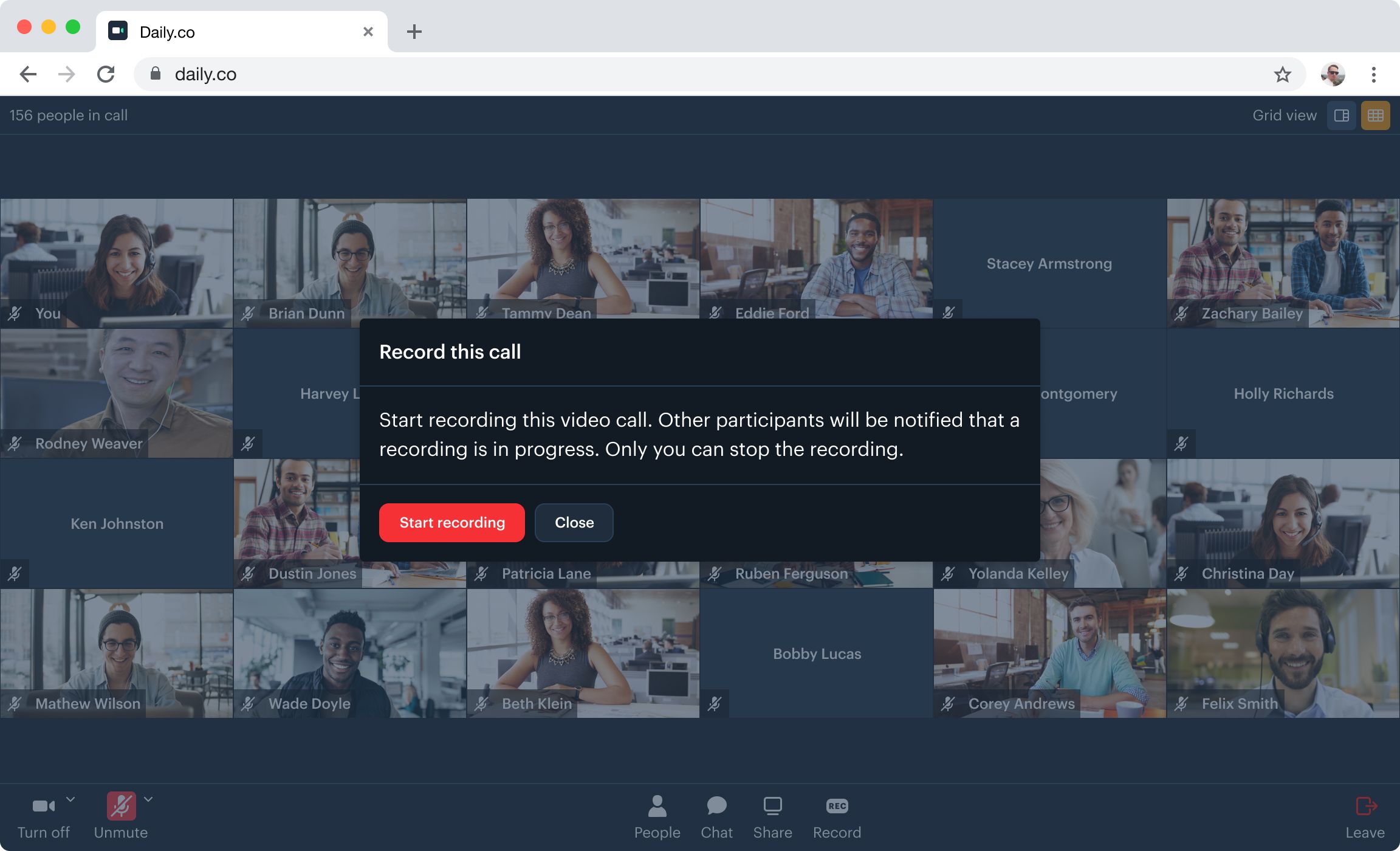 There are multiple ways to record calls of up to three hours with the Daily API:
* [`cloud`](#cloud) — server-side video recording stored in Daily's cloud
* [`cloud-audio-only`](#cloud-audio-only) — server-side audio-only recording
* [`local`](#local) — client-side recording saved to the participant's computer
* [`raw-tracks`](#raw-tracks) — individual media tracks stored in your own S3 bucket
**Receive a \$15 credit for free**
New accounts have a \$15 credit automatically applied when you add a credit card. See our [pricing page](https://www.daily.co/pricing) for details.
## cloud
Records a Daily call server-side. By default, outputs video at 1920x1080, 30 fps, encoded as H.264 at 5 Mbps, and audio encoded as AAC at 96 kbps, in MP4 format. Files can be retrieved via the [Daily REST API](/reference/rest-api/recordings) or from the [Daily dashboard](https://dashboard.daily.co/).
Cloud recording supports [custom video layouts](#customize-cloud-recording-layouts). It's the best choice when you need recording from any browser or device, or want control over the recording output's look and feel.
Cloud recording is available for [HIPAA](/docs/guides/privacy-and-security/hipaa) use cases when configured to [store recordings in a custom S3 bucket](/docs/guides/features/recording/custom-s3-storage).
### Turn on cloud recording
Set `enable_recording` to `"cloud"` at the room level to allow any participant to start a recording:
```bash theme={null}
curl --request POST \
--url https://api.daily.co/v1/rooms \
--header 'Authorization: Bearer DAILY_API_KEY' \
--header 'Content-Type: application/json' \
--data '{"properties": {"enable_recording": "cloud"}}'
```
To restrict who can start recording to specific participants, set `enable_recording` on their meeting tokens instead:
```bash theme={null}
curl --request POST \
--url https://api.daily.co/v1/meeting-tokens \
--header 'Authorization: Bearer DAILY_API_KEY' \
--header 'Content-Type: application/json' \
--data '{"properties": {"room_name": "DAILY_ROOM_NAME", "enable_recording": "cloud"}}'
```
Use [`startRecording()`](/reference/daily-js/instance-methods/start-recording), [`updateRecording()`](/reference/daily-js/instance-methods/update-recording), and [`stopRecording()`](/reference/daily-js/instance-methods/stop-recording) to manage recording in your app.
To start recording automatically when a token holder joins, use the [`start_cloud_recording`](/reference/rest-api/meeting-tokens/create-meeting-token#body-properties-start-cloud-recording) token property.
### Customize cloud recording layouts
Pass layout configuration to [`startRecording()`](/reference/daily-js/instance-methods/start-recording) or [`updateRecording()`](/reference/daily-js/instance-methods/update-recording):
```javascript theme={null}
// Start a recording with a specific layout
await call.startRecording({
width: 1280,
height: 720,
backgroundColor: '#FF1F2D3D',
layout: {
preset: 'default',
max_cam_streams: 5,
},
});
```
```javascript theme={null}
// Change the recording layout in real time
await call.updateRecording({
layout: {
preset: 'single-participant',
session_id: 'abcd123...',
},
});
```
* `height`, `width` — controls output resolution (set once via `startLiveStreaming()`).
* `backgroundColor` — formatted as `#rrggbb` or `#aarrggbb`.This can only be set once via \`startLiveStreaming().
* `layout`: an object specifying the way participants' videos are laid out in the stream.
* `preset`: The layout preset to use. Options (see below for examples):
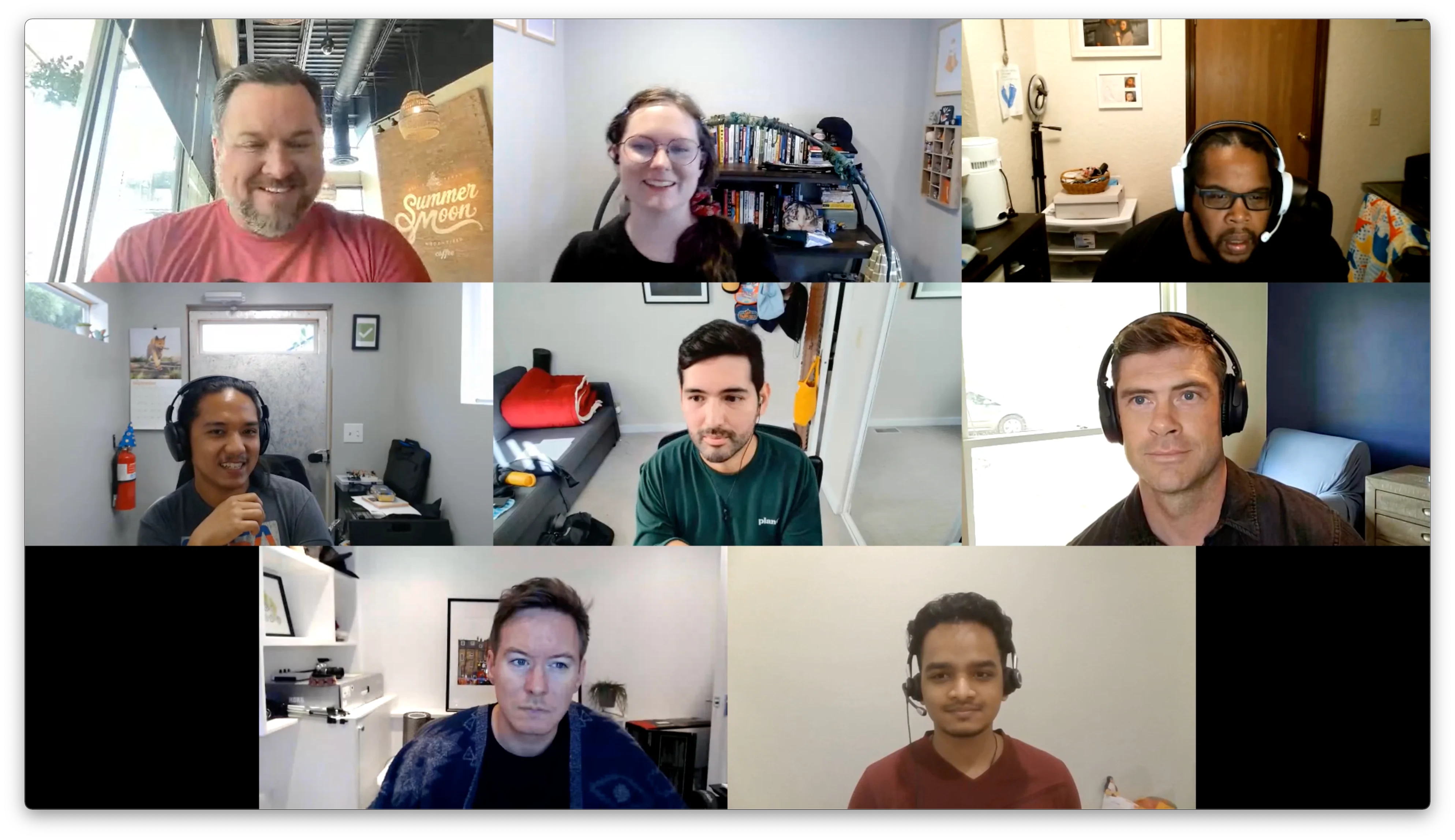
* `"default"` — grid layout; supports `max_cam_streams` (default 20, max 20).
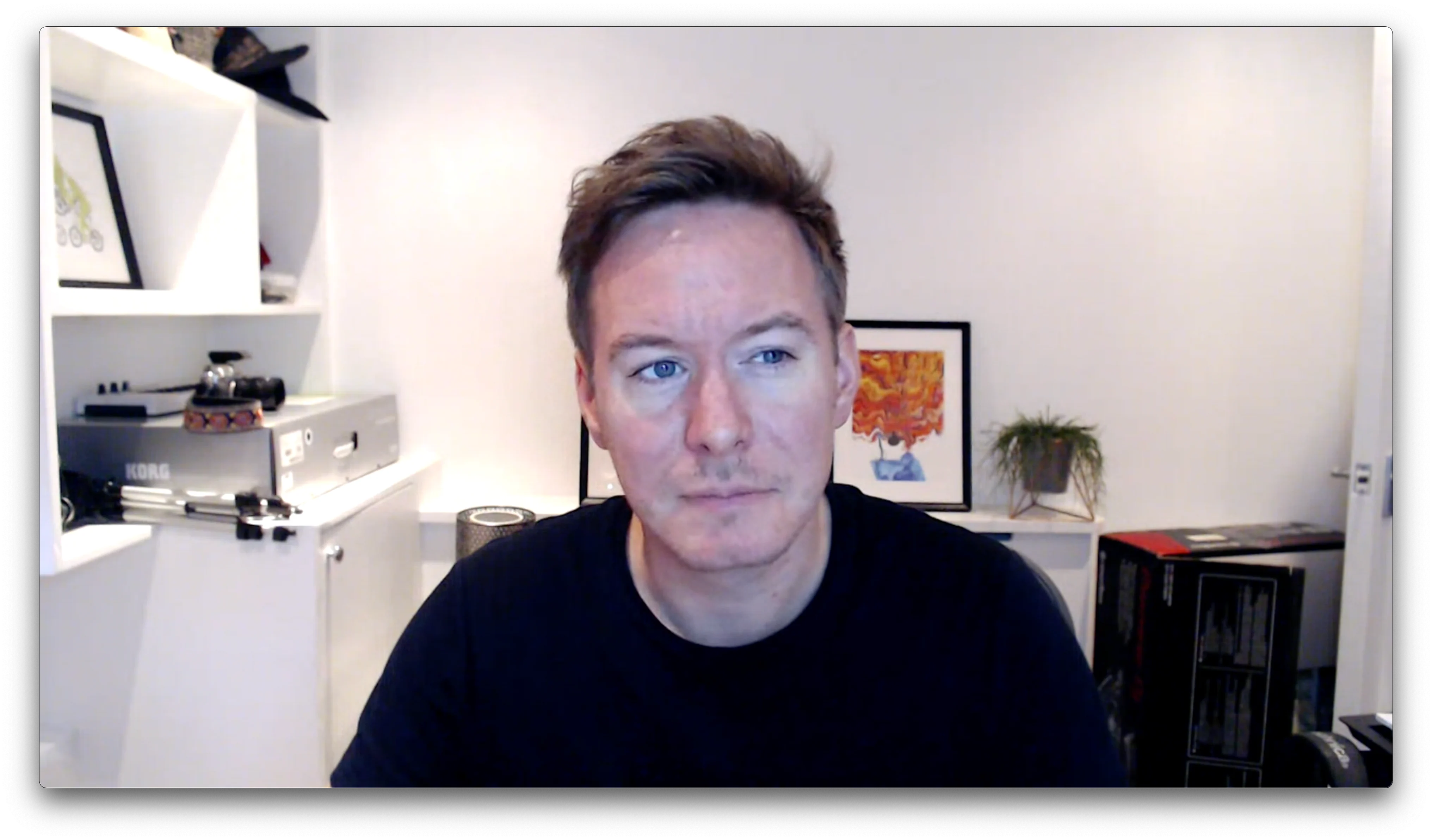
* `"single-participant"` — stream only a single participant's audio and video. The selected participant’s session ID must be specified via a `session_id` key.
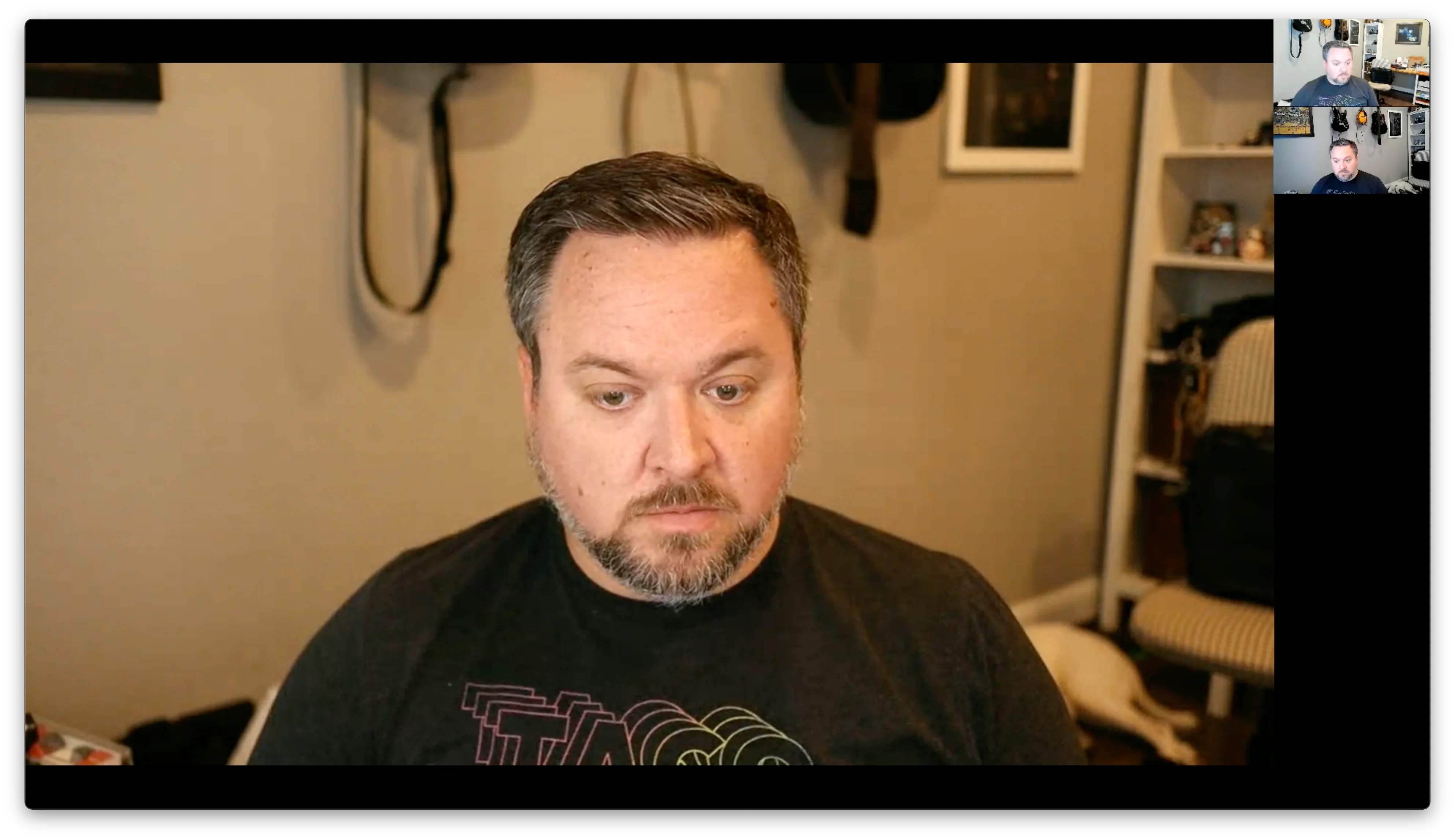
* `"active-participant"` — This layout focuses on the current speaker, and places up to 9 other cameras to the right in a single column vertical grid in the order in which they last spoke.
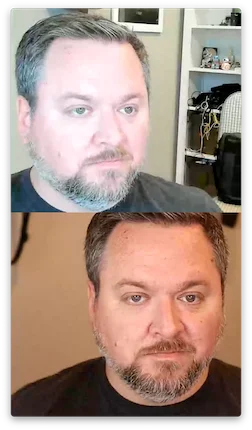
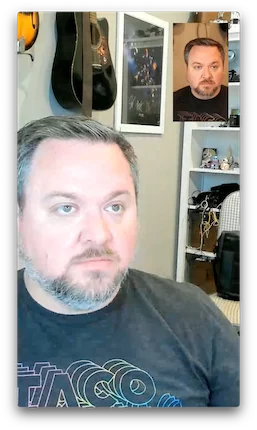
* `"portrait"` — mobile-friendly; `"vertical"` (default) or `"inset"` variant.
* `"vertical"`: up to two participants are shown in a vertical layout. Participants with the `is_owner` flag are shown lower in the grid.
* `"inset"`: one participant's video takes up the entire screen and the other is inset in a smaller rectangle. Participants' videos are scaled and cropped to fit the entire available space. Participants with the `is_owner` flag are shown full screen.
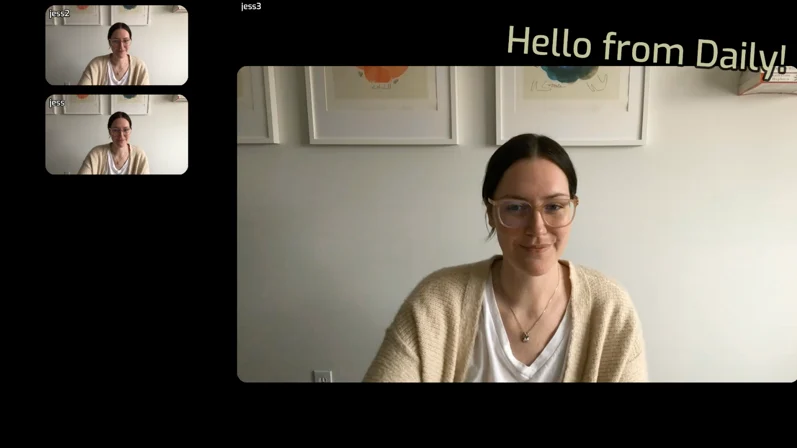
* `"custom"` — full custom layout via [VCS](/docs/guides/features/live-streaming/vcs), with `composition_params` and optional `session_assets`. A full list of available parameters is available in the [reference docs](/reference/daily-js/types/daily-streaming-layout-config#vcs-baseline-composition). You can also test available options with the [VCS Simulator](https://www.daily.co/tools/vcs-simulator/daily_baseline.html).
*Example `"default"` layout*:
There are multiple ways to record calls of up to three hours with the Daily API:
* [`cloud`](#cloud) — server-side video recording stored in Daily's cloud
* [`cloud-audio-only`](#cloud-audio-only) — server-side audio-only recording
* [`local`](#local) — client-side recording saved to the participant's computer
* [`raw-tracks`](#raw-tracks) — individual media tracks stored in your own S3 bucket
**Receive a \$15 credit for free**
New accounts have a \$15 credit automatically applied when you add a credit card. See our [pricing page](https://www.daily.co/pricing) for details.
## cloud
Records a Daily call server-side. By default, outputs video at 1920x1080, 30 fps, encoded as H.264 at 5 Mbps, and audio encoded as AAC at 96 kbps, in MP4 format. Files can be retrieved via the [Daily REST API](/reference/rest-api/recordings) or from the [Daily dashboard](https://dashboard.daily.co/).
Cloud recording supports [custom video layouts](#customize-cloud-recording-layouts). It's the best choice when you need recording from any browser or device, or want control over the recording output's look and feel.
Cloud recording is available for [HIPAA](/docs/guides/privacy-and-security/hipaa) use cases when configured to [store recordings in a custom S3 bucket](/docs/guides/features/recording/custom-s3-storage).
### Turn on cloud recording
Set `enable_recording` to `"cloud"` at the room level to allow any participant to start a recording:
```bash theme={null}
curl --request POST \
--url https://api.daily.co/v1/rooms \
--header 'Authorization: Bearer DAILY_API_KEY' \
--header 'Content-Type: application/json' \
--data '{"properties": {"enable_recording": "cloud"}}'
```
To restrict who can start recording to specific participants, set `enable_recording` on their meeting tokens instead:
```bash theme={null}
curl --request POST \
--url https://api.daily.co/v1/meeting-tokens \
--header 'Authorization: Bearer DAILY_API_KEY' \
--header 'Content-Type: application/json' \
--data '{"properties": {"room_name": "DAILY_ROOM_NAME", "enable_recording": "cloud"}}'
```
Use [`startRecording()`](/reference/daily-js/instance-methods/start-recording), [`updateRecording()`](/reference/daily-js/instance-methods/update-recording), and [`stopRecording()`](/reference/daily-js/instance-methods/stop-recording) to manage recording in your app.
To start recording automatically when a token holder joins, use the [`start_cloud_recording`](/reference/rest-api/meeting-tokens/create-meeting-token#body-properties-start-cloud-recording) token property.
### Customize cloud recording layouts
Pass layout configuration to [`startRecording()`](/reference/daily-js/instance-methods/start-recording) or [`updateRecording()`](/reference/daily-js/instance-methods/update-recording):
```javascript theme={null}
// Start a recording with a specific layout
await call.startRecording({
width: 1280,
height: 720,
backgroundColor: '#FF1F2D3D',
layout: {
preset: 'default',
max_cam_streams: 5,
},
});
```
```javascript theme={null}
// Change the recording layout in real time
await call.updateRecording({
layout: {
preset: 'single-participant',
session_id: 'abcd123...',
},
});
```
* `height`, `width` — controls output resolution (set once via `startLiveStreaming()`).
* `backgroundColor` — formatted as `#rrggbb` or `#aarrggbb`.This can only be set once via \`startLiveStreaming().
* `layout`: an object specifying the way participants' videos are laid out in the stream.
* `preset`: The layout preset to use. Options (see below for examples):
* `"default"` — grid layout; supports `max_cam_streams` (default 20, max 20).
* `"single-participant"` — stream only a single participant's audio and video. The selected participant’s session ID must be specified via a `session_id` key.
* `"active-participant"` — This layout focuses on the current speaker, and places up to 9 other cameras to the right in a single column vertical grid in the order in which they last spoke.
* `"portrait"` — mobile-friendly; `"vertical"` (default) or `"inset"` variant.
* `"vertical"`: up to two participants are shown in a vertical layout. Participants with the `is_owner` flag are shown lower in the grid.
* `"inset"`: one participant's video takes up the entire screen and the other is inset in a smaller rectangle. Participants' videos are scaled and cropped to fit the entire available space. Participants with the `is_owner` flag are shown full screen.
* `"custom"` — full custom layout via [VCS](/docs/guides/features/live-streaming/vcs), with `composition_params` and optional `session_assets`. A full list of available parameters is available in the [reference docs](/reference/daily-js/types/daily-streaming-layout-config#vcs-baseline-composition). You can also test available options with the [VCS Simulator](https://www.daily.co/tools/vcs-simulator/daily_baseline.html).
*Example `"default"` layout*:
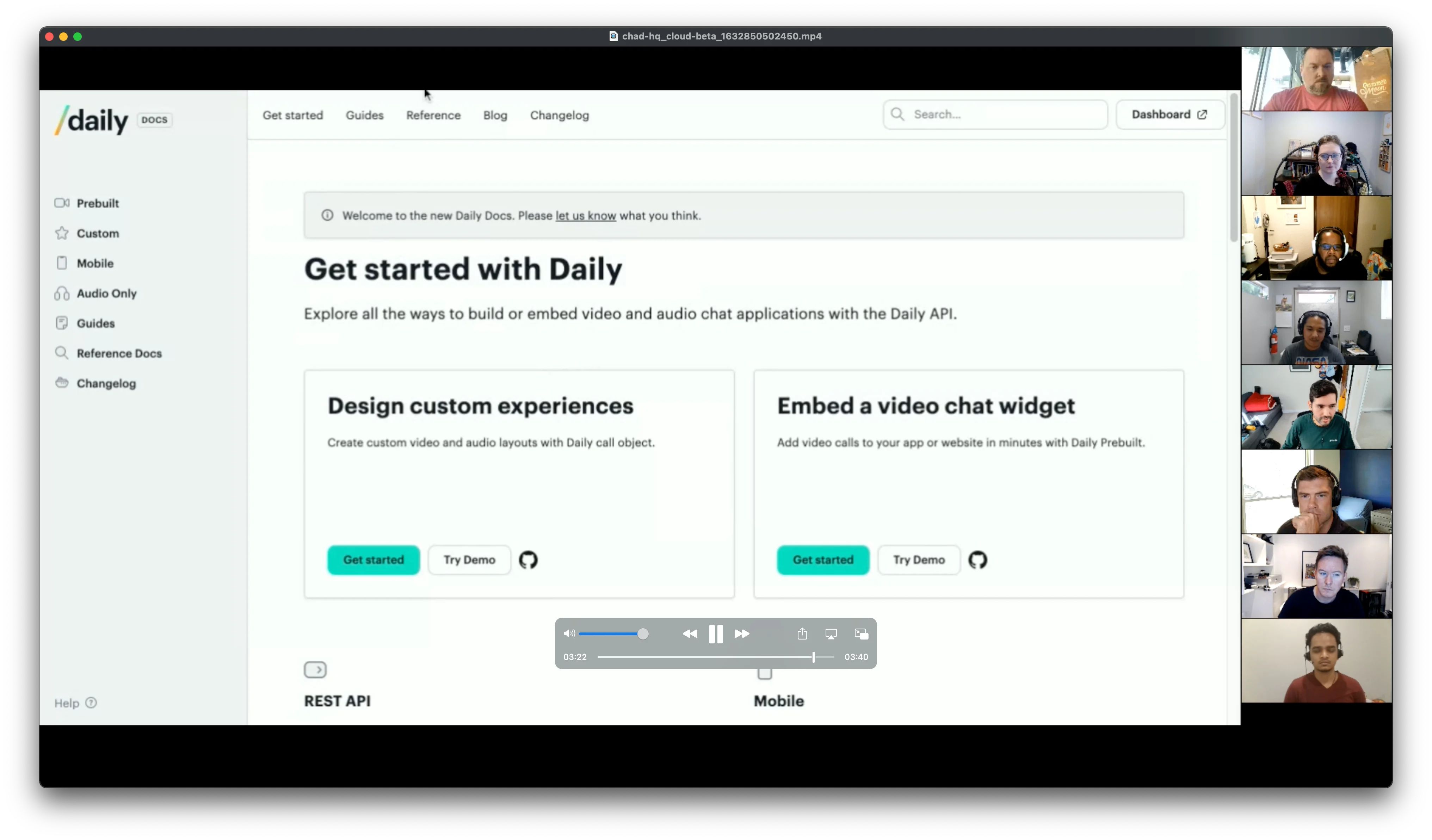
 *Example screenshare `"default"` layout*:
 *Example `"single-participant"` layout*:
 *Example `"active-participant"` layout*:
 *Example `"portrait"` layout with `"vertical"` variant*:
 *Example `"portrait"` layout with `"inset"` variant*:
 *Example `"custom"` layout with a text overlay:*
 ### Retrieve cloud recordings
Cloud recordings are available in the [Daily dashboard "Recordings" tab](https://dashboard.daily.co/recordings) and via the [recordings REST API](/reference/rest-api/recordings).
### Using cloud recording with Daily Prebuilt
When cloud recording is enabled, end users can start recordings using the "Record" button. The layout is automatically selected based on their current view (grid → `"default"`, speaker view → `"active-speaker"`).
For programmatic control over recording and additional layout presets, use the [`startRecording()`](/reference/daily-js/instance-methods/start-recording) and [`updateRecording()`](/reference/daily-js/instance-methods/update-recording) methods with the `layout` parameter.
## cloud-audio-only
Records a Daily call server-side and produces an audio-only MPEG-4 file (`.m4a`). Configuration and retrieval work the same as `cloud`, except layout options don't apply.
Enable it by setting `enable_recording` to `"cloud-audio-only"` at the room or meeting token level (same pattern as `cloud` above). The [`start_cloud_recording`](/reference/rest-api/meeting-tokens/create-meeting-token#body-properties-start-cloud-recording) token property applies to both `cloud` and `cloud-audio-only`.
Available for [HIPAA](/docs/guides/privacy-and-security/hipaa) use cases when using a [custom S3 bucket](/docs/guides/features/recording/custom-s3-storage).
## local
Local recording happens on the participant's device and relies on local compositing, so final quality is subject to browser and device limitations. The recording participant must be using Chrome on desktop.
Local recording saves the finished recording as a `.webm` file on the recording participant's computer. The file may need to be [transcoded](#transcoding-webm-files-with-a-gui) for compatibility with most devices and editors.
Use this type to access recordings directly on a participant's computer rather than through Daily's cloud. Local recording is also [HIPAA-compatible](/docs/guides/privacy-and-security/hipaa).
### Turn on local recording
```bash theme={null}
curl --request POST \
--url https://api.daily.co/v1/rooms \
--header 'Authorization: Bearer DAILY_API_KEY' \
--header 'Content-Type: application/json' \
--data '{"properties": {"enable_recording": "local"}}'
```
Or create a room with local recording enabled from the [Daily dashboard](https://dashboard.daily.co/rooms/create). Use [`startRecording()`](/reference/daily-js/instance-methods/start-recording) and [`stopRecording()`](/reference/daily-js/instance-methods/stop-recording) to manage it.
The recording is downloaded to the computer of the participant who stops it.
### Using local recording with Daily Prebuilt
Tell the participant who started recording to click "Stop" before leaving the call. If they leave without stopping, the recording will be lost. Daily Prebuilt attempts to warn the user before they leave.
## raw-tracks
`"raw-tracks"` captures each individual media track separately and stores them in your [custom S3 bucket](/docs/guides/features/recording/custom-s3-storage).
Use this type when you need to manage individual media tracks separately — for high-quality audio transcription, podcasts, or video production.
### Turn on raw-tracks recording
```bash theme={null}
curl --request POST \
--url https://api.daily.co/v1/rooms/:room-name \
--header 'Authorization: Bearer DAILY_API_KEY' \
--header 'Content-Type: application/json' \
--data '{"properties": {"enable_recording": "raw-tracks"}}'
```
Use [`startRecording()`](/reference/daily-js/instance-methods/start-recording) and [`stopRecording()`](/reference/daily-js/instance-methods/stop-recording) to manage it.
### Gapless transcoded audio
By default, each raw-tracks audio file is the participant's Opus stream stored as-is in a `.webm` container. Because it captures samples as they arrived over WebRTC, the file can contain gaps: a muted mic, an idle period, or packet loss leaves a hole in the timeline. Those gaps make it harder to line tracks up after the call.
Set `enable_raw_tracks_transcoded_audio` to have Daily decode each audio track, fill any gaps with silence, and re-encode it as a continuous (gapless) file. This keeps each track's audio flowing without holes, which makes alignment and post-processing simpler.
You can set it on a room or on your domain. A room value takes priority over the domain value.
```bash theme={null}
curl --request POST \
--url https://api.daily.co/v1/rooms/:room-name \
--header 'Authorization: Bearer DAILY_API_KEY' \
--header 'Content-Type: application/json' \
--data '{"properties": {"enable_raw_tracks_transcoded_audio": "wav-48k-stereo"}}'
```
The value is a string that picks the output format:
| Value | Output | Container | Sample rate | Channels |
| ----------------- | -------------------- | ----------------- | ----------- | -------- |
| `aac` | AAC, fixed 160 kbps | MP4 (`audio/mp4`) | 48 kHz | stereo |
| `wav-48k-stereo` | 16-bit PCM, lossless | WAV (`audio/wav`) | 48 kHz | stereo |
| `wav-48k-mono` | 16-bit PCM, lossless | WAV (`audio/wav`) | 48 kHz | mono |
| `wav-44k1-stereo` | 16-bit PCM, lossless | WAV (`audio/wav`) | 44.1 kHz | stereo |
| `wav-44k1-mono` | 16-bit PCM, lossless | WAV (`audio/wav`) | 44.1 kHz | mono |
Two shorthand aliases are accepted: `wav` and `wav-48k` both map to `wav-48k-stereo`, and `wav-44k1` maps to `wav-44k1-stereo`.
Notes:
* This setting only affects audio tracks. Video tracks are unchanged and still record as `.webm`.
* Leave it unset (or use an empty string) to keep the default Opus-in-`.webm` audio behavior.
* WAV gives you lossless audio at the cost of larger files. AAC is smaller and fixed at 160 kbps.
* It fills gaps inside each track so the audio is continuous. It does not pad the start of a late joiner's track to match when the meeting began, so different participants' files can still start at different points. Use the [raw-tracks-tools CLI](#using-raw-tracks-tools-cli) to align tracks to a shared timeline.
## Converting and compositing .webm files
Raw-tracks (and local) recordings produce `.webm` files, which may not play in most video players or be directly editable. This is because they capture raw samples as-is from the WebRTC session — with variable frame rates, varying resolutions, and potential gaps from packet loss.
### Using raw-tracks-tools CLI
Daily's open-source [raw-tracks-tools](https://github.com/daily-co/raw-tracks-tools) CLI can:
* Analyze and convert individual participant tracks
* Align audio and video tracks for sync
* Composite all tracks from a recording into a single MP4 using [VCS](/docs/guides/features/live-streaming/vcs)
See the [project README](https://github.com/daily-co/raw-tracks-tools) for installation and usage.
### Transcoding .webm files with a GUI
Two common options:
* **[CloudConvert](https://cloudconvert.com/)** — browser-based, free and paid plans. Convert `webm` to `mp4` (or `webm` to `mp3` for audio-only).
* **[Handbrake](https://handbrake.fr/)** — free app for Windows and macOS. Drag and drop your `.webm` file, set Format to `MP4` and Video Encoder to `H.264 (x264)`, click Start.
You can also view `.webm` files without transcoding in Chrome, Firefox, or [VLC Media Player](https://www.videolan.org/vlc/).
## Multiple Recordings
See [Multi-instance live streaming and recording](/docs/guides/features/live-streaming/multi-instance) for full details, including how to configure `max_streaming_instances_per_room` for your domain.
### Retrieve cloud recordings
Cloud recordings are available in the [Daily dashboard "Recordings" tab](https://dashboard.daily.co/recordings) and via the [recordings REST API](/reference/rest-api/recordings).
### Using cloud recording with Daily Prebuilt
When cloud recording is enabled, end users can start recordings using the "Record" button. The layout is automatically selected based on their current view (grid → `"default"`, speaker view → `"active-speaker"`).
For programmatic control over recording and additional layout presets, use the [`startRecording()`](/reference/daily-js/instance-methods/start-recording) and [`updateRecording()`](/reference/daily-js/instance-methods/update-recording) methods with the `layout` parameter.
## cloud-audio-only
Records a Daily call server-side and produces an audio-only MPEG-4 file (`.m4a`). Configuration and retrieval work the same as `cloud`, except layout options don't apply.
Enable it by setting `enable_recording` to `"cloud-audio-only"` at the room or meeting token level (same pattern as `cloud` above). The [`start_cloud_recording`](/reference/rest-api/meeting-tokens/create-meeting-token#body-properties-start-cloud-recording) token property applies to both `cloud` and `cloud-audio-only`.
Available for [HIPAA](/docs/guides/privacy-and-security/hipaa) use cases when using a [custom S3 bucket](/docs/guides/features/recording/custom-s3-storage).
## local
Local recording happens on the participant's device and relies on local compositing, so final quality is subject to browser and device limitations. The recording participant must be using Chrome on desktop.
Local recording saves the finished recording as a `.webm` file on the recording participant's computer. The file may need to be [transcoded](#transcoding-webm-files-with-a-gui) for compatibility with most devices and editors.
Use this type to access recordings directly on a participant's computer rather than through Daily's cloud. Local recording is also [HIPAA-compatible](/docs/guides/privacy-and-security/hipaa).
### Turn on local recording
```bash theme={null}
curl --request POST \
--url https://api.daily.co/v1/rooms \
--header 'Authorization: Bearer DAILY_API_KEY' \
--header 'Content-Type: application/json' \
--data '{"properties": {"enable_recording": "local"}}'
```
Or create a room with local recording enabled from the [Daily dashboard](https://dashboard.daily.co/rooms/create). Use [`startRecording()`](/reference/daily-js/instance-methods/start-recording) and [`stopRecording()`](/reference/daily-js/instance-methods/stop-recording) to manage it.
The recording is downloaded to the computer of the participant who stops it.
### Using local recording with Daily Prebuilt
Tell the participant who started recording to click "Stop" before leaving the call. If they leave without stopping, the recording will be lost. Daily Prebuilt attempts to warn the user before they leave.
## raw-tracks
`"raw-tracks"` captures each individual media track separately and stores them in your [custom S3 bucket](/docs/guides/features/recording/custom-s3-storage).
Use this type when you need to manage individual media tracks separately — for high-quality audio transcription, podcasts, or video production.
### Turn on raw-tracks recording
```bash theme={null}
curl --request POST \
--url https://api.daily.co/v1/rooms/:room-name \
--header 'Authorization: Bearer DAILY_API_KEY' \
--header 'Content-Type: application/json' \
--data '{"properties": {"enable_recording": "raw-tracks"}}'
```
Use [`startRecording()`](/reference/daily-js/instance-methods/start-recording) and [`stopRecording()`](/reference/daily-js/instance-methods/stop-recording) to manage it.
### Gapless transcoded audio
By default, each raw-tracks audio file is the participant's Opus stream stored as-is in a `.webm` container. Because it captures samples as they arrived over WebRTC, the file can contain gaps: a muted mic, an idle period, or packet loss leaves a hole in the timeline. Those gaps make it harder to line tracks up after the call.
Set `enable_raw_tracks_transcoded_audio` to have Daily decode each audio track, fill any gaps with silence, and re-encode it as a continuous (gapless) file. This keeps each track's audio flowing without holes, which makes alignment and post-processing simpler.
You can set it on a room or on your domain. A room value takes priority over the domain value.
```bash theme={null}
curl --request POST \
--url https://api.daily.co/v1/rooms/:room-name \
--header 'Authorization: Bearer DAILY_API_KEY' \
--header 'Content-Type: application/json' \
--data '{"properties": {"enable_raw_tracks_transcoded_audio": "wav-48k-stereo"}}'
```
The value is a string that picks the output format:
| Value | Output | Container | Sample rate | Channels |
| ----------------- | -------------------- | ----------------- | ----------- | -------- |
| `aac` | AAC, fixed 160 kbps | MP4 (`audio/mp4`) | 48 kHz | stereo |
| `wav-48k-stereo` | 16-bit PCM, lossless | WAV (`audio/wav`) | 48 kHz | stereo |
| `wav-48k-mono` | 16-bit PCM, lossless | WAV (`audio/wav`) | 48 kHz | mono |
| `wav-44k1-stereo` | 16-bit PCM, lossless | WAV (`audio/wav`) | 44.1 kHz | stereo |
| `wav-44k1-mono` | 16-bit PCM, lossless | WAV (`audio/wav`) | 44.1 kHz | mono |
Two shorthand aliases are accepted: `wav` and `wav-48k` both map to `wav-48k-stereo`, and `wav-44k1` maps to `wav-44k1-stereo`.
Notes:
* This setting only affects audio tracks. Video tracks are unchanged and still record as `.webm`.
* Leave it unset (or use an empty string) to keep the default Opus-in-`.webm` audio behavior.
* WAV gives you lossless audio at the cost of larger files. AAC is smaller and fixed at 160 kbps.
* It fills gaps inside each track so the audio is continuous. It does not pad the start of a late joiner's track to match when the meeting began, so different participants' files can still start at different points. Use the [raw-tracks-tools CLI](#using-raw-tracks-tools-cli) to align tracks to a shared timeline.
## Converting and compositing .webm files
Raw-tracks (and local) recordings produce `.webm` files, which may not play in most video players or be directly editable. This is because they capture raw samples as-is from the WebRTC session — with variable frame rates, varying resolutions, and potential gaps from packet loss.
### Using raw-tracks-tools CLI
Daily's open-source [raw-tracks-tools](https://github.com/daily-co/raw-tracks-tools) CLI can:
* Analyze and convert individual participant tracks
* Align audio and video tracks for sync
* Composite all tracks from a recording into a single MP4 using [VCS](/docs/guides/features/live-streaming/vcs)
See the [project README](https://github.com/daily-co/raw-tracks-tools) for installation and usage.
### Transcoding .webm files with a GUI
Two common options:
* **[CloudConvert](https://cloudconvert.com/)** — browser-based, free and paid plans. Convert `webm` to `mp4` (or `webm` to `mp3` for audio-only).
* **[Handbrake](https://handbrake.fr/)** — free app for Windows and macOS. Drag and drop your `.webm` file, set Format to `MP4` and Video Encoder to `H.264 (x264)`, click Start.
You can also view `.webm` files without transcoding in Chrome, Firefox, or [VLC Media Player](https://www.videolan.org/vlc/).
## Multiple Recordings
See [Multi-instance live streaming and recording](/docs/guides/features/live-streaming/multi-instance) for full details, including how to configure `max_streaming_instances_per_room` for your domain.