> ## Documentation Index
> Fetch the complete documentation index at: https://docs.daily.co/llms.txt
> Use this file to discover all available pages before exploring further.
# Storing Daily call recordings in a custom Amazon S3 bucket
> Configure Daily to store call recordings directly in your own S3 bucket.
Developers can configure Daily to store call recordings in an [Amazon S3](https://aws.amazon.com/s3/) bucket of their choice. In this configuration, Daily does not store the recording on its own servers at any point — recordings are written directly into the specified bucket.
If you're new to call recording with Daily, check out the [recording guide](/docs/guides/features/recording) first.
***
## S3 bucket configuration requirements
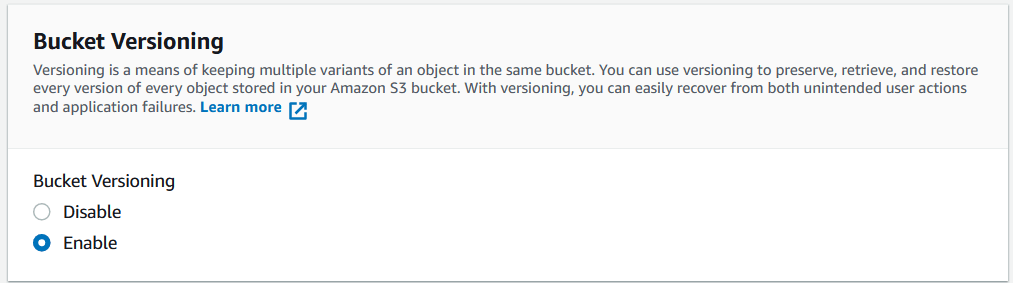
The target S3 bucket can be in any AWS region and must have **versioning enabled**. Select "Enable" under "Bucket Versioning" when [creating your S3 bucket](https://docs.aws.amazon.com/AmazonS3/latest/userguide/creating-bucket.html).
 ## Shortcut: automated setup script
Our team has created a [GitHub repo with a custom script](https://github.com/daily-co/daily-recordings-bucket) that configures your S3 bucket for Daily recordings automatically.
You'll need:
1. Your Daily domain name (the subdomain of your Daily room URLs — e.g. `https://your-domain.daily.co/room-name`)
2. The bucket name
3. The bucket region
Follow the [README](https://github.com/daily-co/daily-recordings-bucket) for instructions. Once complete, skip to [configuring your Daily domain or room](#configuring-your-daily-domain-or-room-to-store-recordings-in-s3).
***
## Creating an IAM policy with appropriate permissions
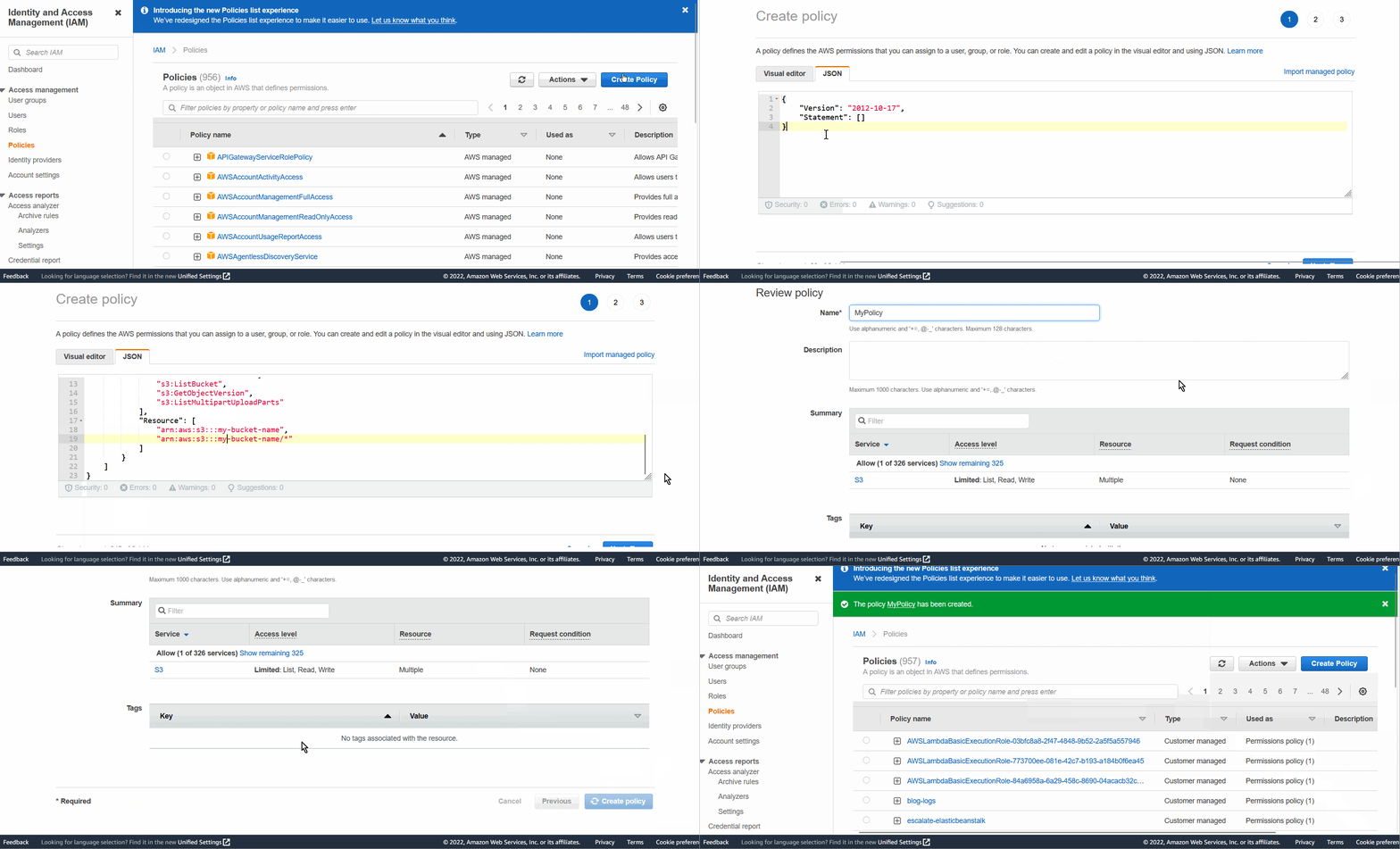
[AWS Identity and Access Management (IAM)](https://docs.amazonaws.cn/en_us/IAM/latest/UserGuide/introduction.html) controls access to AWS resources. To allow Daily to store recordings in your bucket, create an [IAM policy](https://docs.aws.amazon.com/IAM/latest/UserGuide/access_policies_create.html) with these permissions:
```json theme={null}
{
"Version": "2012-10-17",
"Statement": [
{
"Sid": "VisualEditor0",
"Effect": "Allow",
"Action": [
"s3:PutObject",
"s3:GetObject",
"s3:ListBucketMultipartUploads",
"s3:AbortMultipartUpload",
"s3:ListBucketVersions",
"s3:ListBucket",
"s3:GetObjectVersion",
"s3:ListMultipartUploadParts"
],
"Resource": [
"arn:aws:s3:::your-bucket-name",
"arn:aws:s3:::your-bucket-name/*"
]
}
]
}
```
Replace `your-bucket-name` with the name of your S3 bucket.
Create this policy in the [IAM dashboard](https://console.aws.amazon.com/iam/home) under **Policies → Create**.
## Shortcut: automated setup script
Our team has created a [GitHub repo with a custom script](https://github.com/daily-co/daily-recordings-bucket) that configures your S3 bucket for Daily recordings automatically.
You'll need:
1. Your Daily domain name (the subdomain of your Daily room URLs — e.g. `https://your-domain.daily.co/room-name`)
2. The bucket name
3. The bucket region
Follow the [README](https://github.com/daily-co/daily-recordings-bucket) for instructions. Once complete, skip to [configuring your Daily domain or room](#configuring-your-daily-domain-or-room-to-store-recordings-in-s3).
***
## Creating an IAM policy with appropriate permissions
[AWS Identity and Access Management (IAM)](https://docs.amazonaws.cn/en_us/IAM/latest/UserGuide/introduction.html) controls access to AWS resources. To allow Daily to store recordings in your bucket, create an [IAM policy](https://docs.aws.amazon.com/IAM/latest/UserGuide/access_policies_create.html) with these permissions:
```json theme={null}
{
"Version": "2012-10-17",
"Statement": [
{
"Sid": "VisualEditor0",
"Effect": "Allow",
"Action": [
"s3:PutObject",
"s3:GetObject",
"s3:ListBucketMultipartUploads",
"s3:AbortMultipartUpload",
"s3:ListBucketVersions",
"s3:ListBucket",
"s3:GetObjectVersion",
"s3:ListMultipartUploadParts"
],
"Resource": [
"arn:aws:s3:::your-bucket-name",
"arn:aws:s3:::your-bucket-name/*"
]
}
]
}
```
Replace `your-bucket-name` with the name of your S3 bucket.
Create this policy in the [IAM dashboard](https://console.aws.amazon.com/iam/home) under **Policies → Create**.
 ## Creating an IAM role for Daily
Create an [IAM role](https://docs.aws.amazon.com/IAM/latest/UserGuide/id_roles.html) with the policy attached. If you are already familiar with creating IAM roles, feel free to do so with the following settings. Otherwise, follow the walkthrough below.
| Setting | Value |
| ------------------------ | -------------------------------- |
| Trusted Entity Type | AWS Account |
| Trusted AWS account ID | `291871421005` (Daily's account) |
| Required external ID | Your Daily domain name |
| Maximum session duration | 12 hours |
### Role creation walkthrough
1. In the [IAM dashboard](https://console.aws.amazon.com/iam/home), click **Roles → Create Role**.
2. For "Trusted Entity Type", select **AWS Account**.
3. Under "An AWS Account", select **Another AWS account**.
4. Enter `291871421005` as the Account ID (this is Daily's account).
5. Enter your Daily domain name as the "Require External ID".
## Creating an IAM role for Daily
Create an [IAM role](https://docs.aws.amazon.com/IAM/latest/UserGuide/id_roles.html) with the policy attached. If you are already familiar with creating IAM roles, feel free to do so with the following settings. Otherwise, follow the walkthrough below.
| Setting | Value |
| ------------------------ | -------------------------------- |
| Trusted Entity Type | AWS Account |
| Trusted AWS account ID | `291871421005` (Daily's account) |
| Required external ID | Your Daily domain name |
| Maximum session duration | 12 hours |
### Role creation walkthrough
1. In the [IAM dashboard](https://console.aws.amazon.com/iam/home), click **Roles → Create Role**.
2. For "Trusted Entity Type", select **AWS Account**.
3. Under "An AWS Account", select **Another AWS account**.
4. Enter `291871421005` as the Account ID (this is Daily's account).
5. Enter your Daily domain name as the "Require External ID".
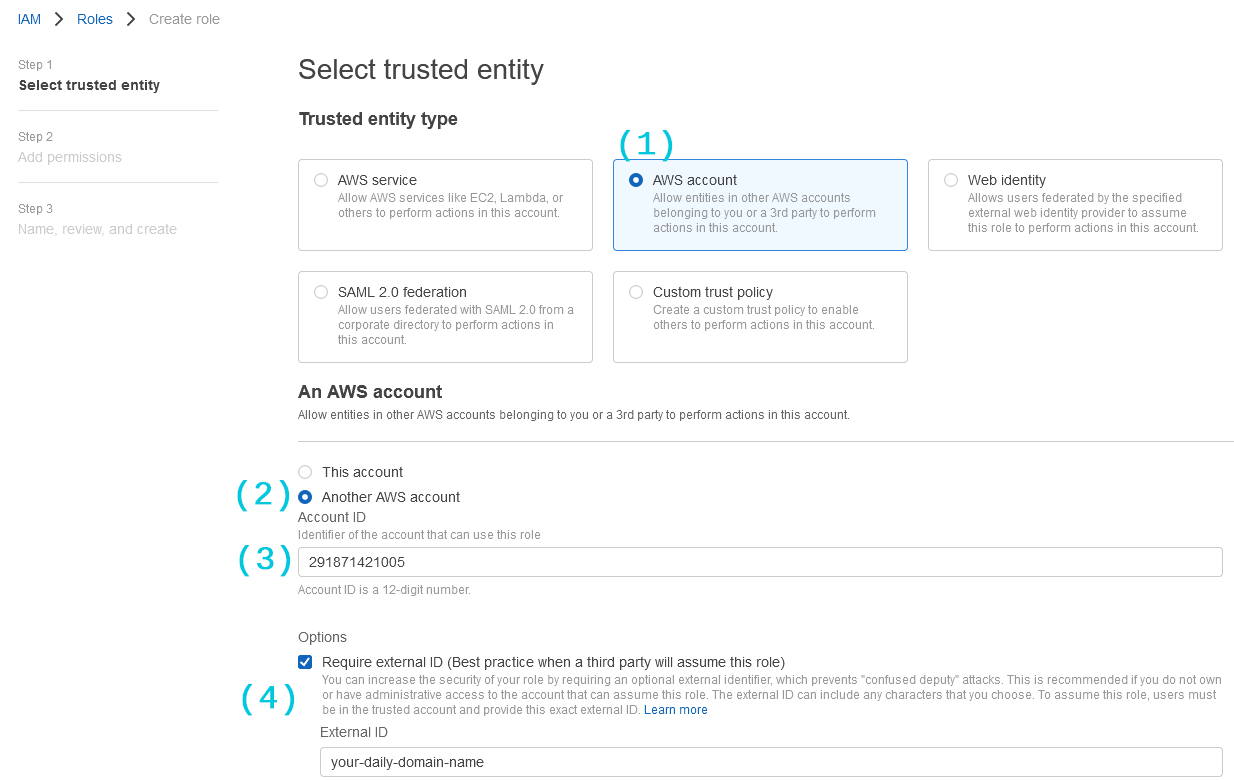 Your domain name is the first part of your room URLs: `https://[domain-name].daily.co/[room-name]`. You can also find it as a query parameter at `https://dashboard.daily.co/?domain=[domain-name]`.
6. Click **Next** and attach the IAM policy you created.
Your domain name is the first part of your room URLs: `https://[domain-name].daily.co/[room-name]`. You can also find it as a query parameter at `https://dashboard.daily.co/?domain=[domain-name]`.
6. Click **Next** and attach the IAM policy you created.
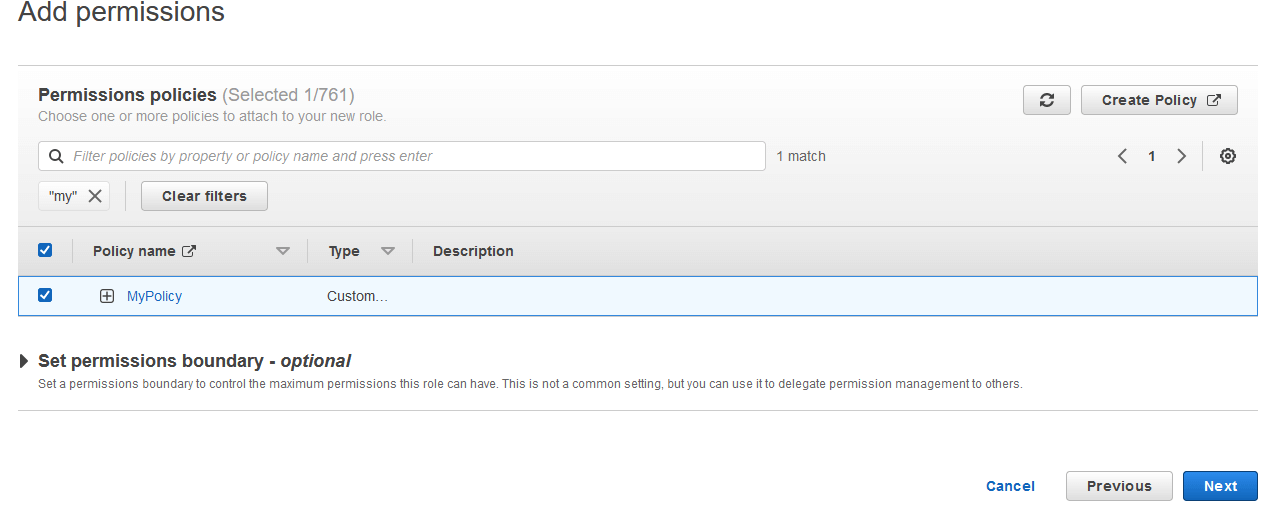 7. Click **Next** again to give your role a name and click **Create role**.
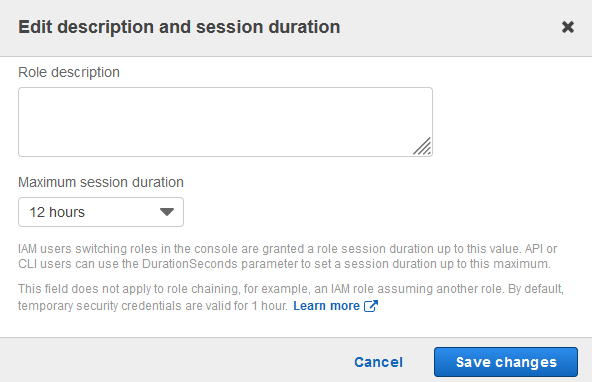
8. Find the role in your IAM Roles list, click **Edit**, and set **Maximum session duration** to **12 hours**.
7. Click **Next** again to give your role a name and click **Create role**.
8. Find the role in your IAM Roles list, click **Edit**, and set **Maximum session duration** to **12 hours**.
 9. Copy the ARN (Amazon Resource Name) from the role page — you'll need it in the next step.
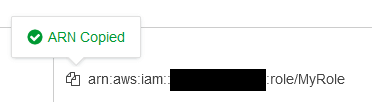 ## Configuring your Daily domain or room to store recordings in S3
S3 storage can be configured at the room or domain level. Which configuration gets used depends on the following priority order (highest to lowest):
1. [Customer S3 bucket at the room level](/reference/rest-api/rooms/create-room#body-properties-recordings-bucket)
2. [Customer S3 bucket at the domain level](/reference/rest-api/domain/set-domain-config#body-properties-transcription-bucket)
3. Daily's default storage (no configuration needed)
Recordings stored in a customer's S3 bucket do not incur an additional Daily storage rate. The API will upload a test file (`daily-co-test-upload.txt`) to verify permissions.
### Examples
**Set a custom S3 bucket at the room level:**
```bash theme={null}
curl --request POST \
--url https://api.daily.co/v1/rooms/my-room \
--header 'Authorization: Bearer $DAILY_API_KEY' \
--header 'Content-Type: application/json' \
--data '{
"properties": {
"recordings_bucket": {
"bucket_name": "my-daily-recording",
"bucket_region": "ap-south-1",
"assume_role_arn": "arn:aws:iam::555555555555:role/DailyS3AccessRole",
"allow_api_access": false
}
}
}'
```
**Set a custom S3 bucket at the domain level:**
```bash theme={null}
curl --request POST \
--url https://api.daily.co/v1/ \
--header 'Authorization: Bearer $DAILY_API_KEY' \
--header 'Content-Type: application/json' \
--data '{
"properties": {
"recordings_bucket": {
"bucket_name": "my-daily-recording",
"bucket_region": "ap-south-1",
"assume_role_arn": "arn:aws:iam::555555555555:role/DailyS3AccessRole",
"allow_api_access": true
}
}
}'
```
**Revert to Daily default storage:**
```bash theme={null}
curl --request POST \
--url https://api.daily.co/v1/rooms/my-room \
--header 'Authorization: Bearer $DAILY_API_KEY' \
--header 'Content-Type: application/json' \
--data '{"properties": {"recordings_bucket": null}}'
```
**Properties:**
* `bucket_name` — name of your S3 bucket
* `bucket_region` — AWS region of your S3 bucket
* `assume_role_arn` — ARN of the IAM role you created above
* `allow_api_access` — whether Daily's [recording access link](/reference/rest-api/recordings/get-recording-link) API should allow downloading the recording
If you have any questions or run into issues with the setup, [contact us](https://www.daily.co/contact/support).
## Configuring your Daily domain or room to store recordings in S3
S3 storage can be configured at the room or domain level. Which configuration gets used depends on the following priority order (highest to lowest):
1. [Customer S3 bucket at the room level](/reference/rest-api/rooms/create-room#body-properties-recordings-bucket)
2. [Customer S3 bucket at the domain level](/reference/rest-api/domain/set-domain-config#body-properties-transcription-bucket)
3. Daily's default storage (no configuration needed)
Recordings stored in a customer's S3 bucket do not incur an additional Daily storage rate. The API will upload a test file (`daily-co-test-upload.txt`) to verify permissions.
### Examples
**Set a custom S3 bucket at the room level:**
```bash theme={null}
curl --request POST \
--url https://api.daily.co/v1/rooms/my-room \
--header 'Authorization: Bearer $DAILY_API_KEY' \
--header 'Content-Type: application/json' \
--data '{
"properties": {
"recordings_bucket": {
"bucket_name": "my-daily-recording",
"bucket_region": "ap-south-1",
"assume_role_arn": "arn:aws:iam::555555555555:role/DailyS3AccessRole",
"allow_api_access": false
}
}
}'
```
**Set a custom S3 bucket at the domain level:**
```bash theme={null}
curl --request POST \
--url https://api.daily.co/v1/ \
--header 'Authorization: Bearer $DAILY_API_KEY' \
--header 'Content-Type: application/json' \
--data '{
"properties": {
"recordings_bucket": {
"bucket_name": "my-daily-recording",
"bucket_region": "ap-south-1",
"assume_role_arn": "arn:aws:iam::555555555555:role/DailyS3AccessRole",
"allow_api_access": true
}
}
}'
```
**Revert to Daily default storage:**
```bash theme={null}
curl --request POST \
--url https://api.daily.co/v1/rooms/my-room \
--header 'Authorization: Bearer $DAILY_API_KEY' \
--header 'Content-Type: application/json' \
--data '{"properties": {"recordings_bucket": null}}'
```
**Properties:**
* `bucket_name` — name of your S3 bucket
* `bucket_region` — AWS region of your S3 bucket
* `assume_role_arn` — ARN of the IAM role you created above
* `allow_api_access` — whether Daily's [recording access link](/reference/rest-api/recordings/get-recording-link) API should allow downloading the recording
If you have any questions or run into issues with the setup, [contact us](https://www.daily.co/contact/support).