

Common media device errors
Daily accesses participant media input devices through the browser’sMediaDevices interface. The interface’s getUserMedia() method prompts the user for device permissions and creates a MediaStream with the corresponding tracks if permission is granted.
If something goes wrong, the browser throws an exception and Daily emits a camera-error event. Browsers are inconsistent in their implementations of these exceptions for any given root issue — for example, if there is no camera plugged in, Chrome and Firefox throw a NotFoundError, but Safari throws an OverconstrainedError. Daily normalizes these inconsistencies so the same underlying issue generates the same error type regardless of browser or OS. The most common device errors are detailed below. For full details on all error categories, see the camera-error reference.
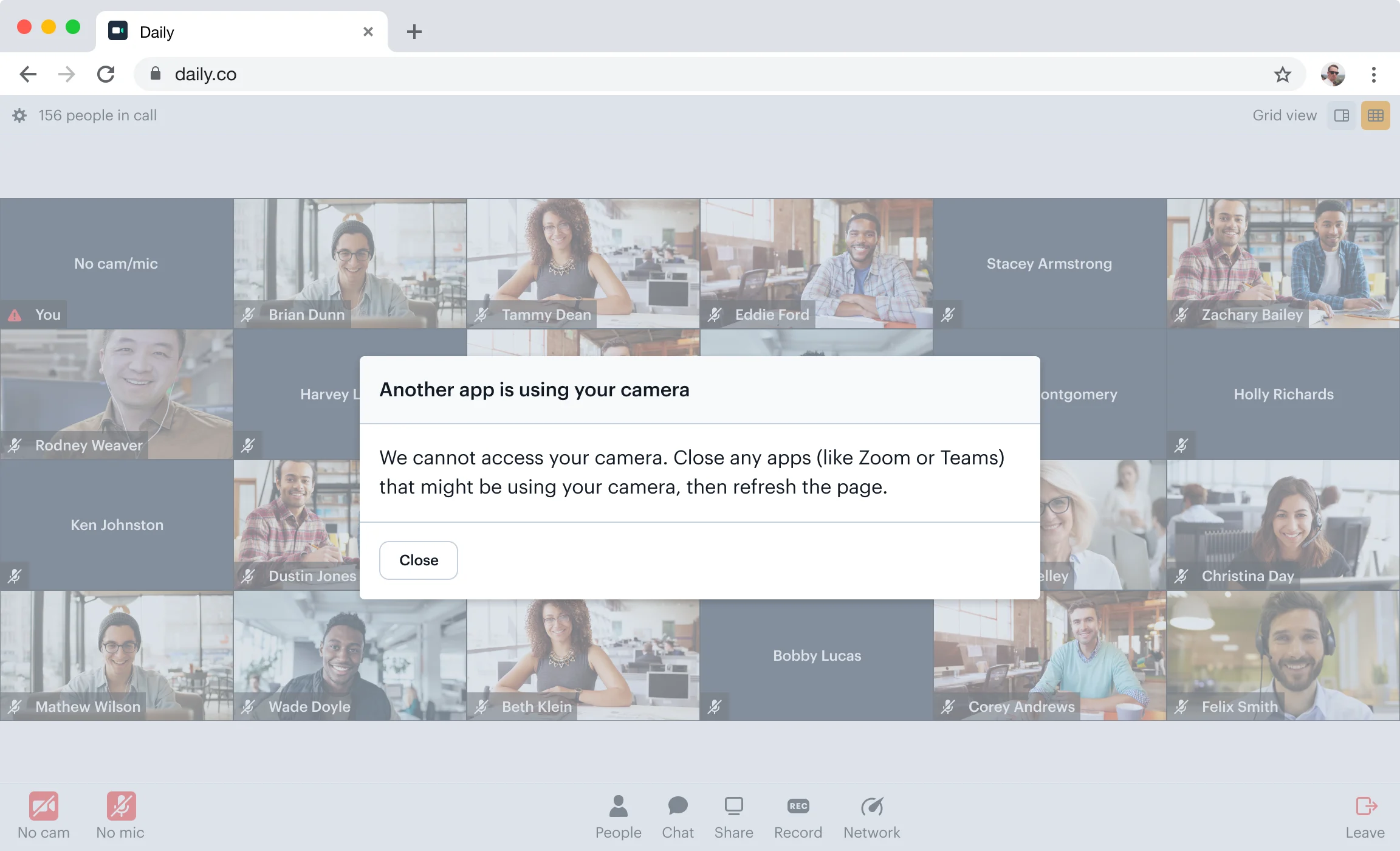
Device in use
Most common on Windows when another app is using the participant’s camera. Thecamera-error event’s error.type will be cam-in-use, mic-in-use, or cam-mic-in-use:
Permissions denied
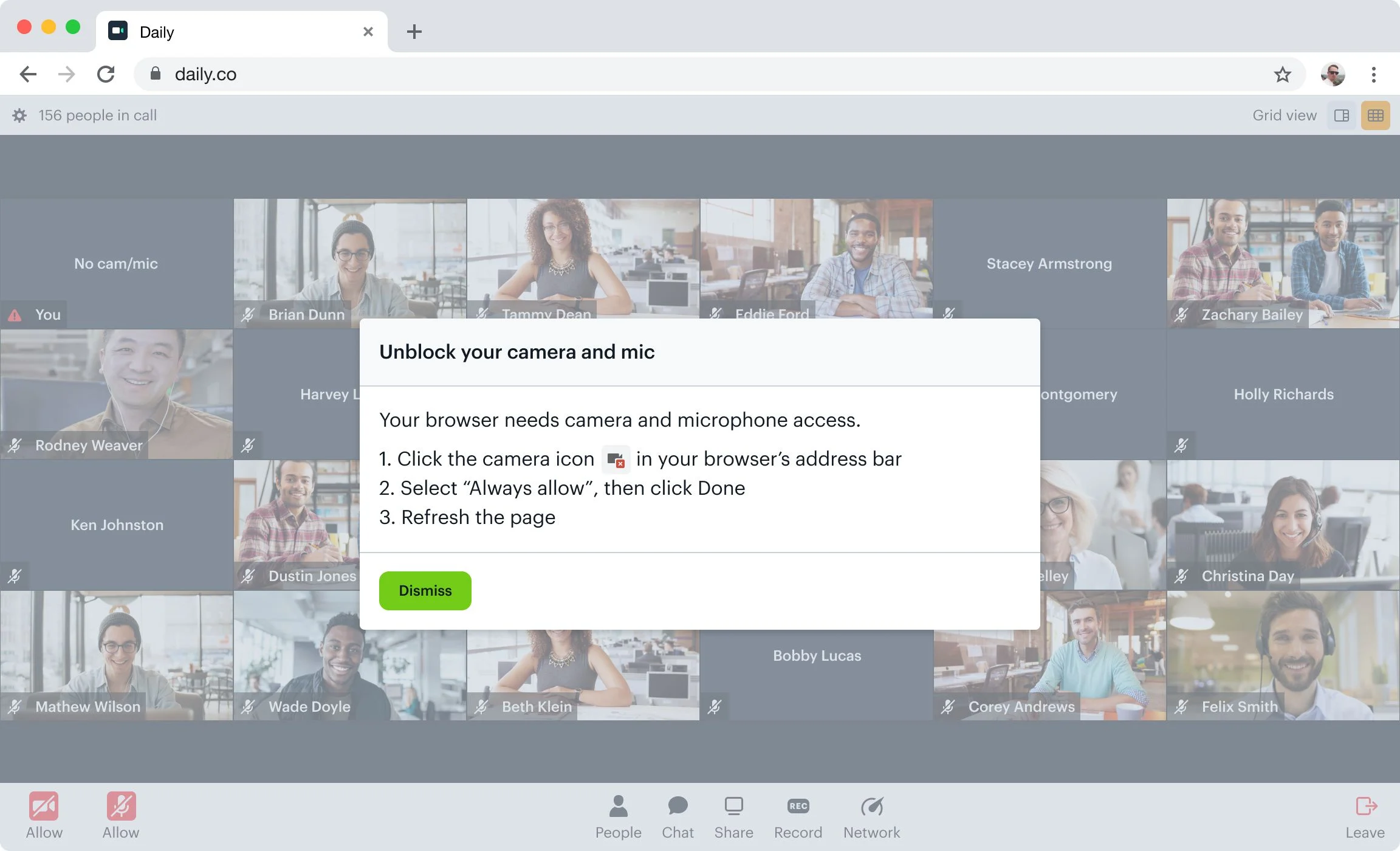
Happens when the call hasn’t been granted access to the participant’s device — either the participant clicked “Block” in the browser permissions prompt, or the browser hasn’t been granted access in OS settings. This is one of the most commongetUserMedia() errors.
The camera-error event’s error.type will be 'permissions'. The error.blockedBy field indicates whether the block came from the user or the OS, and error.blockedMedia indicates which media is blocked:
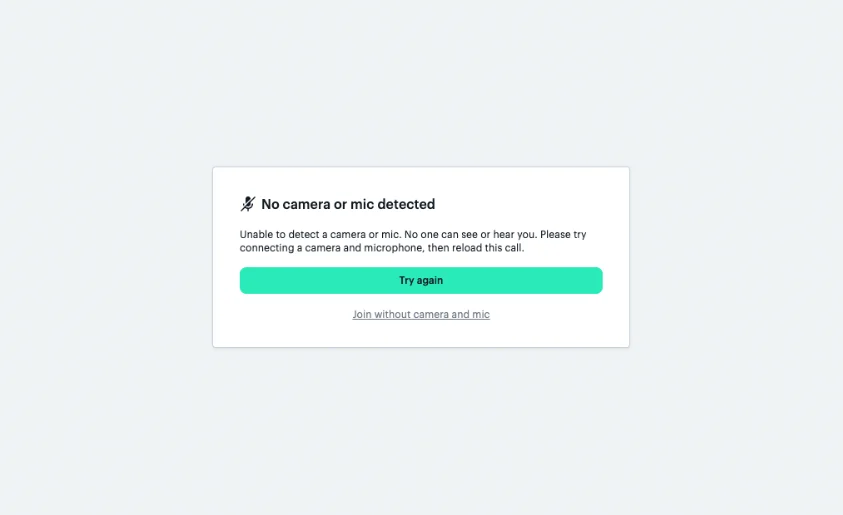
No available devices
If the browser can’t find any input devices for a given media type, thecamera-error event’s error.type will be "not-found", with an error.missingMedia field detailing which devices were not found:
Best practices for handling media devices
Device Permission Prompts
In daily-js, permissions prompts will be triggered whenever media is first requested, typically onstartCamera() or join(). By default, if the camera is enabled, daily-js will prompt for permission for both the camera and microphone, regardless of whether the microphone is enabled. This ensures a smoother user experience by reducing the number of prompts the participant sees. However, if the participant joins/startsCamera with only the mic enabled, the browser will only prompt for microphone access. This avoids the camera light turning on before the participant explicitly enables the camera, which can be a jarring experience. To change these default behaviors, see alwaysIncludeMicInPermissionPrompt and alwaysIncludeCamInPermissionPrompt.
Adjust instructions based on browser and device
Device manufacturers and browsers don’t always handle device permissions the same way. For example, the steps to re-allow access after a permissions error differ by OS, device, and browser. For the best experience, your call UI should show device-specific instructions.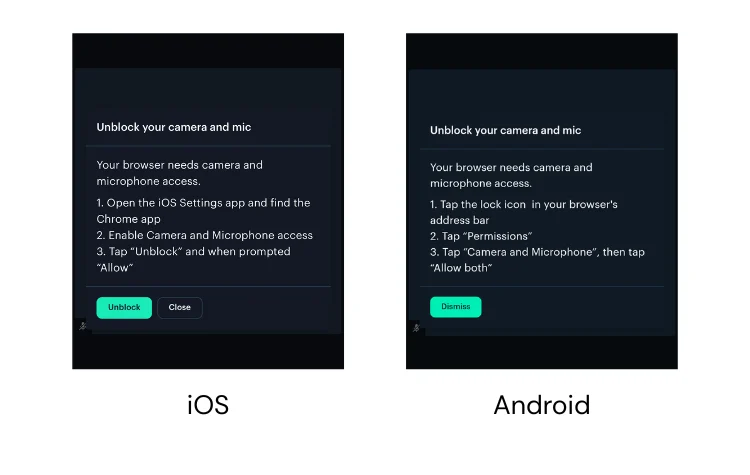
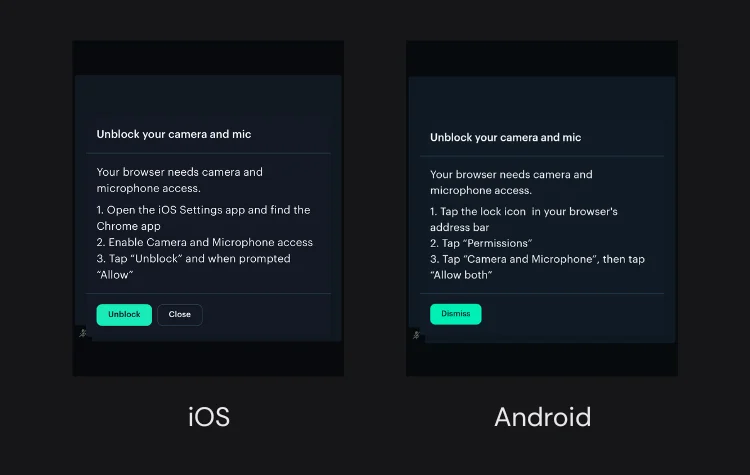
Create a pre-call lobby for device setup
A test call page, lobby, or “green room” where participants can set up their devices before joining gives them a safe space to read and respond to permission prompts, configure their devices, and resolve any mistakes before going live. To enable Daily Prebuilt’s prejoin UI, set theenable_prejoin_ui property to true at the room or domain level.
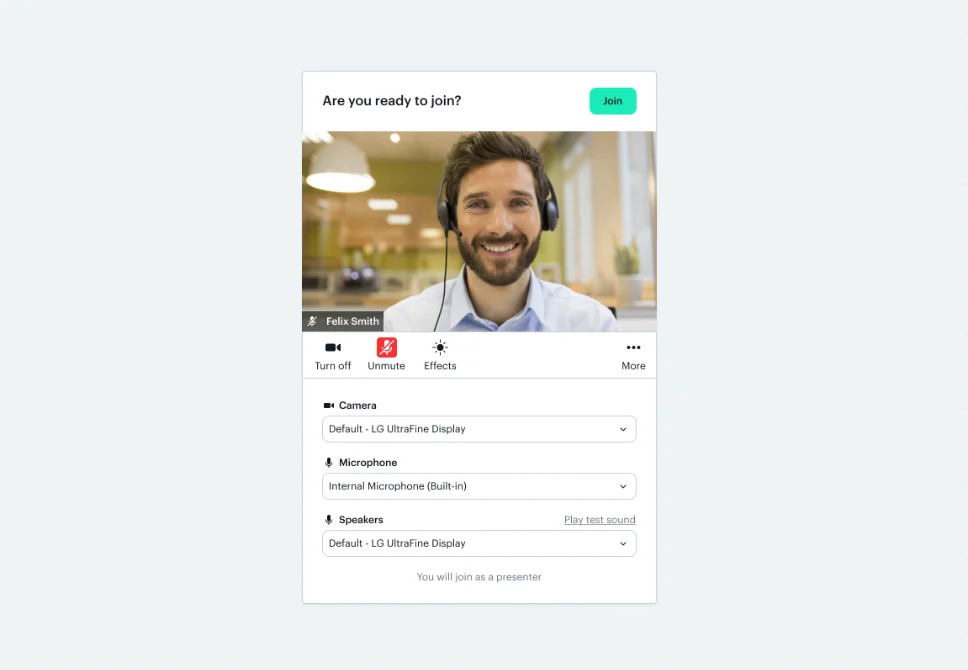
startCamera() is a good starting point for building a lobby — it requests device access and starts the camera before the participant joins the call.
To give participants visual confirmation that their microphone is working, call startLocalAudioLevelObserver() after startCamera(). Daily will then emit local-audio-level events at a regular interval with a volume value between 0 and 1, which you can use to drive a mic activity indicator in your lobby UI:
stopLocalAudioLevelObserver() when the participant enters the call or leaves the lobby.