

The room privacy setting
When a room is created, itsprivacy setting defaults to "public". Anyone who knows the room’s URL can join a public room.
For many workflows, public rooms are the right approach. If you create rooms on the fly for one-time use, let the room creation API generate a random name automatically — the URL will be impossible to guess, so only the people you share it with can join. You can also set an exp time on the room so it is automatically deleted after use.
For other workflows, you will want to restrict access. For example, if you use human-readable room names, someone could guess a room name and join uninvited. Or, if you reuse meeting rooms, you may want to control access so that even people who have the URL can’t always join.
To restrict access, set the room’s privacy to "private".
A private room can be joined with a meeting token or by knocking (if the room property enable_knocking is set to true).
If you change a room from public to private while participants are in it, those participants will remain. Anyone else who tries to join after the change will need a token or to knock.
Meeting tokens
A meeting token is the most flexible way to grant access to a private room. Tokens can be unique per participant, time-limited, and carry additional user properties. Any valid meeting token grants access to a private room. The preferred way to pass a token is via thetoken parameter in join() or preAuth():
Meeting owner privileges
Participants who join with theis_owner meeting token property set to true have access to elevated privileges during a call, including:
- Starting or stopping a live stream
- Allowing participants in (private rooms only)
- Triggering
updateParticipant() - Muting camera and microphone for others in Daily Prebuilt
Knocking
To allow users to request access to a private room, set the room’senable_knocking property to true.
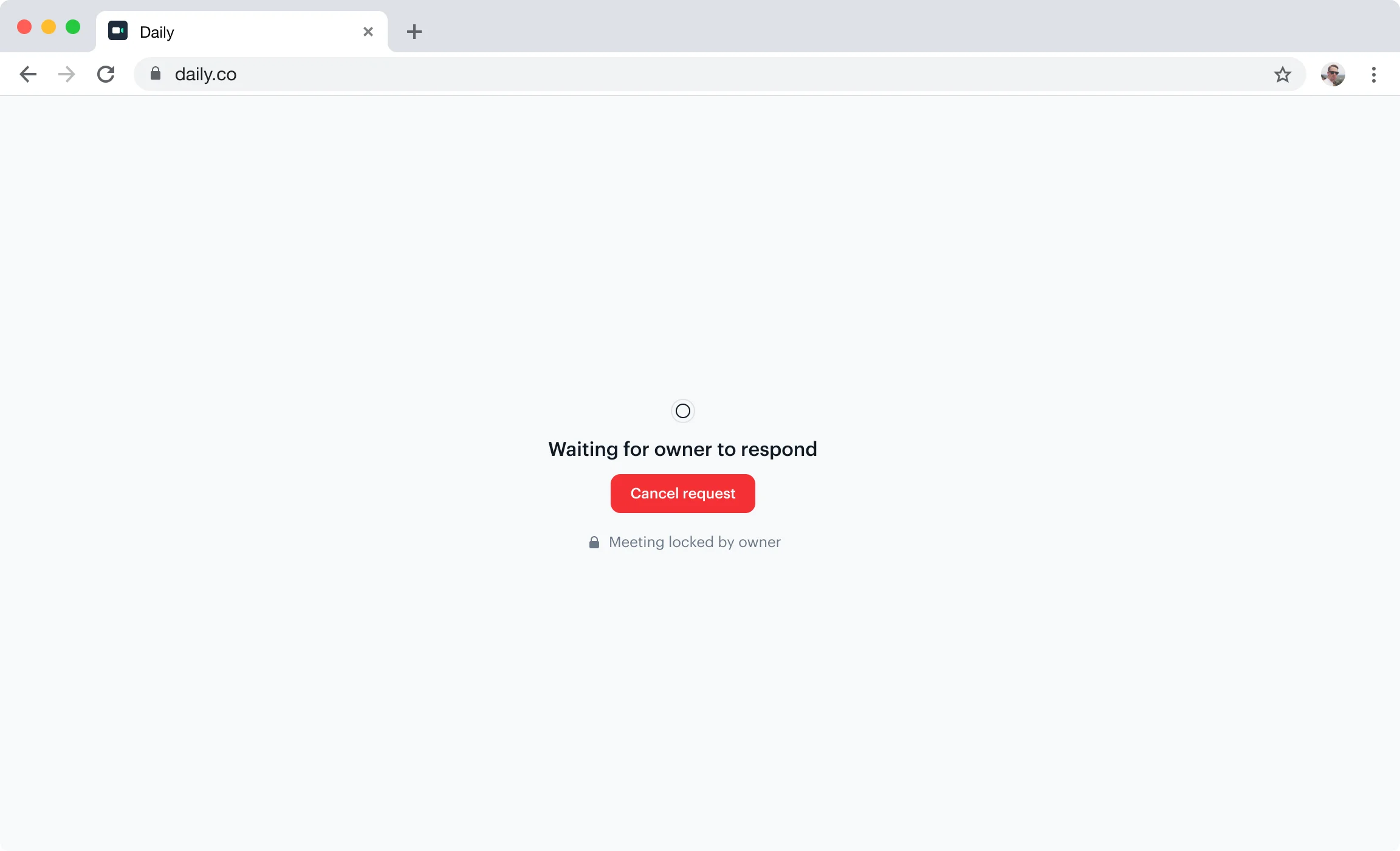
is_owner: true in their meeting token — must be present to approve or deny the request.
Listening for waiting participants
Owners should listen for the following events to respond to knocking participants in real time:waiting-participant-added— fires when a participant starts knockingwaiting-participant-updated— fires when a waiting participant updates their display namewaiting-participant-removed— fires when a waiting participant leaves or gives up
Getting the list of waiting participants
UsewaitingParticipants() to get the current set of participants in the waiting state at any point:
Admitting or denying waiting participants
UseupdateWaitingParticipant() or updateWaitingParticipants() to accept or deny access: