

Pagination
Pagination limits the number of participants displayed on a screen at a time, so a call participant has to click to rotate through all other attendees. This reduces the load on any individual participant’s CPU and bandwidth.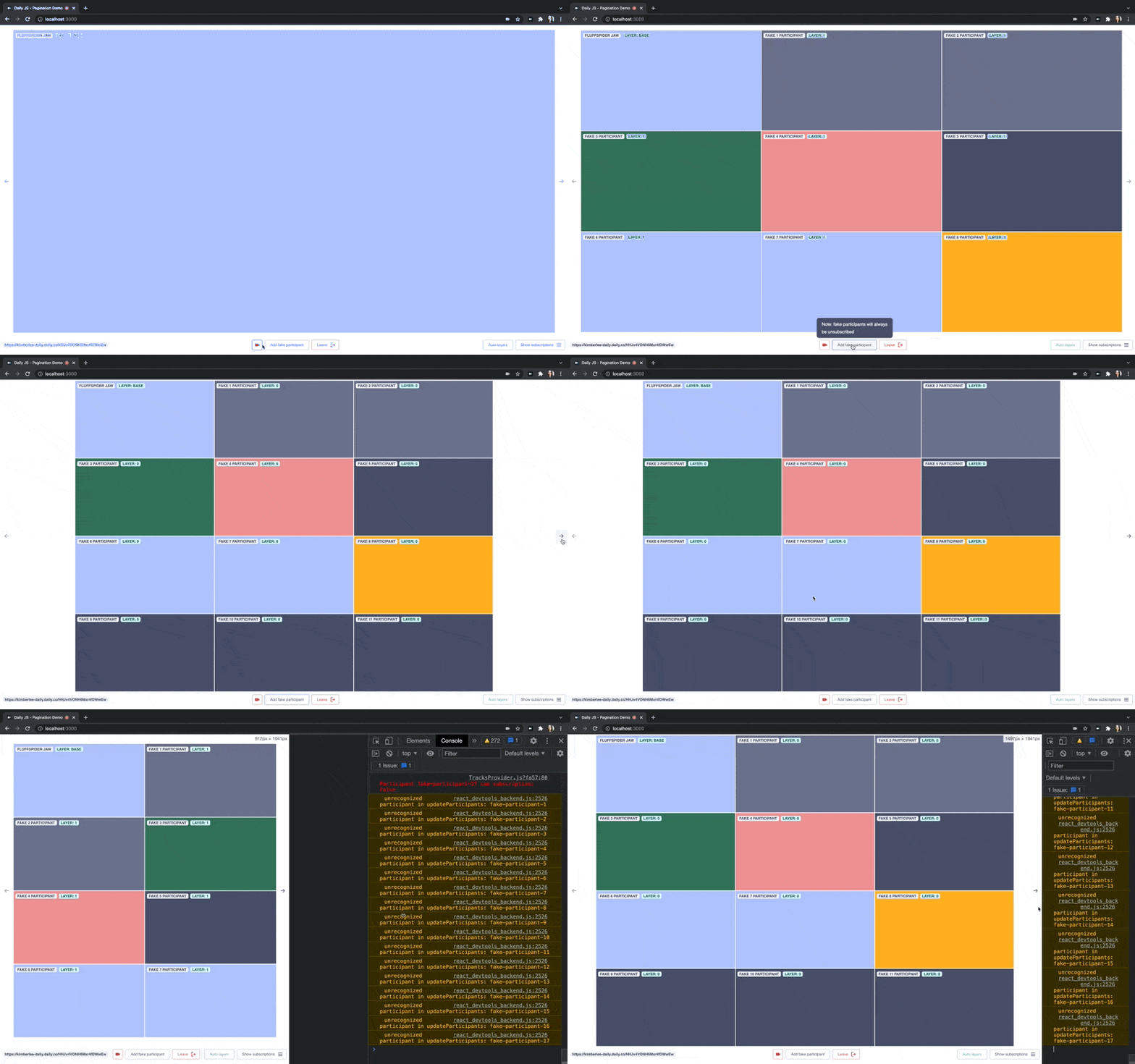
Example of pagination from this demo app built on React.
participants() method to access the full list of active participants in a call. Once the participants are known, you can do the following to build out your pagination logic:
1
Establish UI constants
Define the minimum participant video tile width, default aspect ratio, and the maximum number of tiles per page.
2
Calculate pages
Use the UI constants and the number of call participants to calculate the total number of pages. The number of pages, and which participants are on each page, should update as the number of call participants changes, so set up the state management of your choice.
3
Add pagination controls
Add click handlers to the pagination buttons that update the app state to reflect the current page being viewed.
4
Determine visible participants
Set up a handler using the current page, number of participants, and maximum number of tiles per page to make a copy of the participants object that only includes visible participants.
5
Render the current page
Iterate over the visible participants object to render each participant in the UI.
Track subscriptions
Daily calls operate on a publish-subscribe model: participants publish audio, video, and screenMediaStreamTracks, and are subscribed to other participant’s tracks.
By default, Daily routes a participant’s distinct set of tracks to all the other participants on a call. In large calls with hundreds and thousands of participants, decoding all that video can demand a lot of network bandwidth and processing power.
Turning off Daily’s default track handling in favor of manual track subscriptions can deliver better call quality during sessions with many participants. Track subscriptions can also enable features like breakout groups, and improve features like pagination.
There are three steps to set up direct track subscriptions:
1
Set subscribeToTracksAutomatically to false
This turns off Daily’s default track management. This property can be set on
join() or call object creation, or via the setSubscribeToTracksAutomatically() method. The latter is a good option if you want to wait to turn on track subscriptions until a certain number of participants have joined the call.2
Update participants' subscribed state
Call 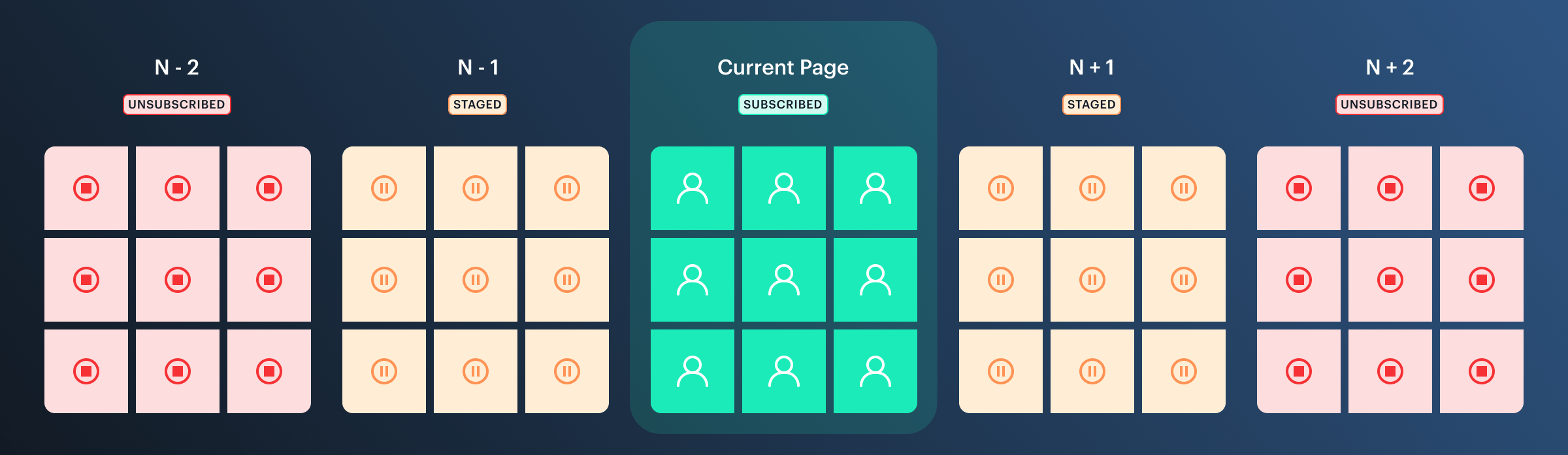
updateParticipant() or updateParticipants() to change the subscribed value of a participant’s tracks property.Each participant’s tracks include audio (microphone), video (camera), and screenAudio and screenVideo (screenshare). Each track has a state indicating if it can be played, and a subscribed value of true, false, or "staged".A subscribed status of "staged" keeps the connection open but stops bytes from flowing — faster to promote than a full unsubscribe, while still saving bandwidth. Paginated grid apps (including Daily Prebuilt!) often subscribe to tracks on the current page, stage the previous and next pages, and unsubscribe from the rest.updateParticipant() receives an object with the participant’s id as the key and a setSubscribedTracks object as the value:updateParticipants().3
Listen for participant events
The
updateParticipant() method fires a corresponding "participant-updated" event. Add a listener to this event to update the app interface as participants’ tracks state and subscribed statuses change in response.Simulcast layer control
When a participant joins a call, their tracks are first sent to a Selective Forwarding Unit (SFU). From there, the SFU processes, re-encrypts, and routes media tracks to participants, allowing tracks to be “selectively” forwarded.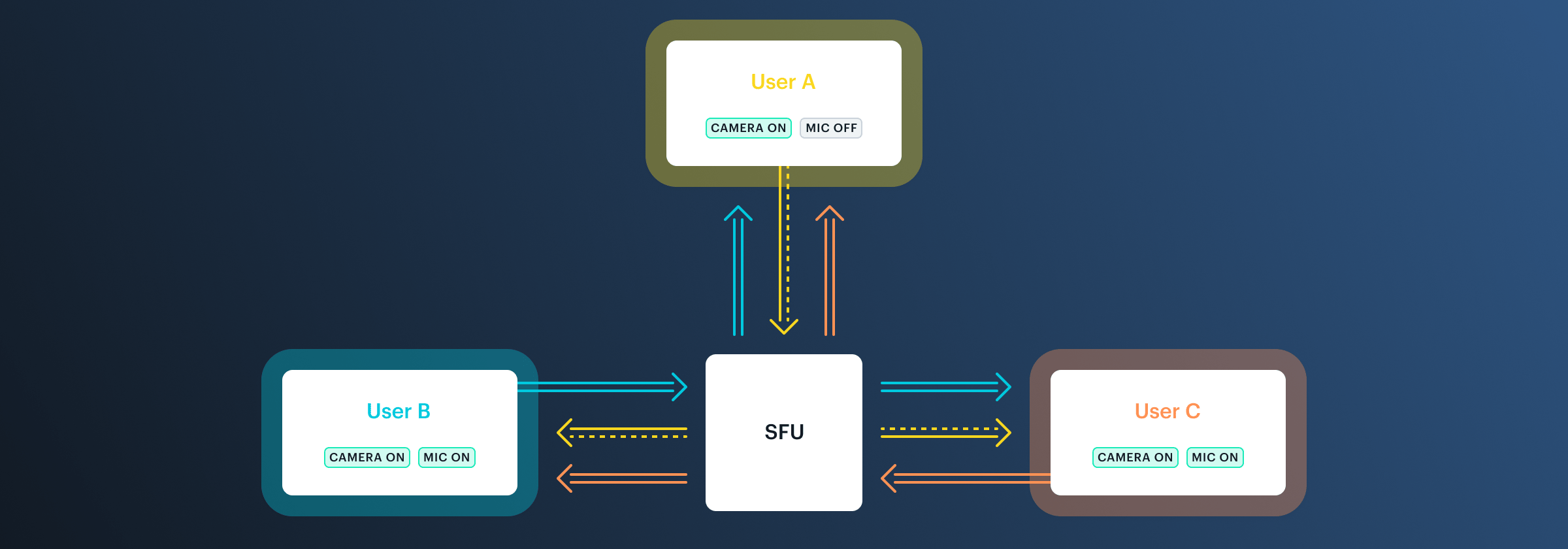
Graphic of SFU routing tracks between participants.
- The available bandwidth on the receiving end: The SFU will send a lower layer if the current one exceeds the available bandwidth.
- The send-side is not sending all the layers: This typically occurs when the browser detects network or CPU issues or the highest video resolution of the device does not support the highest layers. It’s also worth noting that the browser can and will modify the actual bitrate, frame rate, and resolution sent on each layer for these same reasons, so the actual settings used oftentimes do not match the configuration.
Default simulcast layer settings in daily-js
- Desktop
- Mobile
- React Native
Change send-side video quality
Adjusting the quality of the video that participants send to the server can be useful in large calls. For example, the main active speaker showcased prominently in the UI could send higher quality video than the other call participants. There are two properties that can be manipulated to adjust send-side video quality:sendSettings or userMediaVideoConstraints.
sendSettings
The sendSettings are where a participant’s layer settings are defined. These can be configured when the call object is created (via the call object property or by using the updateSendSettings() instance method. Through these APIs you can define maxBitrate, maxFramerate, and scaleResolutionDownBy values to set encodings for spatial layers that differ from Daily defaults.
maxBitrate: the desired video bitrate for the layer, in bits per second.maxFramerate: an integer value lower than the maximum rate expected from the camera, in frames per second.scaleResolutionDownBy: an integer of 1 or greater. The horizontal and vertical dimensions of the source video will be divided by this number to get the resolution for the layer.
inputSettings
The inputSettings are where a particant’s media constraints and processors can be defined/overriden. Here, you can enforce what the browser gets from a web cam before its ever sent over the wire by defining a maximum resolution (width and height values) and/or frame rate (maxFramerate). You can set these properties on call object creation via the call object property or by using the updateInputSettings() instance method.
Adjust receive-side video quality
The Daily receiveSettings API can be used to override the SFU estimated forwarding and request a specific simulcast layer instead. If many participant videos will be displayed or if they will be rendered on small mobile screens, for example, programmatically requesting a lower bitrate layer can improve call performance. Lower quality videos not only save downstream bandwidth, but also can dramatically improve CPU performance since they require fewer resources to render.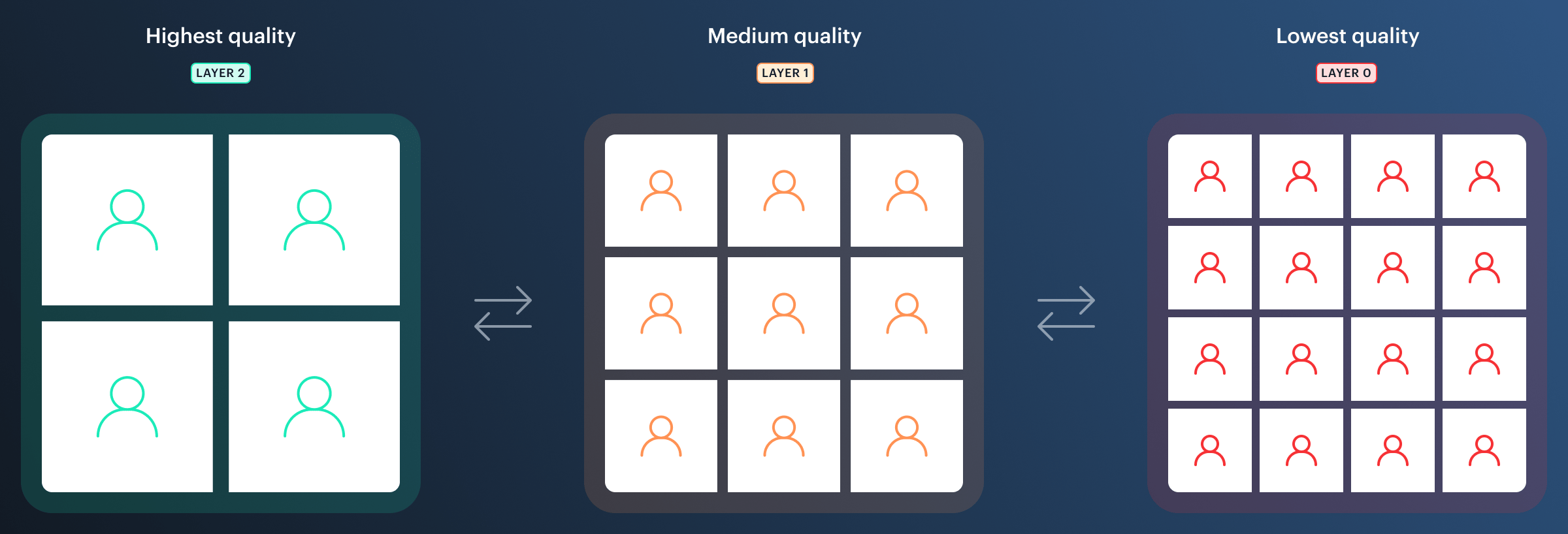
Three layers of simulcast with different quality settings.
-
Request the updated simulcast layer, either through
updateReceiveSettings()or by settingreceiveSettingsin the client properties join(). -
Listen for the
"receive-settings-updated"event to update the app interface in response.
'*' key sets the default for all participants. 'inherit' resets an individual back to that default. This keeps the total number of API calls small — one call per speaker change rather than one per participant.