

- There are no direct user events
- You can’t access devices like video inputs directly
- You can’t create network requests to fetch data from online sources
Four types of runtime inputs
The four types of runtime inputs available let your compositions access control data and different types of sources. They include:1. Parameters
These are like React props, but defined by your composition and exported to the “outside world”. The data types available for parameters are limited to what’s included in the composition parameters. See sectionComposition file structure and interface for more info about how compInterface defines parameters using a JSON format.
The VCS Simulator dynamically creates its UI based on the parameters declared by the composition. This way you can easily test sending data to the composition.
Inside your composition, the useParams() hook provides access to the current param values.
2. Video slots
These give you access to realtime media. The slots are an array of media stream descriptions. VCS doesn’t have access to the actual media data (e.g. you can’t directly modify pixels in video streams). Instead the embedding host provides an array of slots describing the inputs. For each slot, these are the important properties:- Source ID: An opaque ID identifying the source. This is what you’d pass to a
<Video>element to render this source. - Active: A boolean value indicating whether this source is active.
- Paused: A boolean value indicating whether the video is paused.
- Display name: A string that represents the source. Depending on the embedding context, it could be a camera device name, a video call participant name, or something else.
useActiveVideo() hook to get a streamlined representation of the data filtered into convenience objects like activeIds.
3. Assets
Assets refer to any media that’s not realtime. Currently, the only type of asset you can access within a VCS composition are images. Assets come in three flavors:- Composition assets
- Session assets
- Dynamic assets
4. WebFrame
WebFrame gives you an embedded web browser that behaves much like an image component within your composition. You can render it anywhere and change its source URL and size. It will update in real time—not at a full 30fps video frame rate, but good enough for live document updates. You can even send simulated keyboard events to WebFrame for interactivity.Compositing model
the video hamburger Video frames are a special type of image. They’re usually compressed and processed in data formats and color spaces that are specifically intended for video data. These tend to have weird names like “Y’CbCr 4:2:2 Rec.709”, which happens to be the most common data format under the umbrella of formats known asYUV.
VCS is designed with the assumption that the heavy lifting of your video composition will deal with video inputs that output to either video encoding or display. This is mostly YUV pixel data. Yet there’s also a clear need to integrate RGBA graphics so that authors can create motion graphics as they’re used to. So VCS adopts a hybrid model where different types of content are internally routed and you only need to be aware of some simple rules.
VCS lets you define your video layers and graphics elements seamlessly together in one composition. It then internally optimizes the composition’s output renderables so that the compositing model becomes a “video hamburger”.
The video hamburger metaphor for VCS’s compositing model
- The “beef” of the hamburger is a stack of video layers. These are composited in the right
YUVcolor space to match the incoming video data. This allows us to avoid extraneous color space conversions. - The “buns” of the hamburger are RGBA layer groups. These are your foreground and (optionally) background graphics. Any overlay graphics elements in your VCS composition are rendered with alpha channel in the foreground “bun” which is then composited into the destination video color space, thus avoiding any unwanted color space conversions here as well.
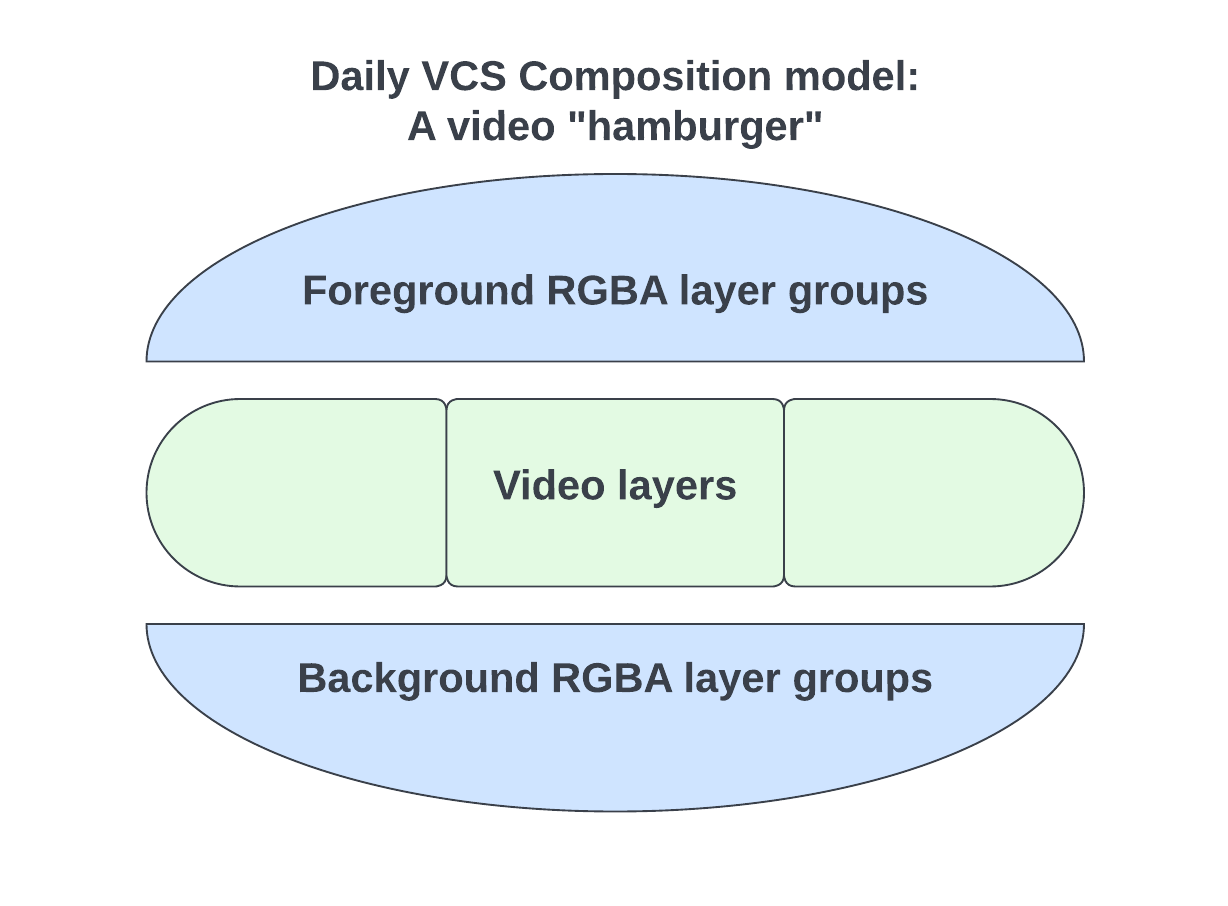
<Video> components) will actually end up rendered as part of the “bun”.
This re-shuffling of the layer order doesn’t affect the visual output for typical compositions because motion graphics tend to be strictly overlays. However, if you’re looking to do something particularly complex where video and graphics content overlap, you may need to “fake” the effect by, for example, using <Box> components with clipping enabled to punch holes in your graphics to let the video show through.
Before testing out the VCS SDK, we recommend reading our other
Core concepts pages if you haven’t already: