

Key terms
Encoder — software (or hardware) that compresses the stream. Daily is the encoder. Transcoder — software that ingests the RTMP stream and transcodes it into an HLS stream. Examples: YouTube Live, Mux, AWS IVS. HLS stream — HTTP Live Streaming, an HTTP-based adaptive bitrate streaming protocol.Daily live streaming
Daily manages audio, video, and screen share streams for calls of up to 100,000 participants. (Read our interactive live streaming guide for more information.) Daily live streaming encodes the collective call stream to a transcoder of your choice, and provides options to customize the stream layout. No external dependencies or multimedia streaming libraries are required. By default, Daily live streaming outputs video at 1920x1080, 30 fps encoded as H.264 at 5 Mbps. Width and height can each be up to 1920 pixels (for example, 1920x1080, or 1080x1920 for portrait), and both must be even numbers. Please reach out if you have other requirements. Daily live streaming outputs audio encoded as AAC at 160 Kbps. Contact us if you have additional needs. All live streams must occur over an SFU network connection. There are two parts to using Daily live streaming: setting up prerequisite accounts and values, and using those values in an application to create a Daily live stream.Prerequisites
- Pay-as-you-go Daily account — add a credit card in the dashboard.
- A Daily room — create via the dashboard or REST API.
- An owner or streaming admin meeting token — only meeting owners or streaming admins can start a live stream:
- A transcoding provider account — popular options: Amazon IVS, Mux, YouTube Live, Cloudflare Stream.
- An
rtmpUrl— combine your transcoder’s ingest URL and stream key.
RTMP URL templates by provider
Generic template:
rtmp(s)://DOMAIN/BASE_INGEST_URL/STREAM_KEY
How to create a Daily live streaming app
1. Initialize a Daily call:Listening for live streaming events
Live streaming layout options
Pass layout configuration tostartLiveStreaming() or updateLiveStreaming():
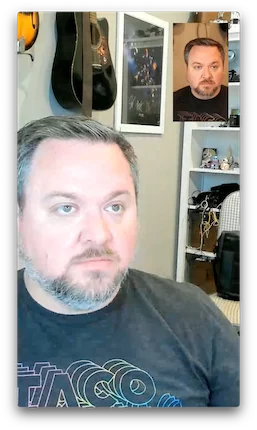
height,width— controls output resolution (set once viastartLiveStreaming()).backgroundColor— formatted as#rrggbbor#aarrggbb.This can only be set once via `startLiveStreaming().layout: an object specifying the way participants’ videos are laid out in the stream.preset: The layout preset to use. Options (see below for examples):"default"— grid layout; supportsmax_cam_streams(default 20, max 20)."single-participant"— stream only a single participant’s audio and video. The selected participant’s session ID must be specified via asession_idkey."active-participant"— This layout focuses on the current speaker, and places up to 9 other cameras to the right in a single column vertical grid in the order in which they last spoke."portrait"— mobile-friendly;"vertical"(default) or"inset"variant."vertical": up to two participants are shown in a vertical layout. Participants with theis_ownerflag are shown lower in the grid."inset": one participant’s video takes up the entire screen and the other is inset in a smaller rectangle. Participants’ videos are scaled and cropped to fit the entire available space. Participants with theis_ownerflag are shown full screen.
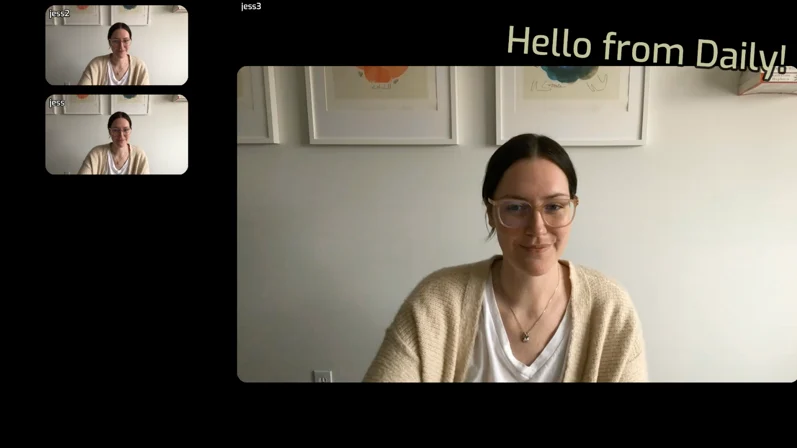
"custom"— full custom layout via VCS, withcomposition_paramsand optionalsession_assets. A full list of available parameters is available in the reference docs. You can also test available options with the VCS Simulator.
"default" layout:
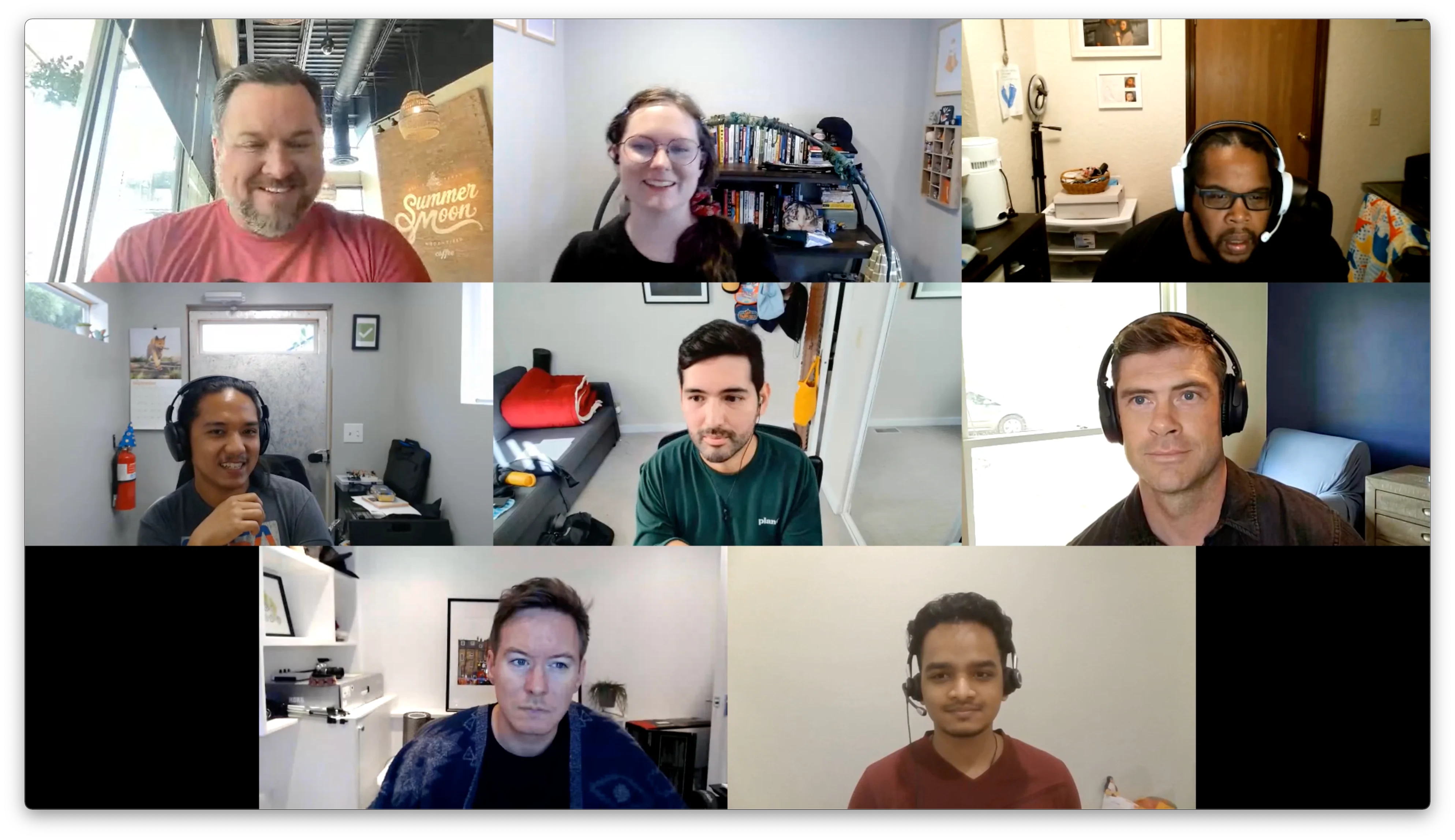
"default" layout:
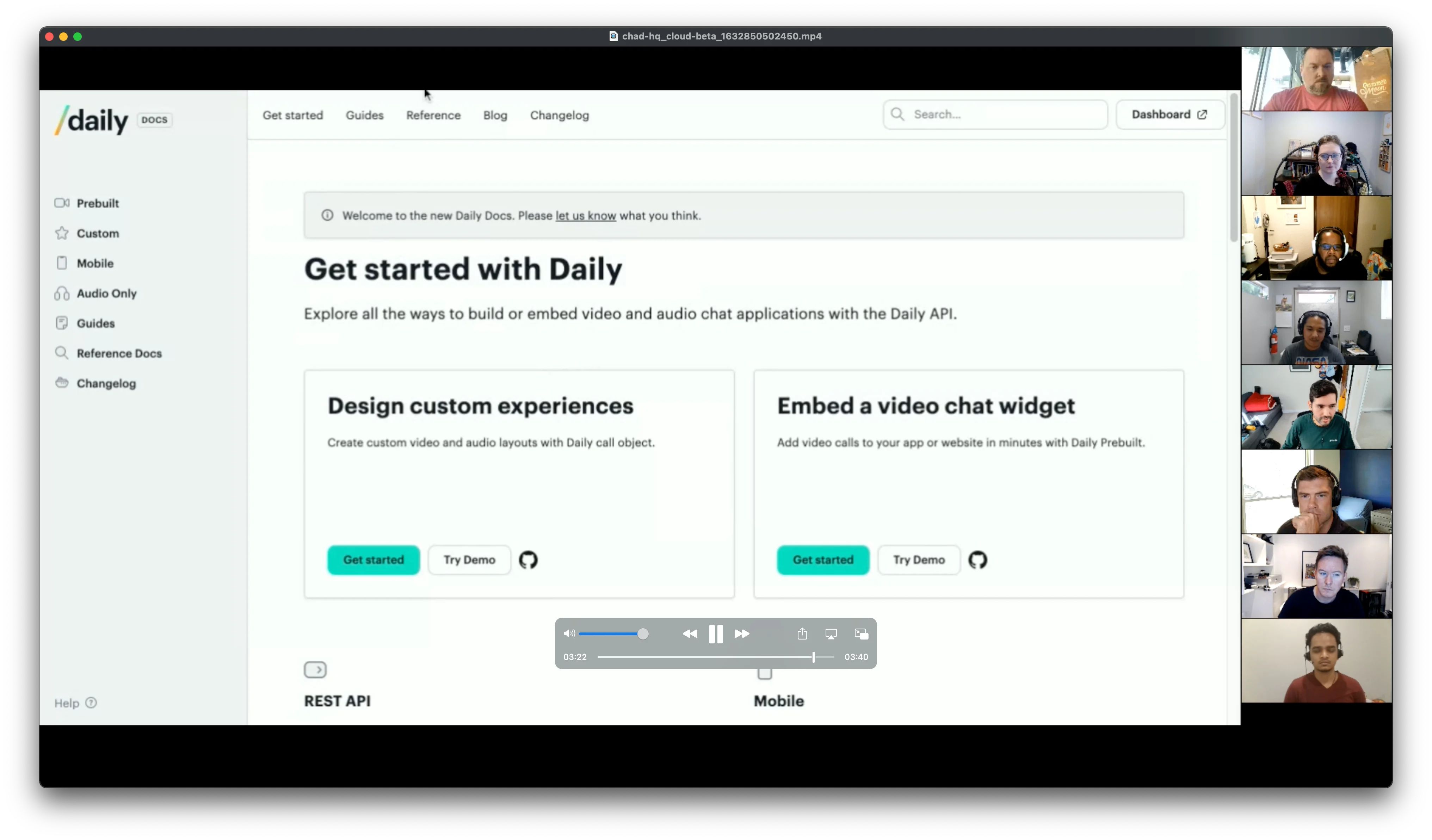
"single-participant" layout:
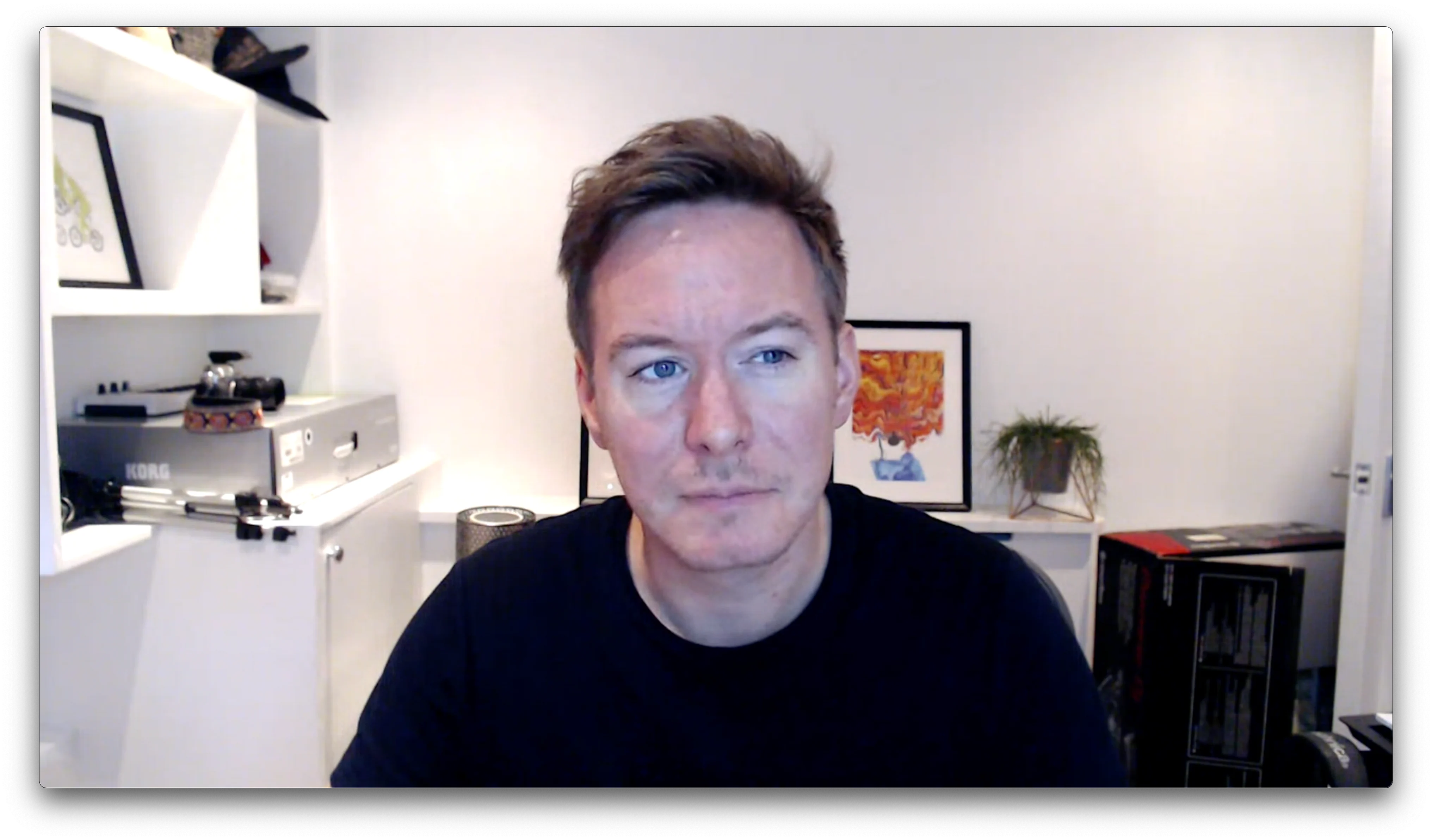
"active-participant" layout:
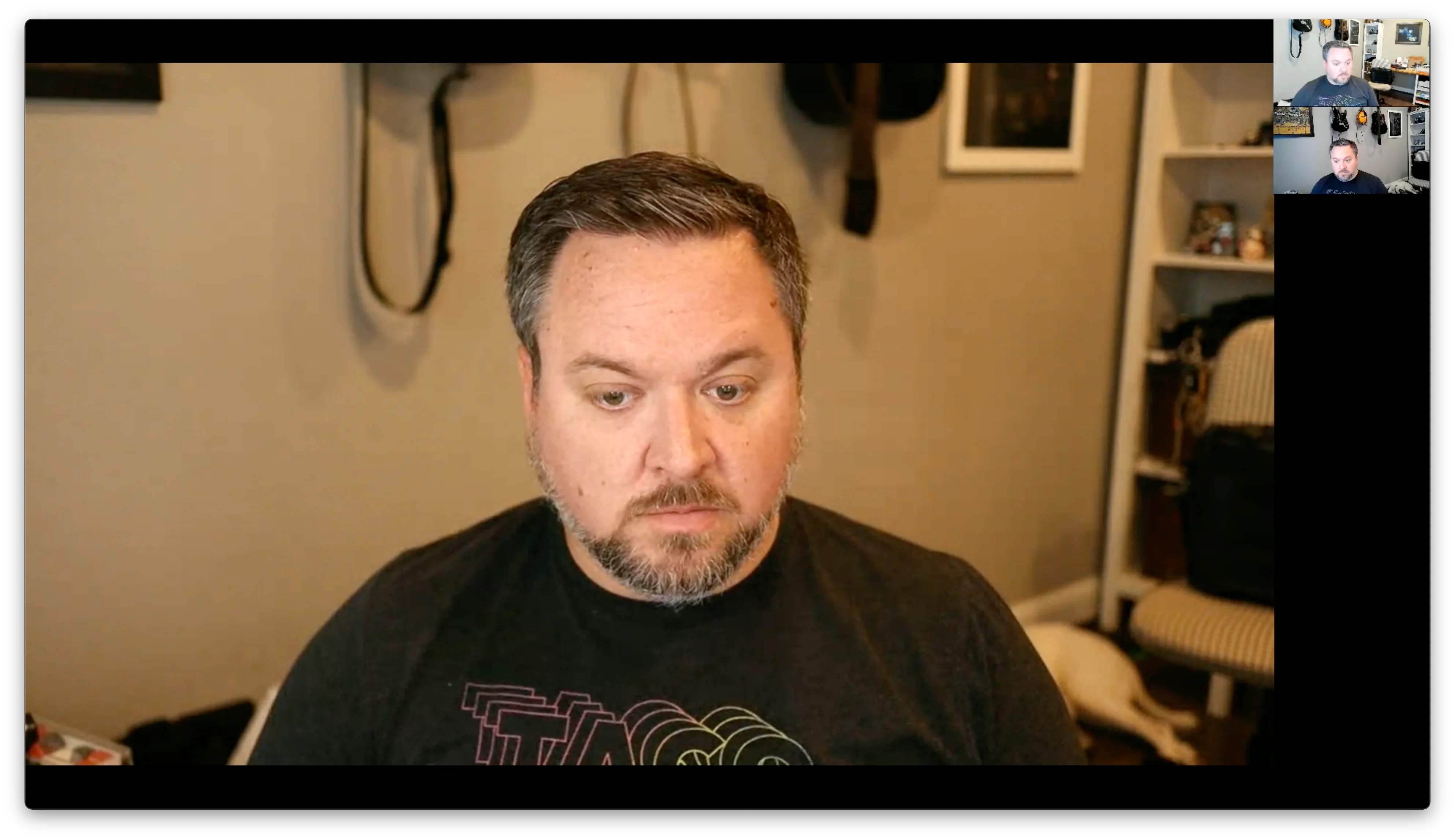
"portrait" layout with "vertical" variant:

"portrait" layout with "inset" variant:
"custom" layout with a text overlay:
Multiple live streaming instances
Daily supports multiple live streaming and recording instances per room — useful for generating independent layouts for different audiences (e.g. portrait for mobile, landscape for desktop). Pass a uniqueinstanceId to startLiveStreaming() or startRecording() to start independent instances. Each is independently controllable via updateLiveStreaming()/updateRecording() and stopLiveStreaming()/stopRecording(), and all events include an instanceId to distinguish them.
For full details, see the multi-instance guide.
The number of allowed instances per room is controlled by the max_streaming_instances_per_room domain property. Contact us to configure this.