Go to your Daily dashboard
Create and manage rooms, configure your domain, and explore call settings.
Overview
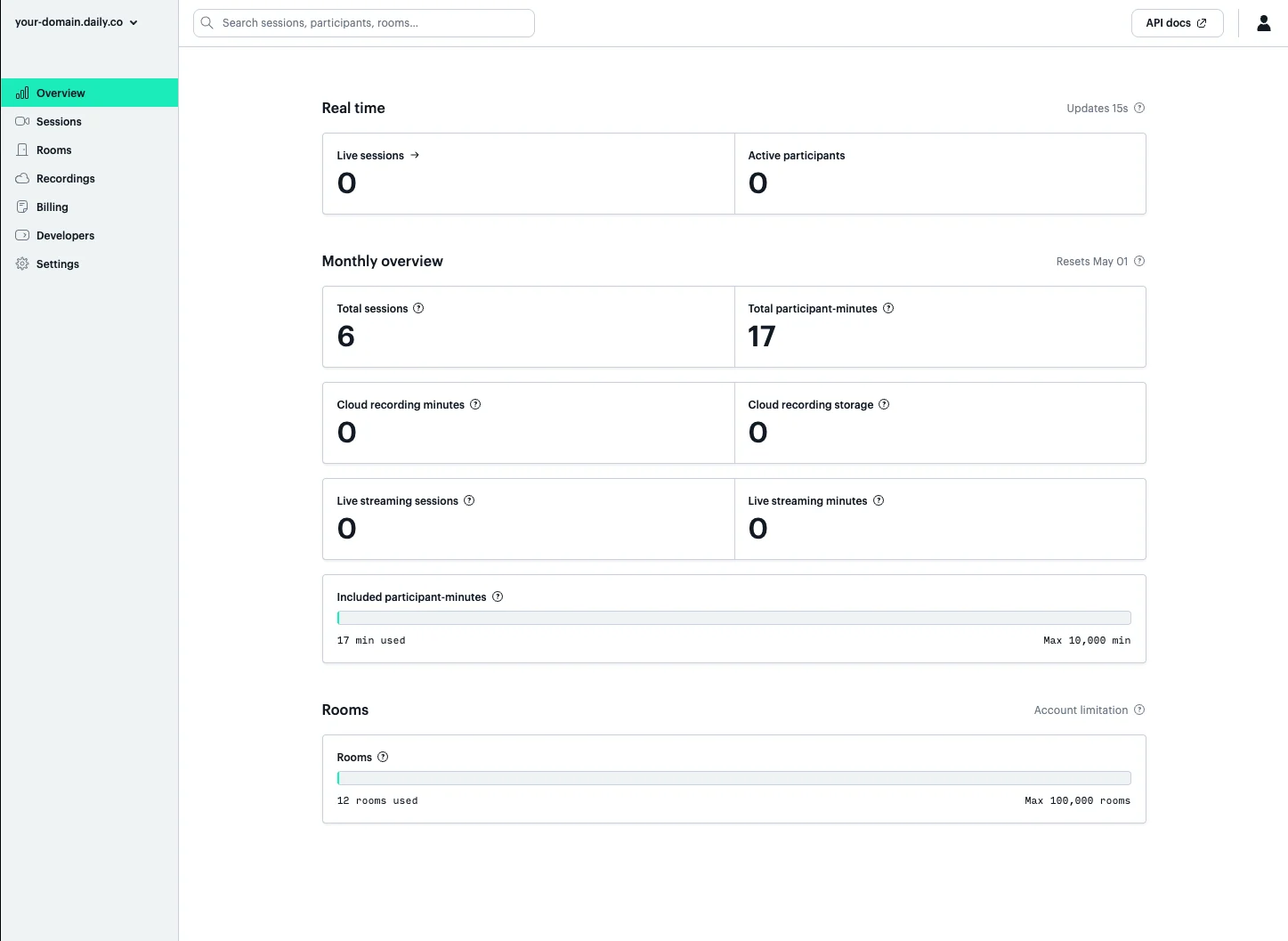
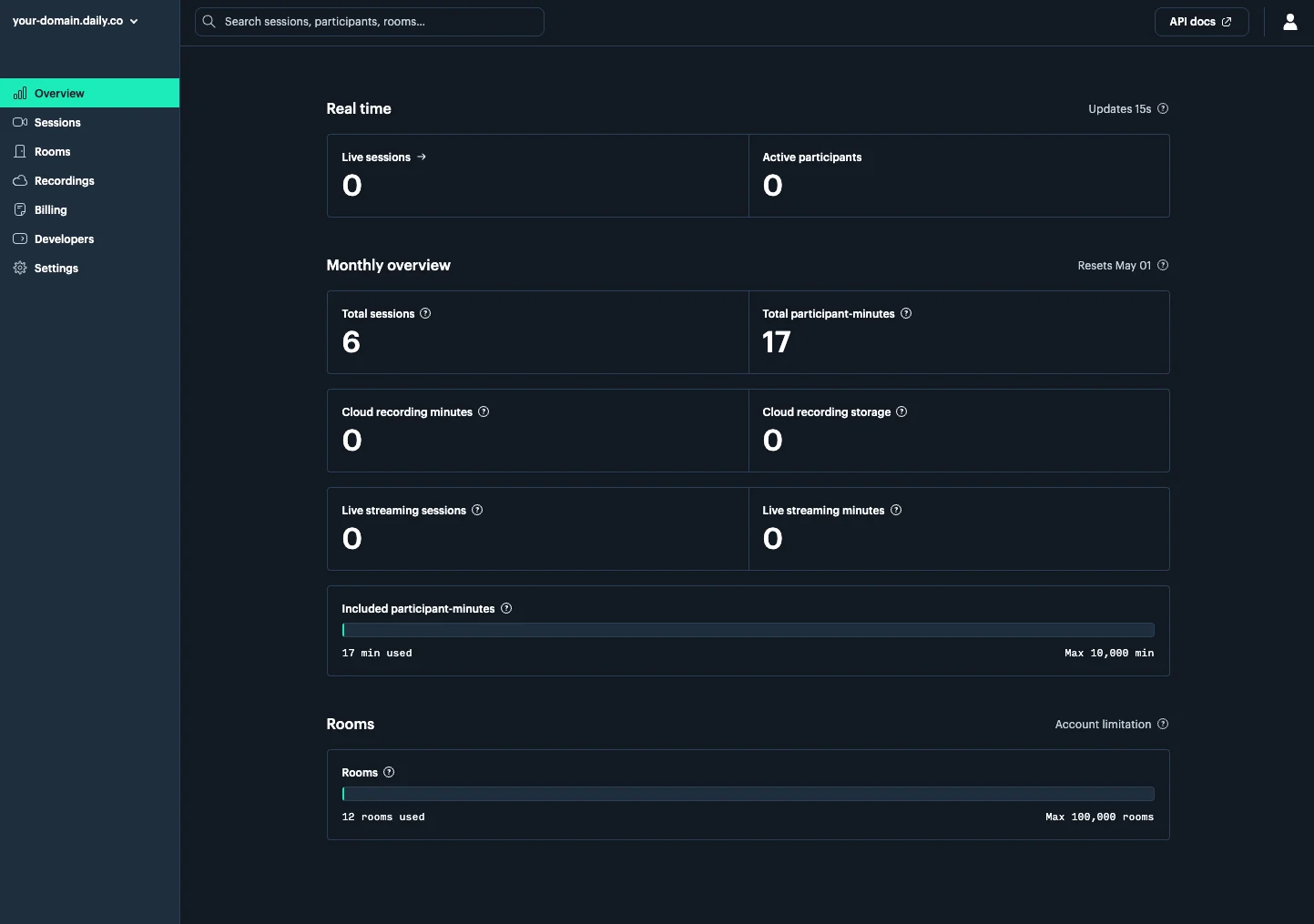
The Overview page is your domain’s home screen. It shows real-time and monthly usage at a glance:- Real time: live session count and active participant count, updated every 15 seconds
- Monthly overview: total sessions, participant-minutes, cloud recording minutes and storage, and live streaming usage for the current billing period
- Rooms: how many rooms you’ve created against your account limit
Sessions
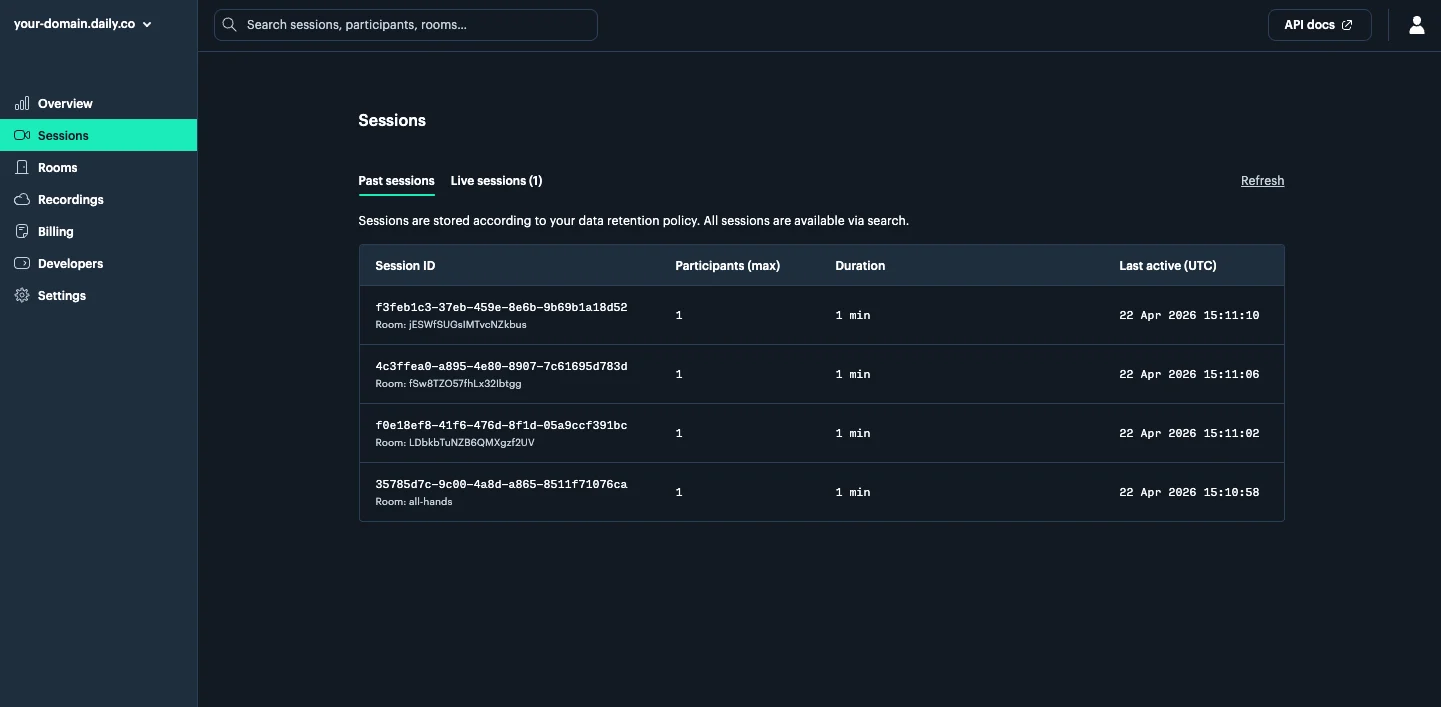
The Sessions page lists all past and live sessions on your domain, with session ID, room name, participant count, duration, and last-active time. Switch between the Past sessions and Live sessions tabs to filter the view.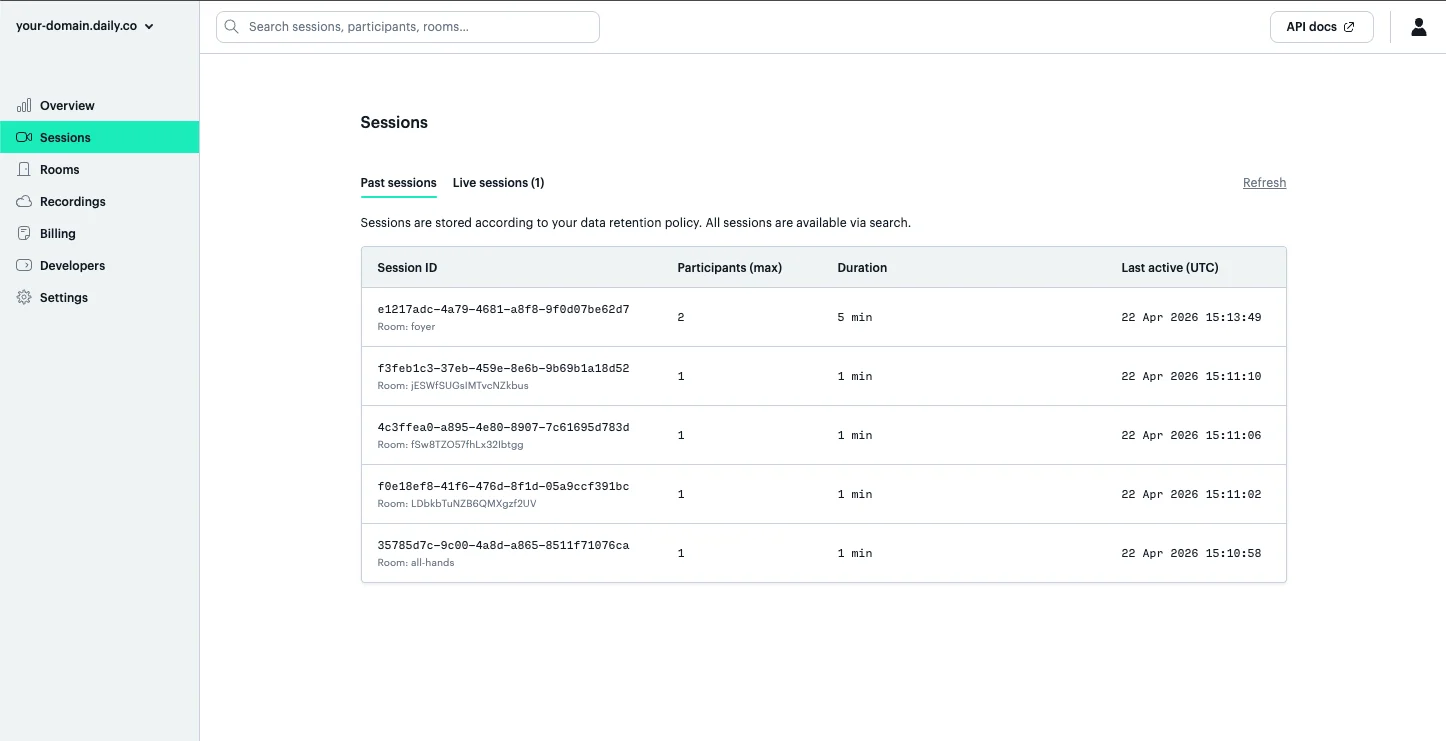
Session details
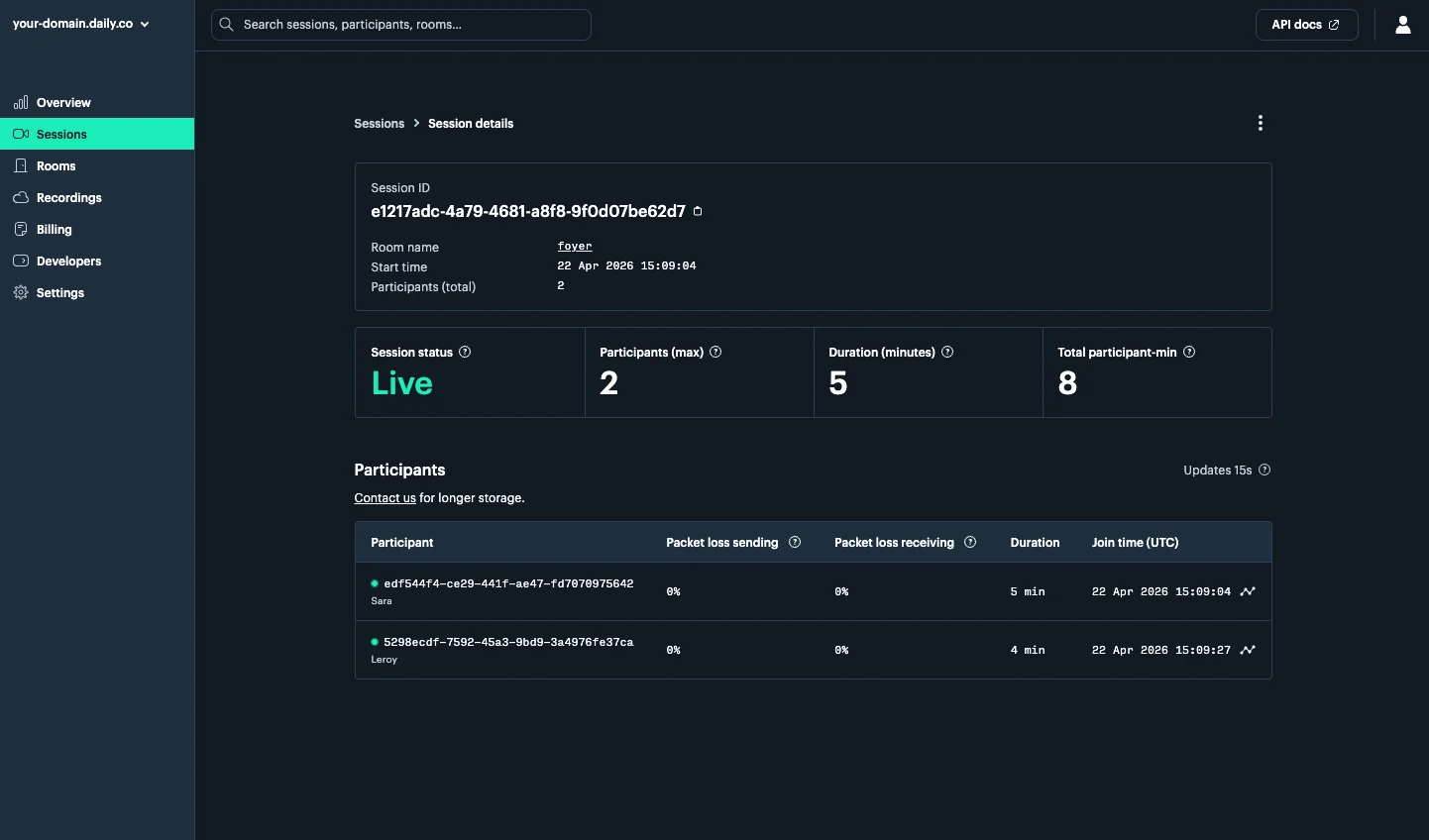
Clicking a session opens its detail view, showing session status, total participant-minutes, and a per-participant table with packet loss and join time.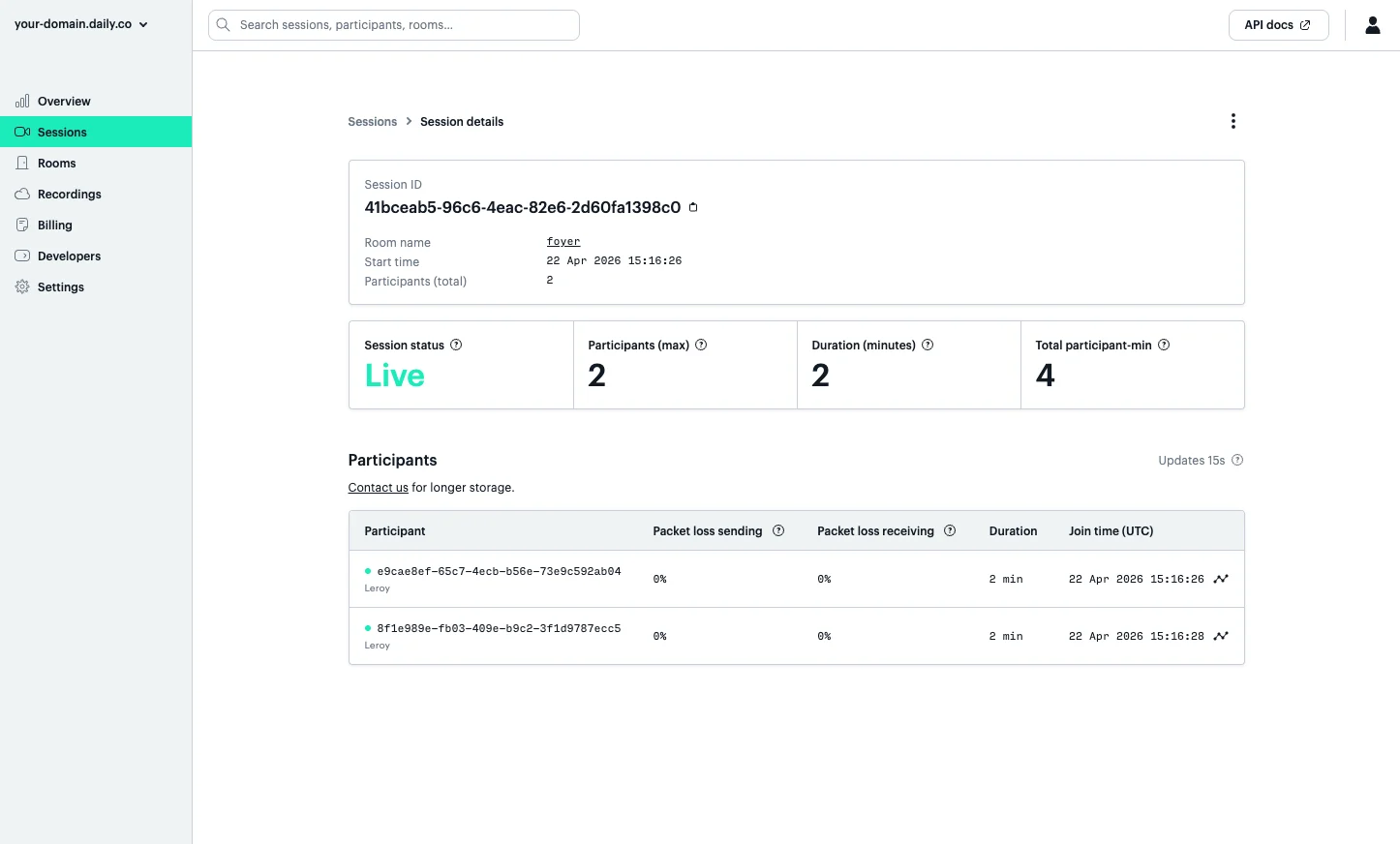
Participant details
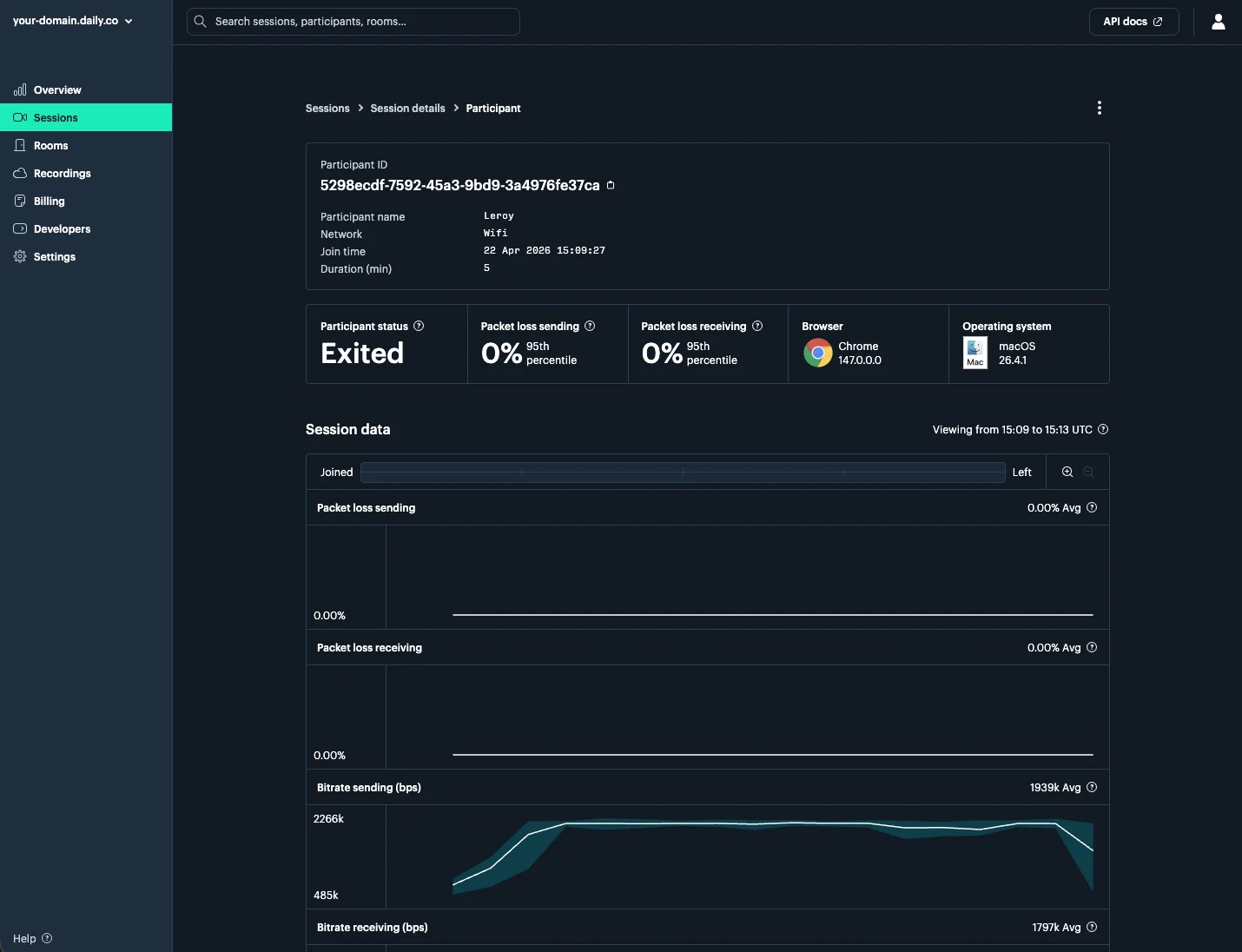
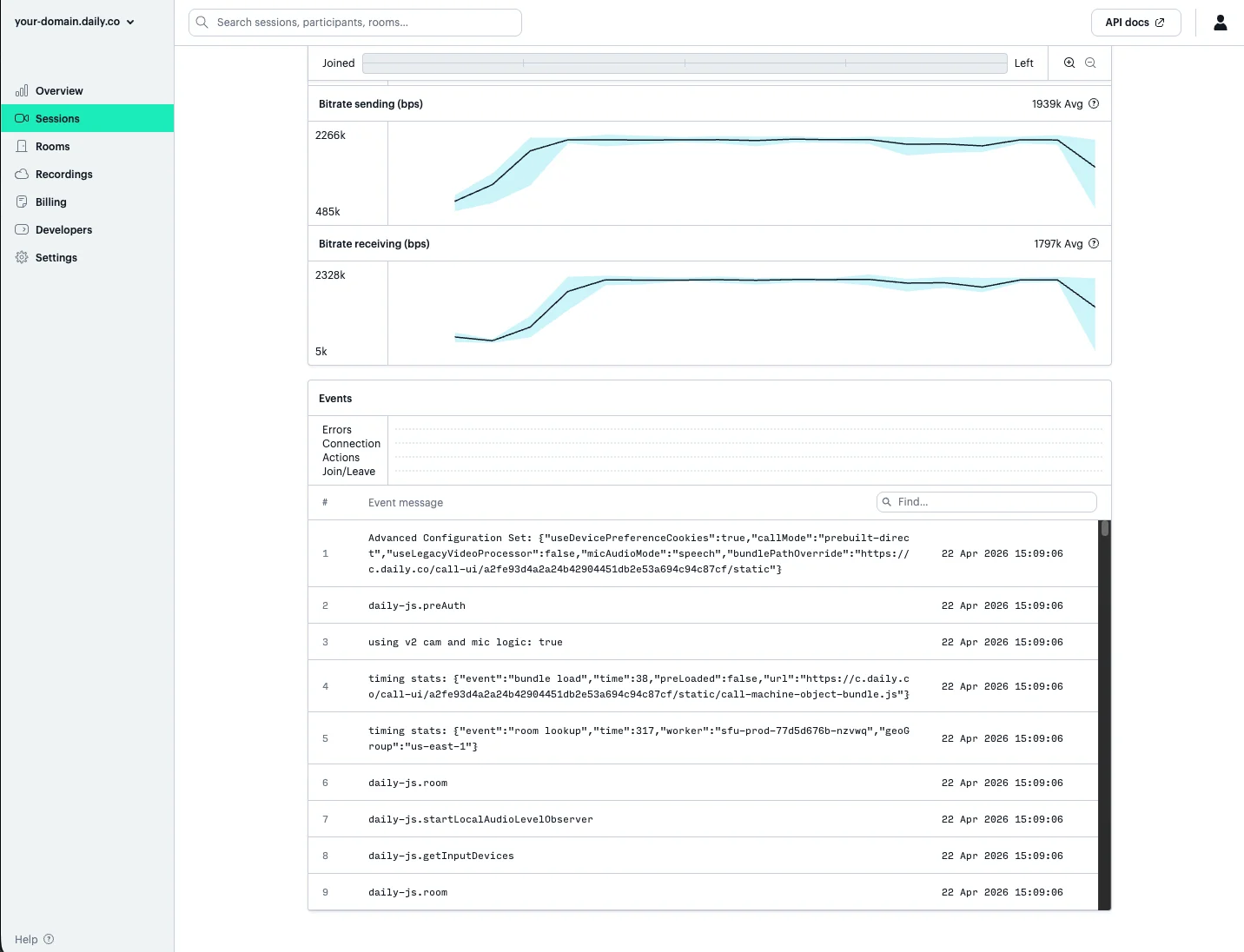
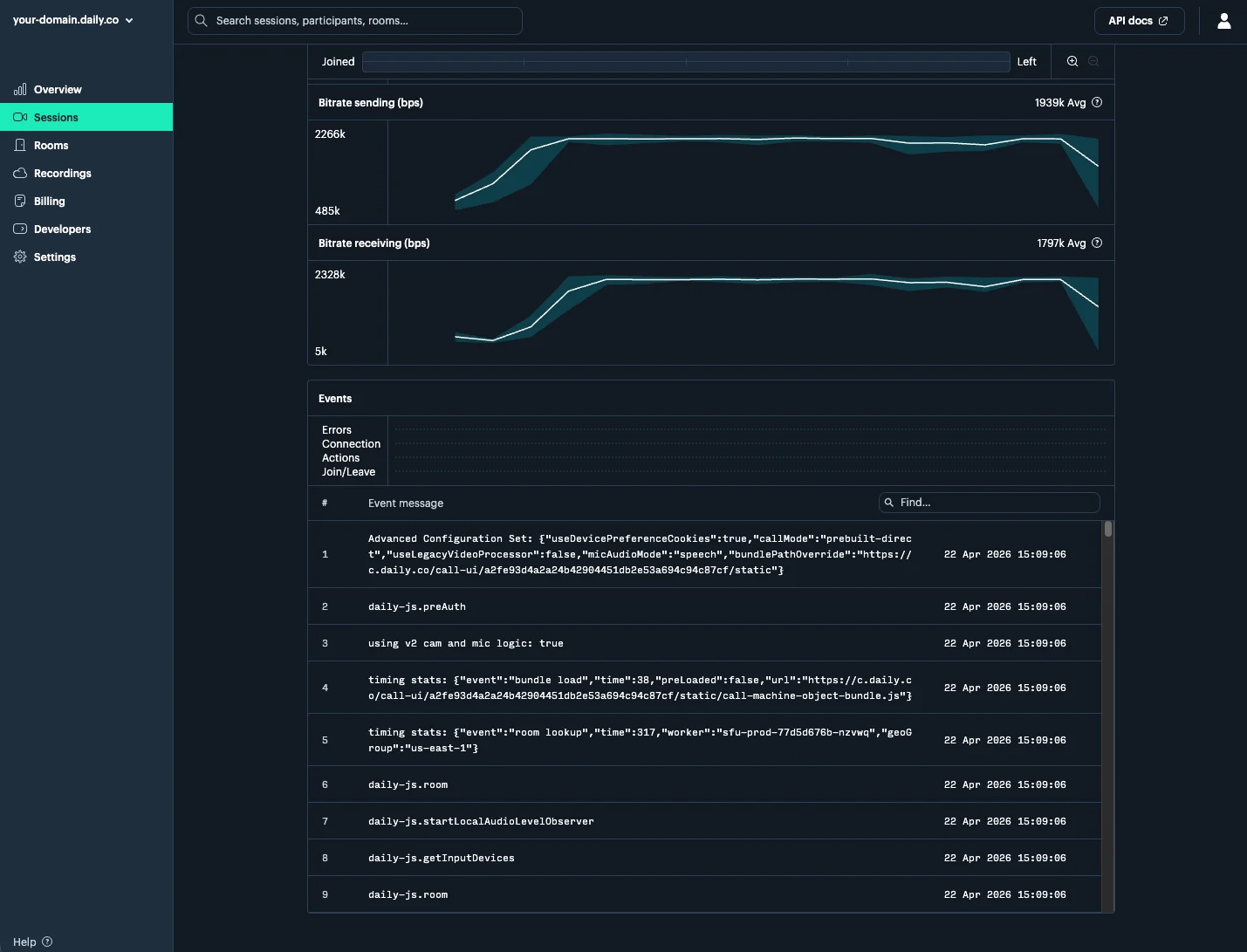
Clicking a participant opens a deep-dive view with their browser and OS, network type, and time-series charts for packet loss and bitrate over the duration of their session. Below the charts, a full event log shows every significant event from that participant’s perspective — useful for diagnosing reported call quality issues.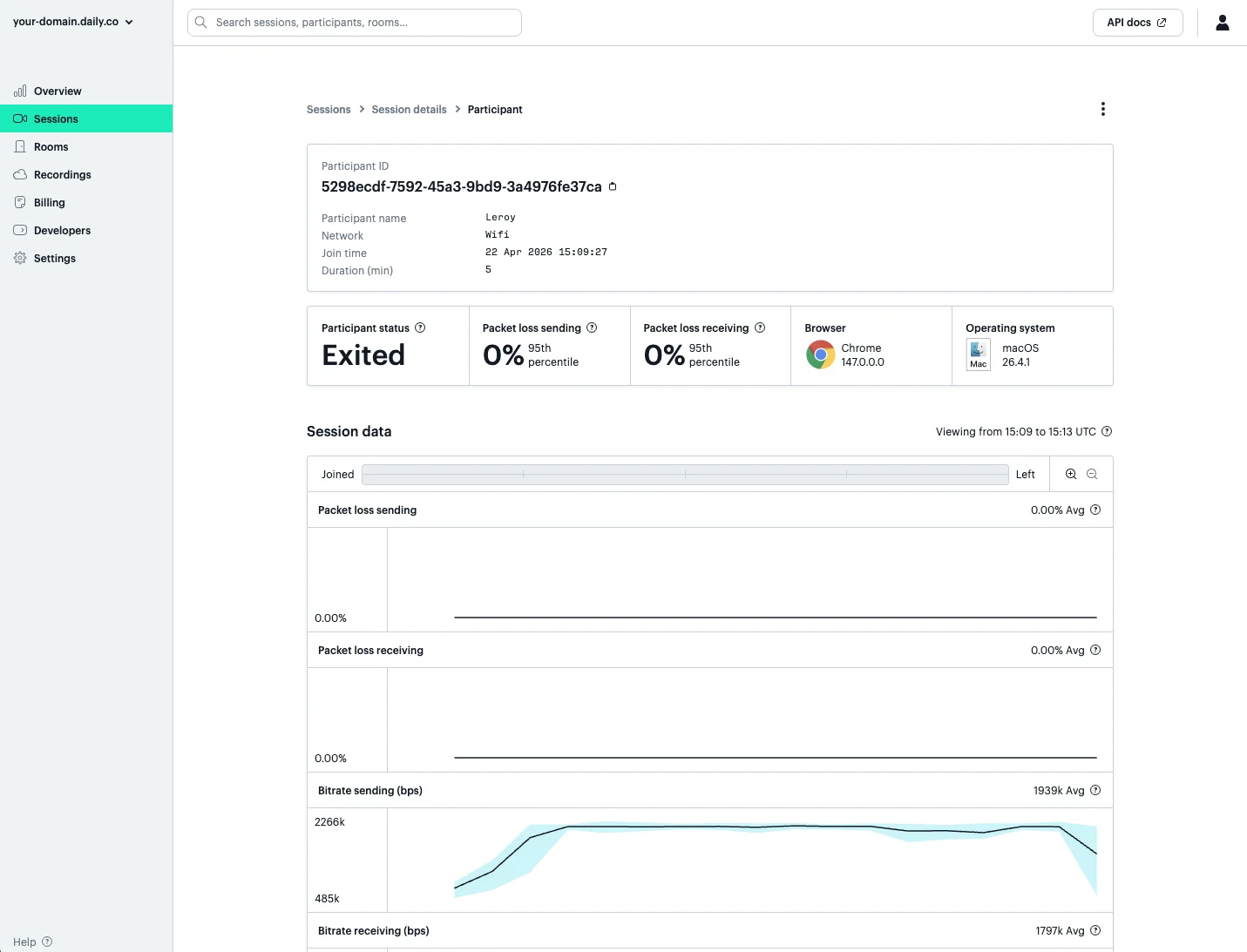
Rooms
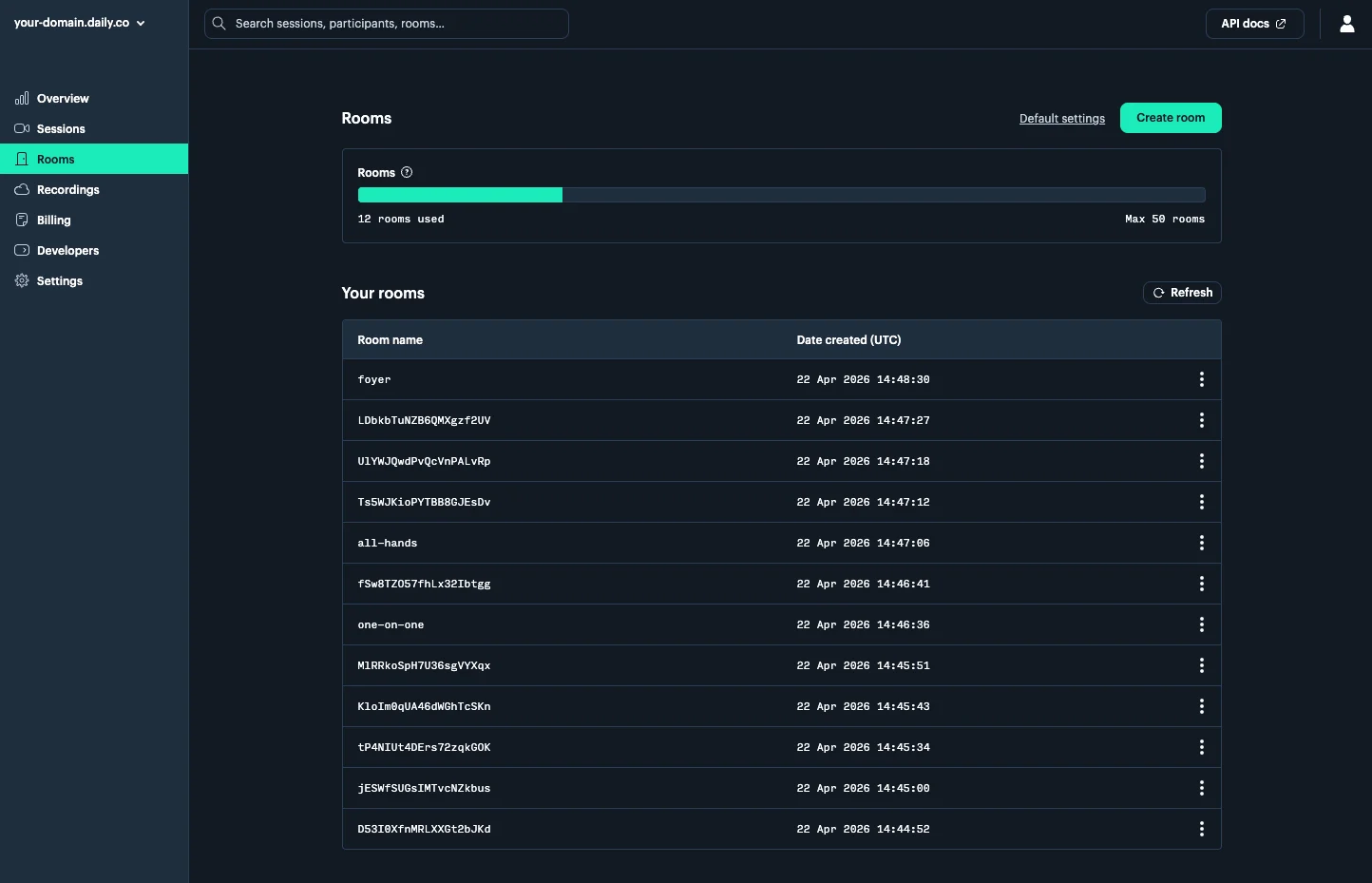
The Rooms page lists all rooms on your domain with their creation date. From here you can create new rooms, delete existing ones, update settings on an existing room, and configure default room settings that apply to all newly created rooms.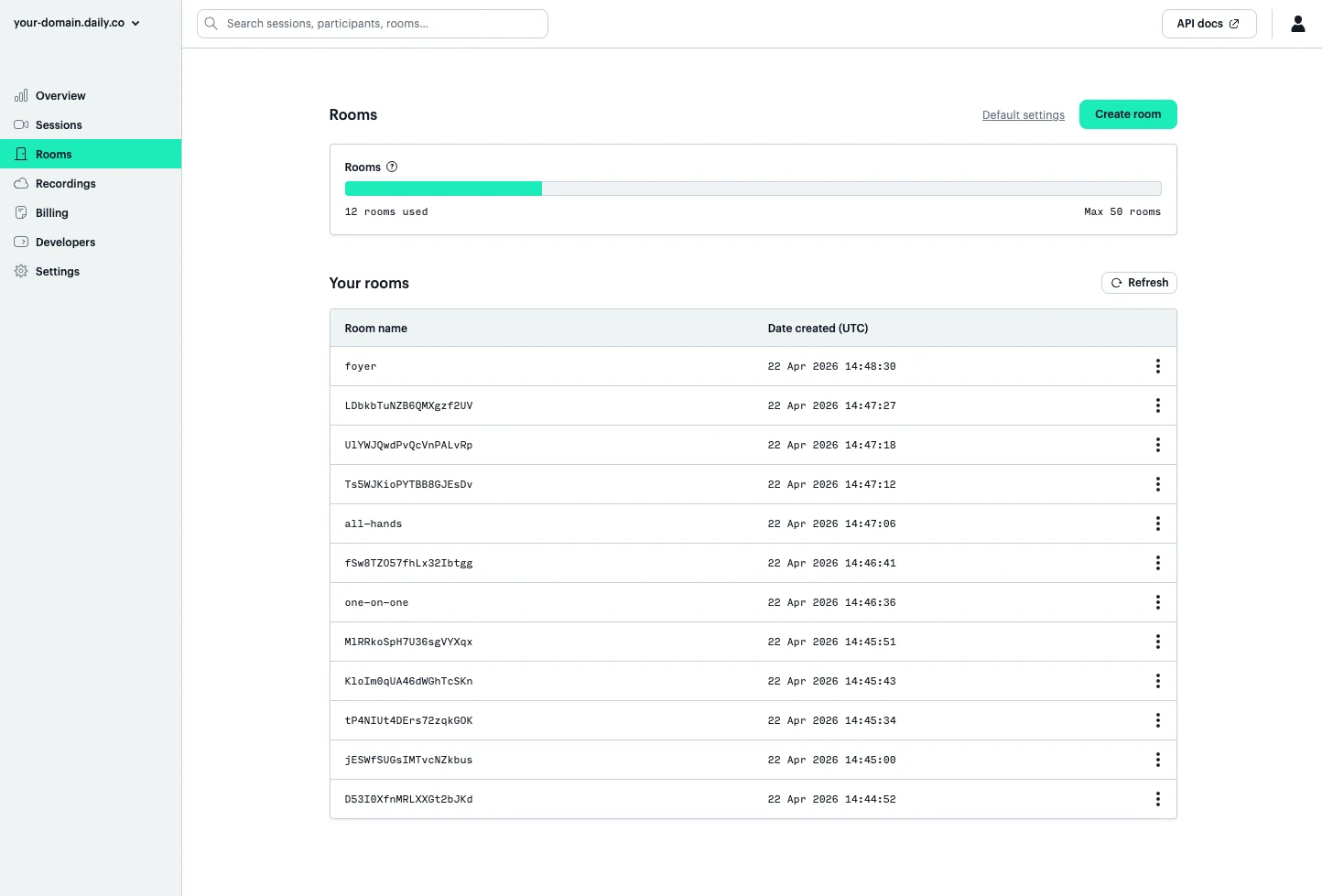
Creating a room
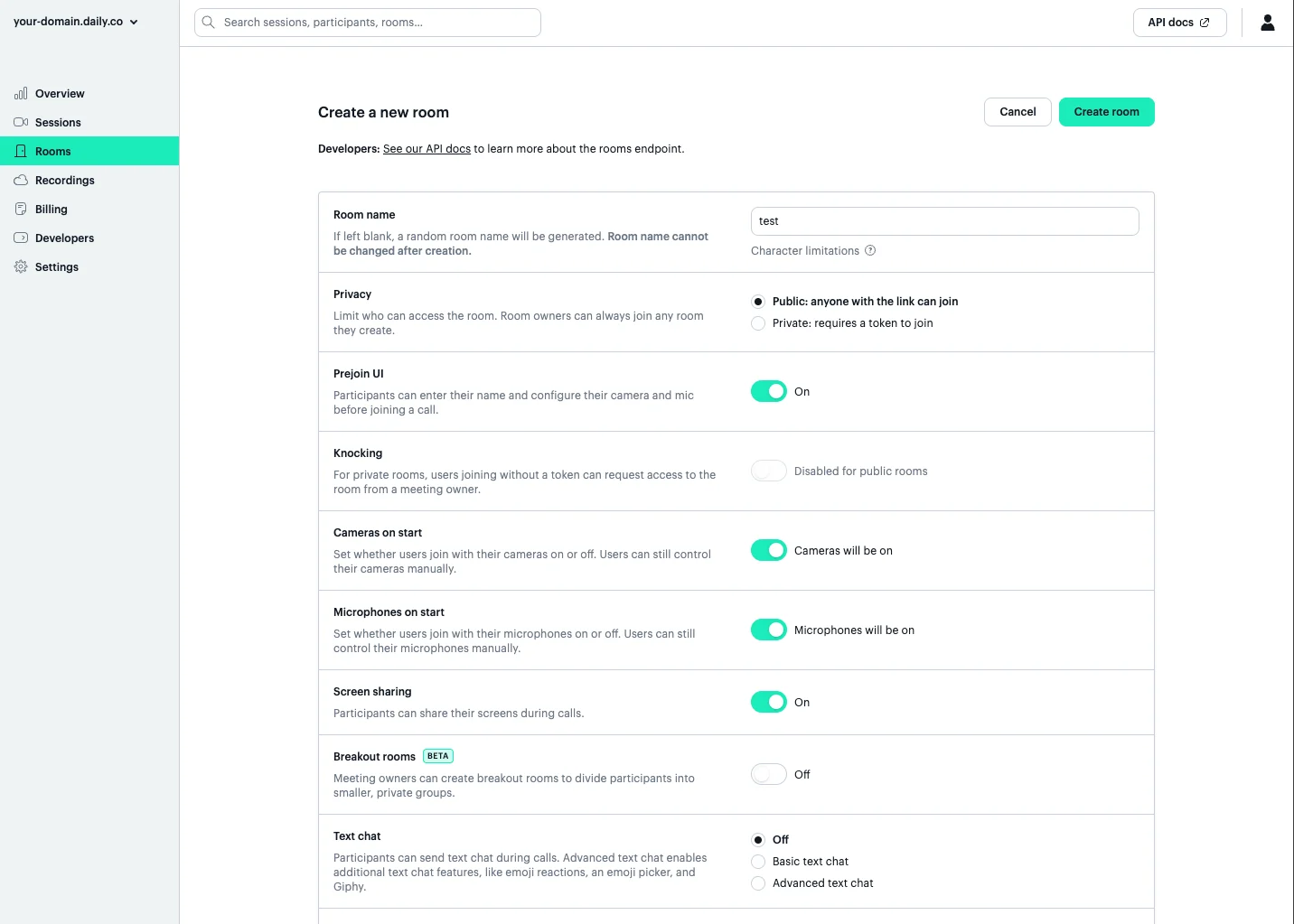
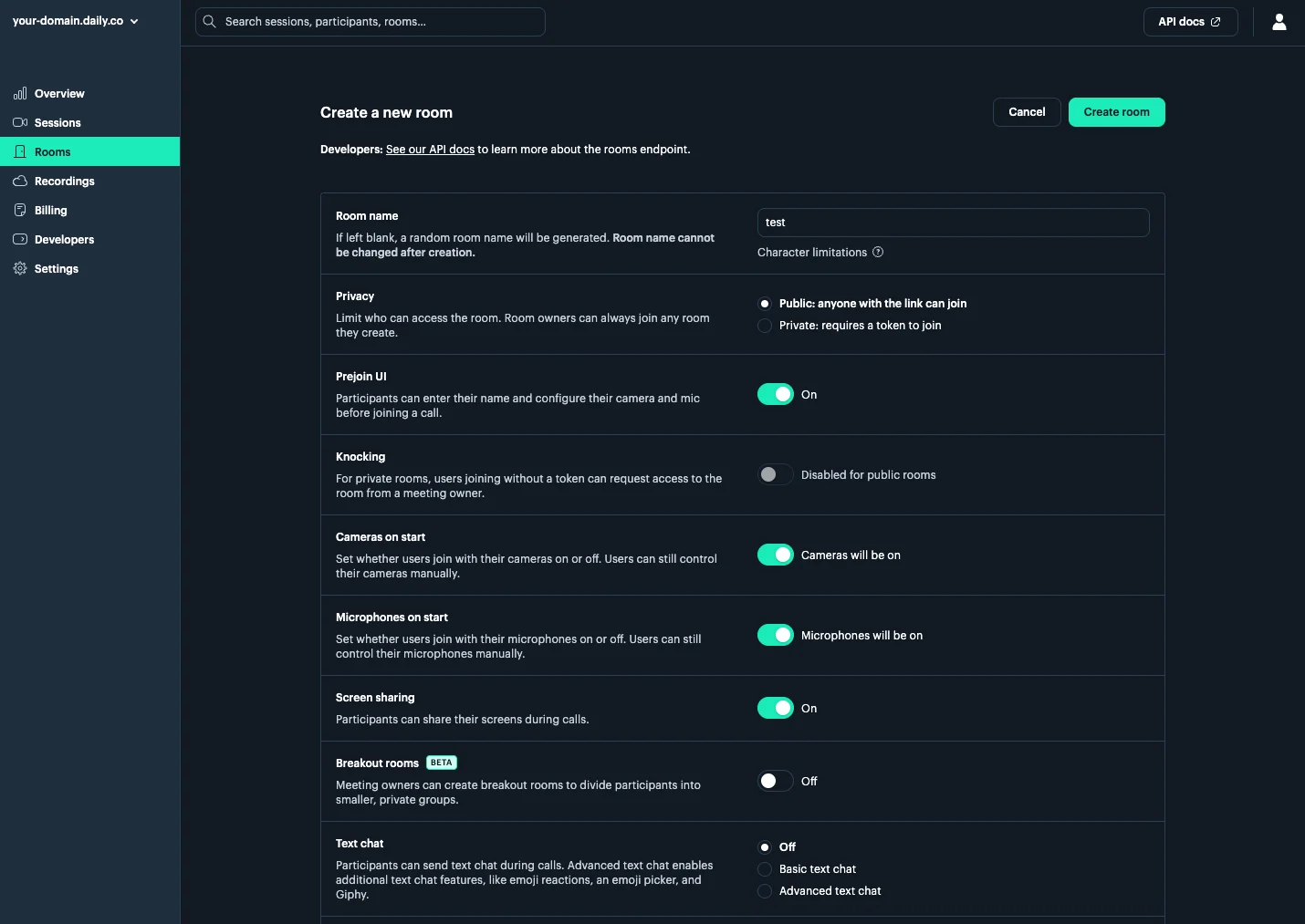
Click Create room to open the room creation form. Some of the options include:- Room name — leave blank to auto-generate a random name
- Privacy — public (anyone with the link) or private (requires a meeting token)
- Prejoin UI — whether participants see a name/device configuration screen before joining
- Knocking — allow participants to request access to private rooms
- Cameras and microphones on start — default device state when joining
- Various UI Settings — enable or disable per room (only applies to calls using Daily Prebuilt)
Recordings
The Recordings page lists cloud recordings stored on your domain. From here you can download or delete recordings. See the recording guide for how to enable and configure recording.Developers
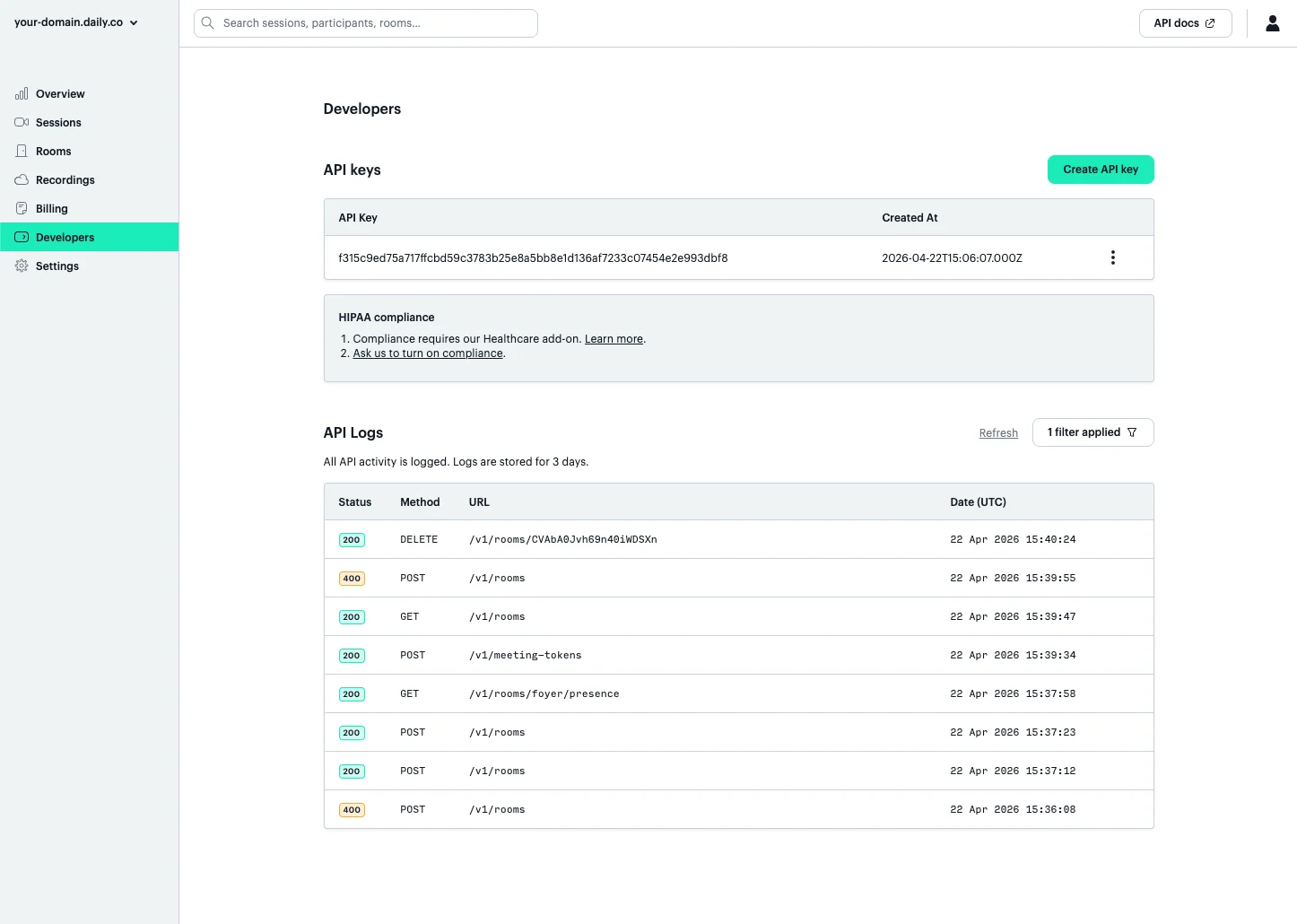
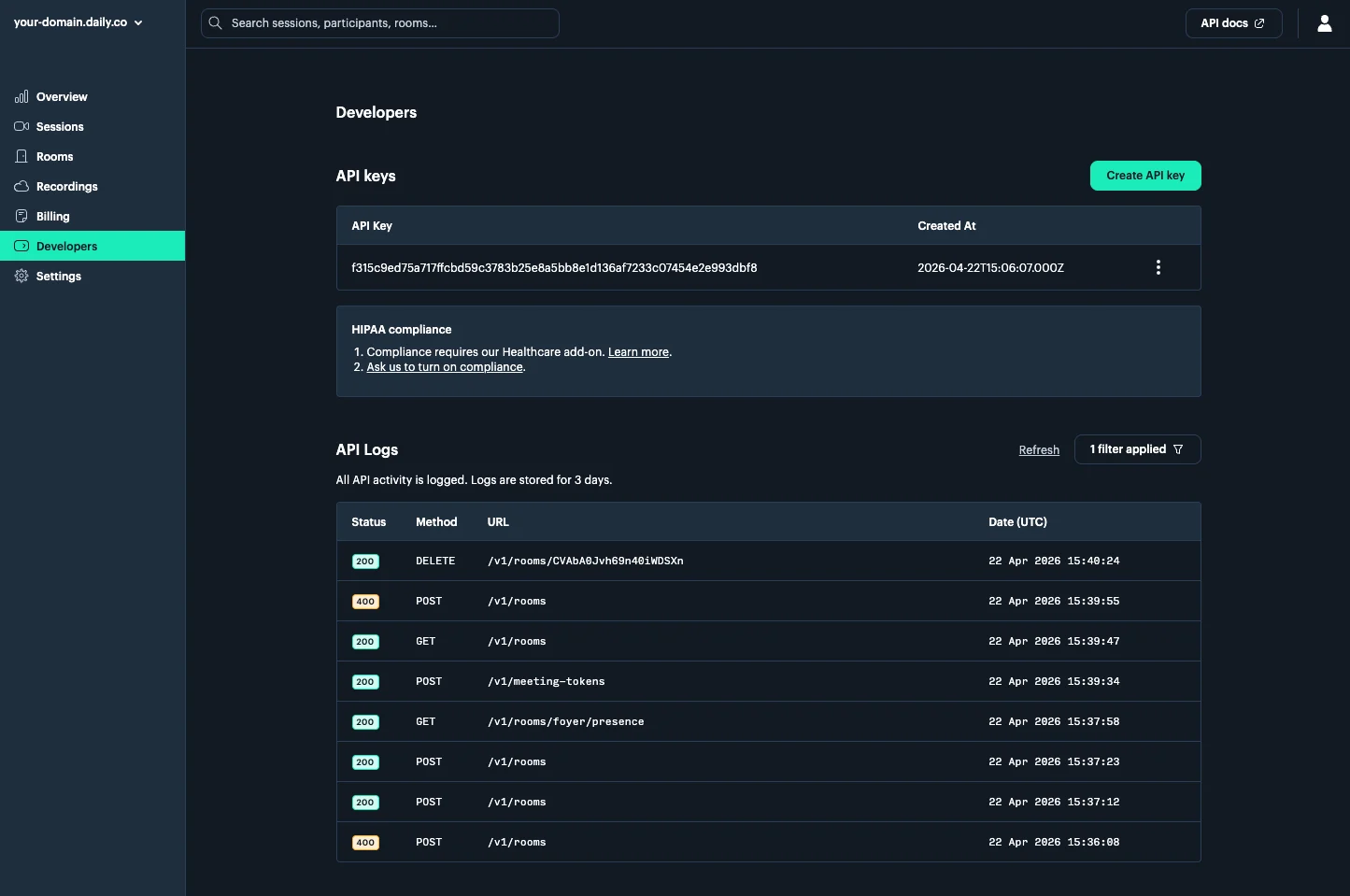
The Developers page has two sections:- API keys: view, create, and rotate your Daily API keys. Your API key authenticates all REST API requests — treat it like a password and never expose it client-side.
- API logs: a real-time log of all REST API requests made against your domain, with HTTP status, method, endpoint, and timestamp. Logs are retained for 3 days and are useful for debugging integration issues.
Settings
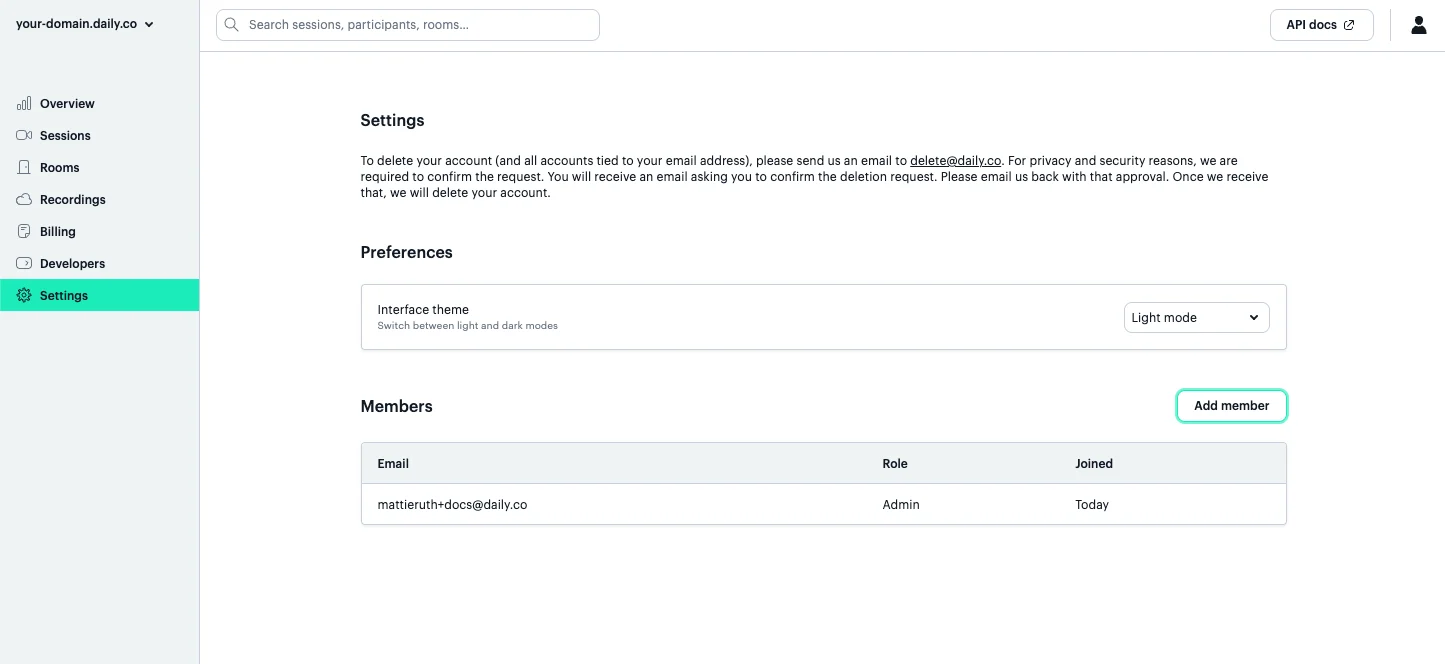
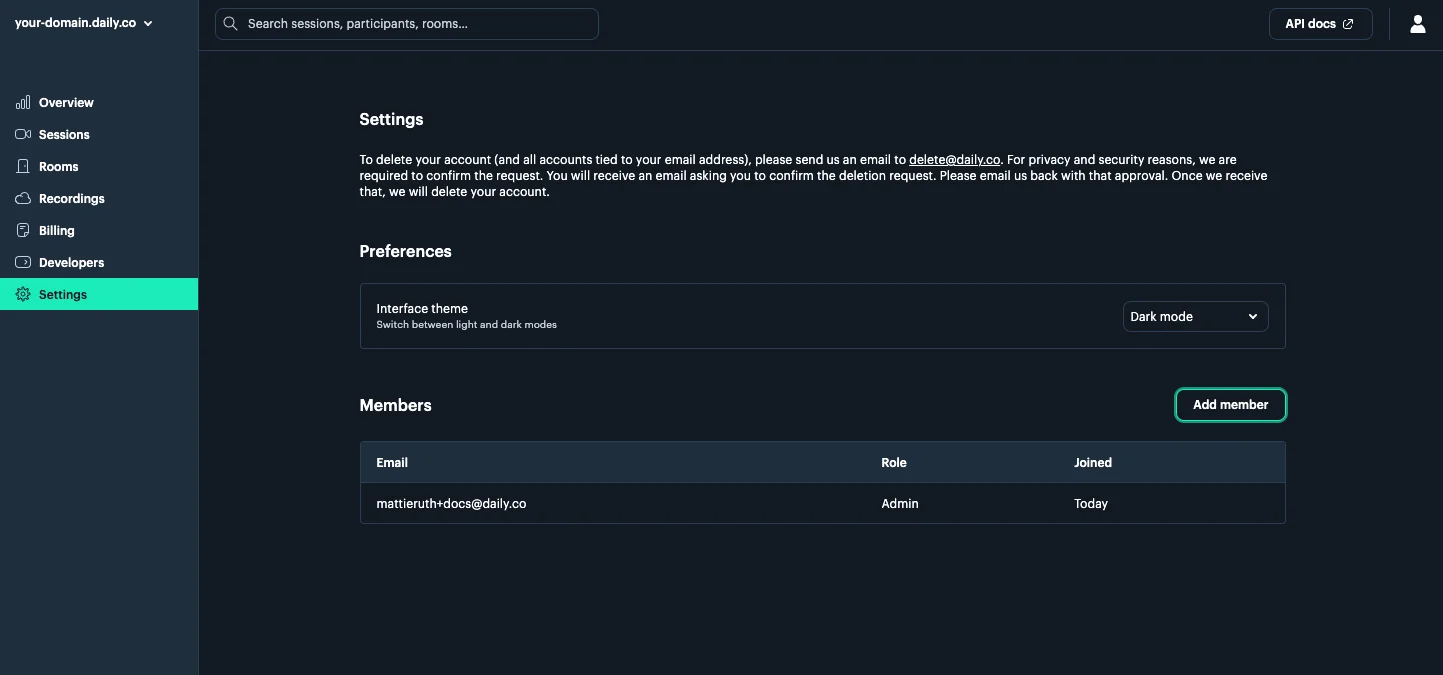
The Settings page is where admins manage team access to the dashboard.User roles
There are two roles on a Daily team:- Admin — full access, including billing, API keys, and team management
- Member — access to rooms, sessions, and API logs, but not billing or API keys
Dashboard permissions
Adding team members
- Click the Settings tab.
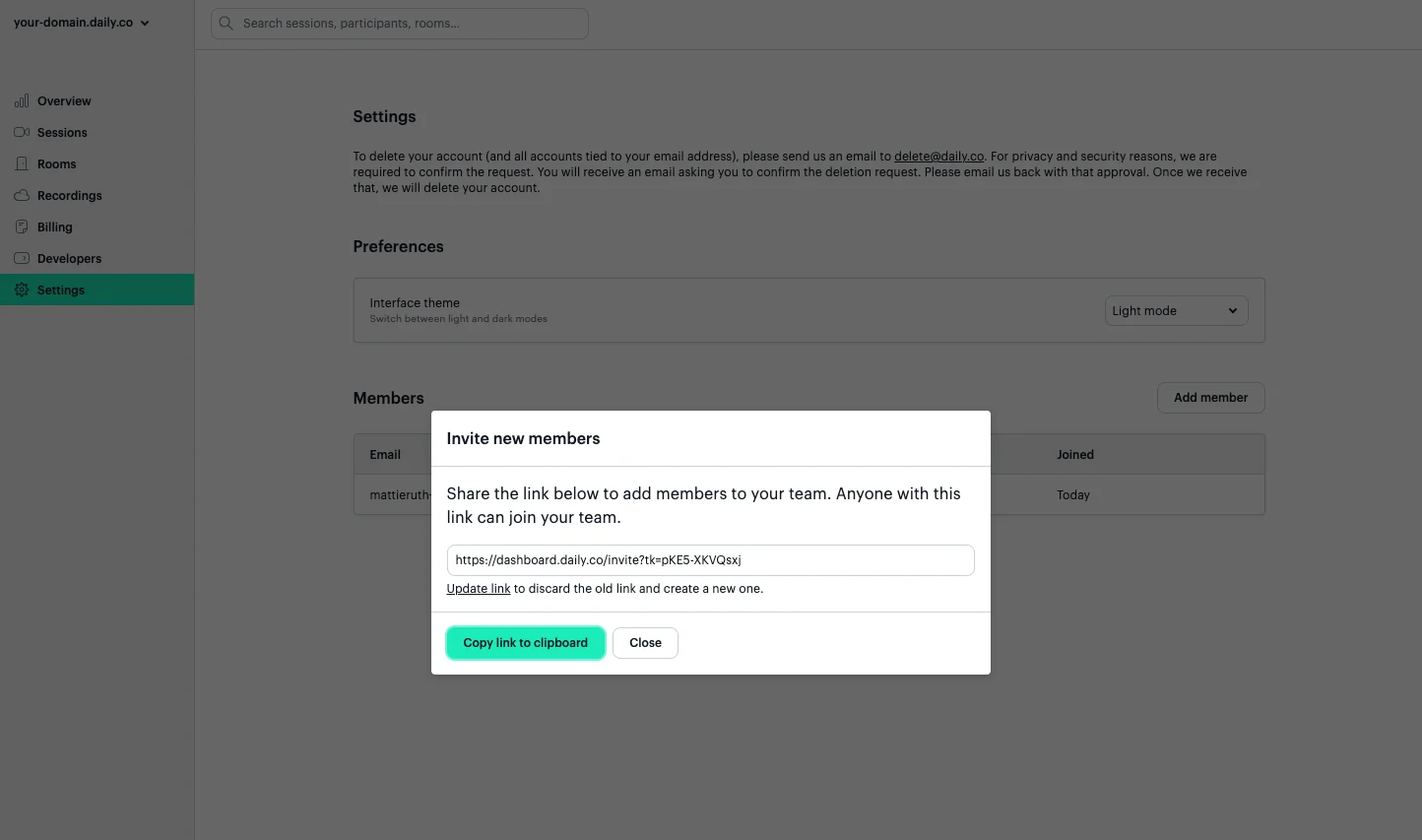
- Click Add member.
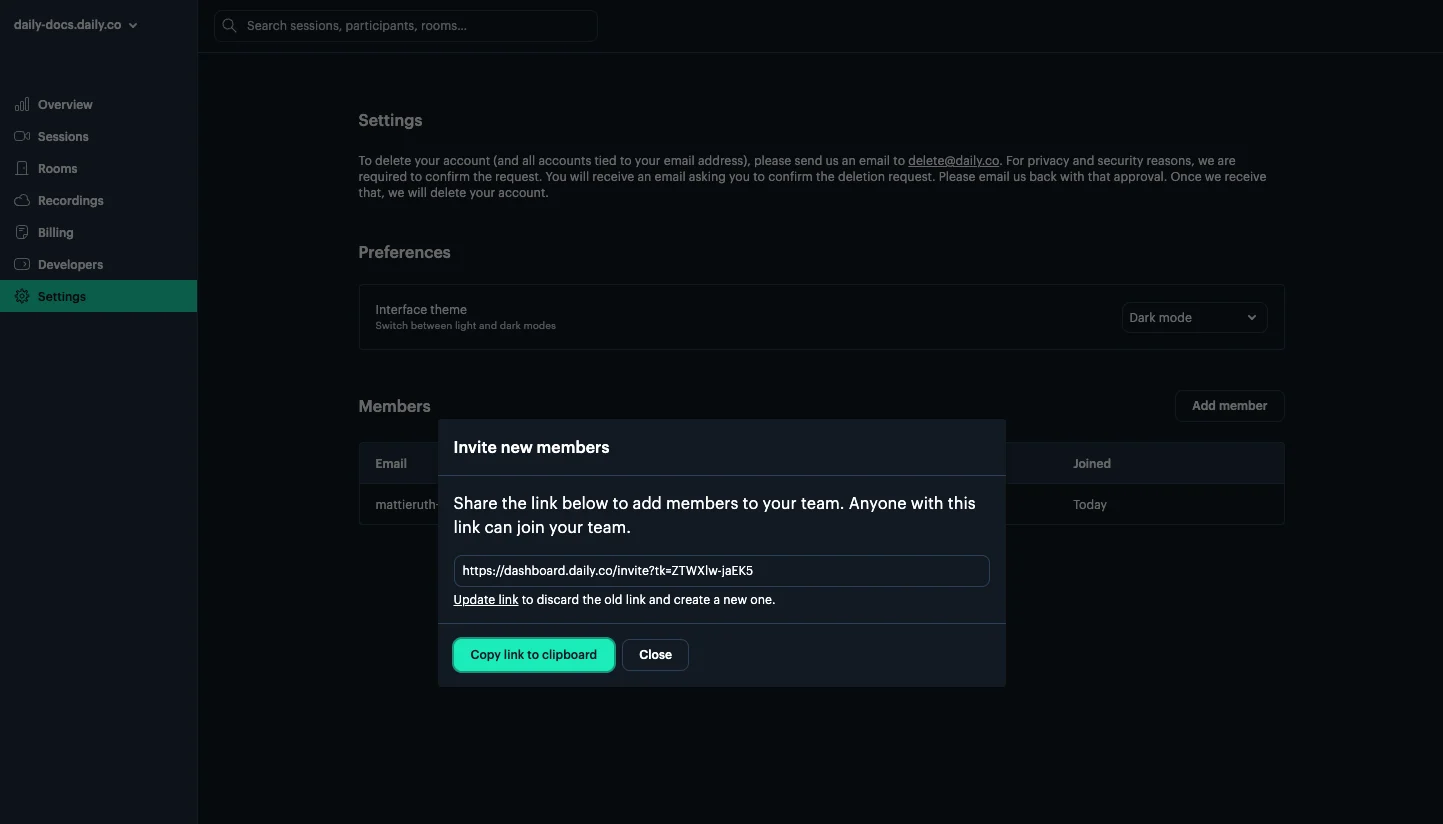
- Copy and share the invite link from the modal that appears.